Building a WordPress website in 2026 does not require advanced coding skills. With the right domain, hosting, theme, and plugins, you can create a professional website for a business, blog, portfolio, service, or online store.
However, choosing the right tools and setting up your website correctly from the beginning can save you time and prevent common problems later.
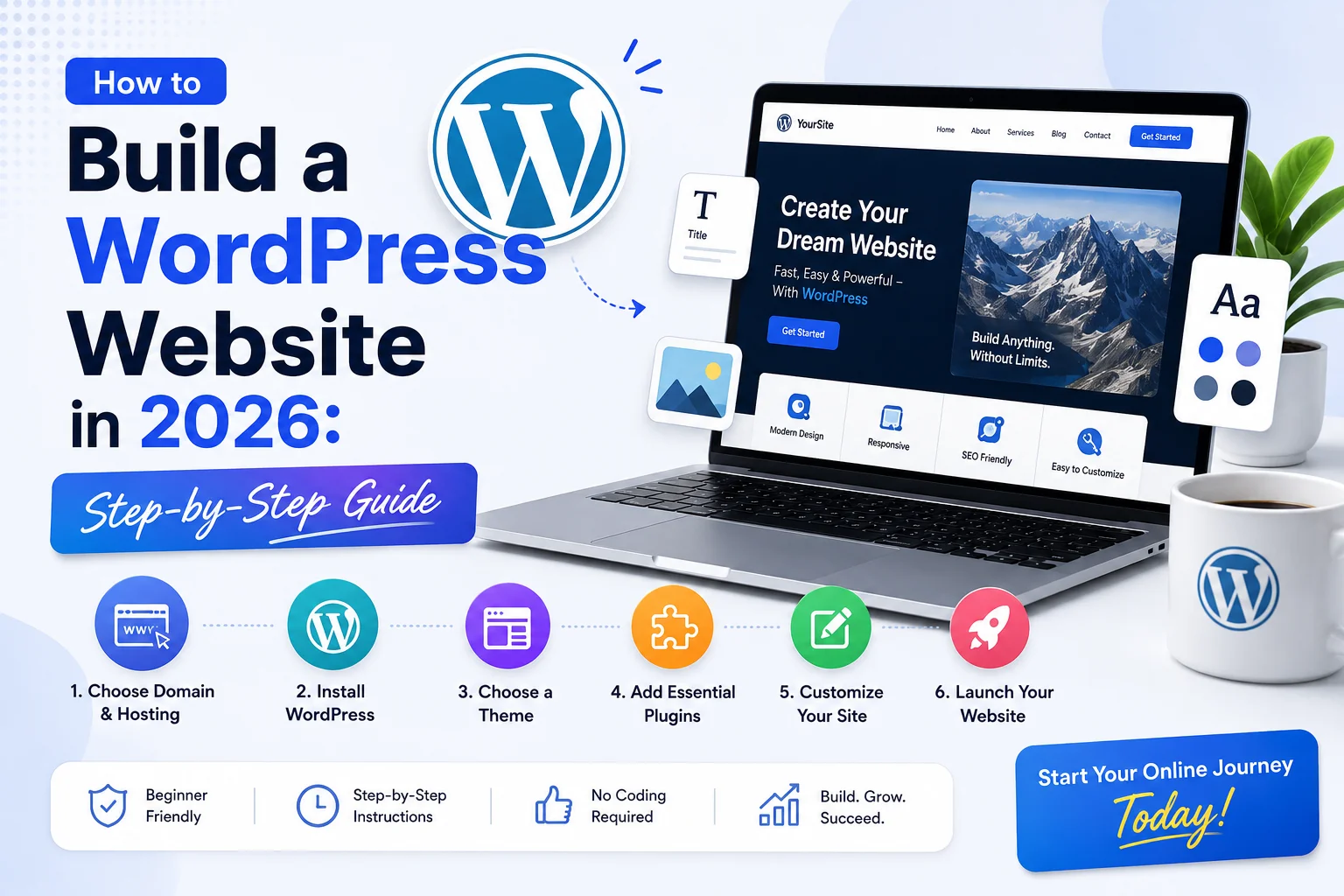
Building a WordPress website step by step starts with choosing the right domain and hosting. From installing WordPress and configuring essential settings to creating key pages, adding the right functionality, improving SEO and security, and preparing your site for launch, each step helps create a website that is reliable, user-friendly, and ready to grow.
What Is WordPress?
WordPress is an open-source content management system (CMS) that lets you create and manage websites without building every feature from scratch. You can use it for blogs, business websites, portfolios, membership sites, ecommerce stores, and many other types of websites.
One reason WordPress is popular is its flexibility. Themes control much of the site’s design, while plugins can add features and functionality.
Before getting started, it is also important to understand the difference between WordPress.org and WordPress.com. WordPress.org is the self-hosted option, where you typically choose your own hosting and have greater control over themes, plugins, and website configuration. WordPress.com is a hosted service with different plans and management options.
For users who want greater control and customization, self-hosted WordPress is often the more flexible choice.
What Do You Need to Build a WordPress Website?
Before you start building, prepare these essentials:
- A domain name
- WordPress hosting
- WordPress installation
- A suitable theme
- Essential plugins
- Website content and images
- SSL protection
You do not need to install dozens of tools on day one. Start with the features your website actually needs and add functionality as your requirements grow.
How to Build a WordPress Website Step by Step
Step 1: Choose a Domain Name and WordPress Hosting
Your domain name is the address visitors use to access your website. Choose a name that is short, memorable, easy to spell, and relevant to your brand or website purpose.
Avoid unnecessarily long names, confusing spellings, or domains that are difficult to communicate verbally.
Next, choose WordPress hosting. Hosting stores your website files and makes them available to visitors.
When comparing hosting options, consider:
- Website performance
- Storage and resources
- Security features
- Backup options
- Customer support
- Scalability
The cheapest hosting plan is not necessarily the best option for every website. Consider your expected traffic and technical requirements before choosing a plan.
Step 2: Install WordPress
After purchasing hosting and connecting your domain, install WordPress.
Most beginner-friendly hosting providers offer a guided or one-click installation process. Typically, you select your domain, create an administrator account, and set your login credentials.
A manual installation is also possible, but it involves additional steps such as creating a database and uploading WordPress files.
For beginners, the hosting provider’s automated installation is usually the simpler starting point.
Once WordPress is installed, log in to your dashboard. This is where you will manage pages, posts, themes, plugins, settings, and other parts of your website.
Step 3: Configure Essential WordPress Settings
Before designing your website, review the basic WordPress settings.
Start with your site title, tagline, language, timezone, and homepage configuration. Then review your discussion and privacy settings according to the type of website you’re creating.
Pay particular attention to your permalink structure.
A URL such as:
example.com/about-us/
is easier to understand than a URL containing unnecessary parameters.
You should also enable HTTPS, use a strong administrator password, and avoid using easily guessed usernames.
Keeping WordPress, themes, and plugins updated is another important part of website maintenance and security.
Step 4: Choose and Customize a WordPress Theme
Your WordPress theme controls much of your website’s appearance and layout.
Instead of choosing a theme only because it looks attractive, evaluate whether it fits your website’s actual requirements.
Look for:
- Responsive design
- Good performance
- Regular updates
- Customization options
- Accessibility considerations
- Compatibility with required plugins
Free themes can work well for simple websites, while premium themes may provide additional features, design options, or support.
After installing your theme, customize your logo, colors, typography, header, footer, navigation, and homepage.
Always check the design on mobile devices as well as desktop screens. A website that looks good on a large monitor may still have usability problems on smaller screens.
Step 5: Create Essential Website Pages
Your website should make it easy for visitors to understand who you are, what you offer, and how they can contact you.
Depending on your website type, common pages include:
- Home
- About
- Services
- Products
- Blog
- Contact
- Privacy Policy
- Terms and Conditions
Your homepage should communicate your main value quickly.
For a business website, a simple structure can be:
Hero section → Benefits → Services or Products → Trust signals → Call to action
Avoid filling the homepage with unnecessary sections. Every major section should have a clear purpose.
If you publish articles, organize them into logical categories and connect related content with relevant internal links.
Step 6: Set Up Navigation and Site Structure
A clear site structure helps visitors find information without unnecessary clicks.
Create a simple primary navigation menu with links to your most important pages. Depending on your website, this could include Home, About, Services, Products, Blog, and Contact.
You can also use the footer for secondary navigation, legal pages, contact information, or other useful links.
Think about your structure before creating a large number of pages. Related pages should have clear relationships, and important content should be easy to reach.
A logical structure also makes it easier to build useful internal links as your website grows.
Step 7: Install Essential WordPress Plugins
Plugins extend WordPress by adding features that are not included in the core platform.
Depending on your requirements, you may need plugins for:
- SEO
- Security
- Backups
- Performance
- Contact forms
- Analytics
- Ecommerce
When selecting WordPress plugins, check whether they are actively maintained, compatible with your WordPress version, supported by the developer, and actually necessary for your website.
Avoid installing several plugins that perform the same function. More plugins do not automatically mean a better website.
The right approach is to install only the functionality you need and review your plugins regularly.
Step 8: Add Ecommerce Functionality With WooCommerce
If you want to sell products or services online, WooCommerce can turn your WordPress website into an ecommerce store.
A WooCommerce website may need functionality for:
- Products
- Payments
- Shipping
- Taxes
- Checkout
- Orders
- Customer management
After setting up the basic store, you can add carefully selected WooCommerce plugins when your business requires additional functionality.
For example, an online store may need product customization, advanced forms, customer approvals, or specialized checkout features.
Add Advanced Functionality to Your WordPress Website
Not every website needs advanced features. However, specialized functionality can become useful as your business requirements grow.
Add Product Selection to Contact Forms
If your WooCommerce store uses Contact Form 7 for product inquiries, customers may need an easier way to identify the product they are asking about.
A WooCommerce product dropdown can allow customers to select a product directly within a contact form instead of manually entering the product name.
This can be useful for quotation requests, product inquiries, and customer support workflows.
Add Digital Signatures to WooCommerce
Some businesses need customers to approve orders, agree to terms, sign waivers, or complete other document-related processes.
A WooCommerce digital signature plugin can add signing functionality to suitable ecommerce workflows.
The important consideration is to choose functionality based on a genuine business requirement rather than adding features simply because they are available.
Optimize Your WordPress Website for SEO
Building the website is only the beginning. You also need to make it understandable and useful for search engines and visitors.
Start with a logical website structure and descriptive URLs. Then optimize important page elements such as:
- SEO titles
- Meta descriptions
- Headings
- Images and alt text
- Internal links
- Page content
Use your target keyword naturally. Do not repeat the same phrase in every paragraph simply to increase keyword frequency.
For example, a page about building a WordPress website can naturally discuss related topics such as WordPress hosting, themes, plugins, website setup, customization, security, and performance.
Internal links should also be contextual. Link to another page when it provides additional information that genuinely helps the reader.
Most importantly, create useful content that answers the visitor’s question clearly rather than writing primarily for search engines.
Can AI Help You Build a WordPress Website in 2026?
AI tools can support different parts of the website-building process, including brainstorming content ideas, creating initial copy, explaining code, generating basic snippets, and troubleshooting common issues.
However, AI should be treated as an assistance tool rather than an automatic replacement for human review.
Before publishing AI-assisted content or using generated code, check it for accuracy, security, originality, brand consistency, and usability.
For important website functionality, testing the final result is still essential.
Secure and Improve Your WordPress Website
Security and performance should be part of your setup from the beginning.
For security:
- Use HTTPS
- Keep WordPress updated
- Update themes and plugins
- Use strong passwords
- Maintain regular backups
- Install trusted themes and plugins
For performance, optimize images, use suitable hosting, enable appropriate caching, and avoid unnecessary plugins or heavy website elements.
Also test your website on mobile devices. Mobile usability is important because many visitors will access your website from smartphones and tablets.
Test Your WordPress Website Before Launch
Before publishing your website, check the most important parts of the site.
Use this simple checklist:
- Test mobile and desktop layouts
- Check navigation menus
- Submit contact forms
- Test important links
- Check images
- Review page loading speed
- Confirm HTTPS
- Test major browsers
- Review calls to action
- Test checkout if you run an online store
Do not rely only on the WordPress editor. Open the published pages and interact with them as a normal visitor would.
Launch Your WordPress Website
Once everything has been tested, prepare your website for launch.
Confirm that your domain points to the correct hosting account, HTTPS is working, important pages are published, and unnecessary demo content has been removed.
Connect your analytics and search tools, submit your sitemap where appropriate, and monitor the website after launch.
Launching is not the end of the process. Continue updating WordPress, maintaining plugins, checking security, improving content, and monitoring performance as your website grows.
Common Mistakes When Building a WordPress Website
Avoid these common mistakes when creating your website:
- Choosing hosting only because it is cheap
- Installing unnecessary plugins
- Selecting a theme only for its appearance
- Ignoring mobile responsiveness
- Skipping backups
- Using outdated themes or plugins
- Creating complicated navigation
- Uploading very large images
- Publishing content without a clear purpose
A simple, well-maintained website is usually easier to manage than one overloaded with unnecessary features.
Conclusion
Learning how to build a WordPress website is less about creating everything from scratch and more about choosing the right foundation and adding functionality as you need it.
Start with a suitable domain and hosting, install WordPress, configure the essential settings, choose a responsive theme, create useful pages, and add only the plugins your website actually requires. Then focus on SEO, security, performance, testing, and ongoing maintenance.
A well-planned WordPress website can start simple and grow with your business, making it easier to add new pages, features, and functionality over time.