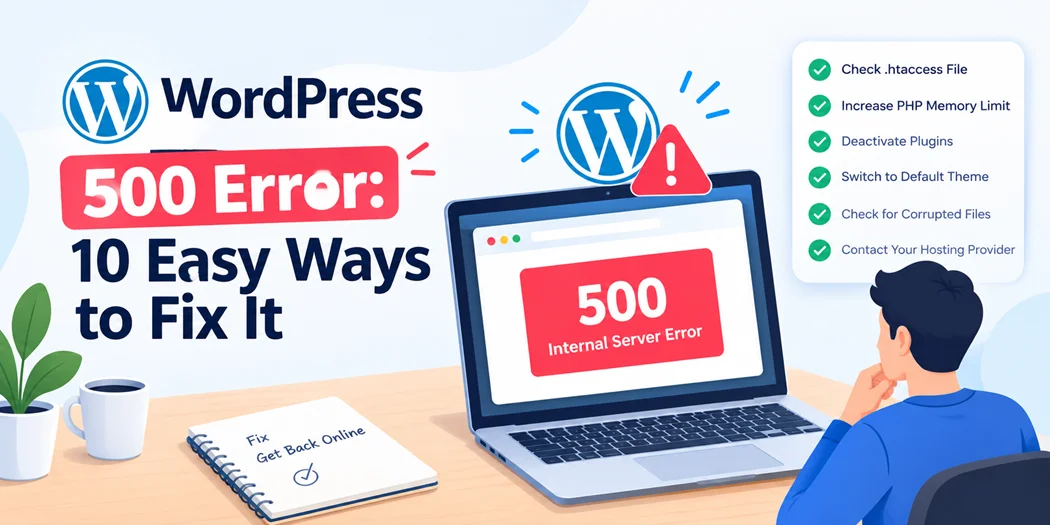
A WordPress 500 Error can appear without warning. Your homepage may stop loading, a specific page may show an error, or you may suddenly lose access to the WordPress dashboard.
The frustrating part is that a 500 error usually doesn’t tell you exactly what went wrong. It simply means the server encountered a problem while processing the request.
Fortunately, most 500 errors in WordPress can be traced to a specific cause, such as a plugin conflict, damaged .htaccess file, PHP memory limit, theme problem, incompatible PHP version, or server configuration.
In this guide, we’ll show you how to identify the cause and fix 500 errors in WordPress step by step. Start with the diagnostic steps first instead of changing multiple settings at once.
What Is a WordPress 500 Error?
A WordPress internal server error is an HTTP 500 status code returned when the server cannot successfully complete a request.
You may see different versions of the message, including:
- 500 Internal Server Error
- HTTP 500 Internal Server Error
- Internal Server Error
- The server encountered an internal error
The wording can vary depending on your hosting provider and server configuration.
A 500 error is different from a 404 error. A 404 generally means the requested resource could not be found, while a 500 error indicates that something went wrong while your WordPress website was being processed by the server.
Because the message is generic, you need to investigate the underlying problem rather than assuming there is one universal fix.
If you’re new to WordPress, understanding how WordPress, themes, plugins, and hosting work together can make troubleshooting much easier. You can start with this beginner-friendly guide to WordPress websites.
What Causes a 500 Error in WordPress?
There are several possible causes of a WordPress server error.
Common ones include:
- A recently installed or updated plugin
- A plugin conflict
- A broken or corrupted .htaccess file
- PHP memory exhaustion
- An incompatible PHP version
- A theme or custom-code problem
- Incorrect file permissions
- Corrupted WordPress core files
- Hosting or server configuration problems
- A PHP fatal error
If your website worked normally before the error appeared, think about what changed immediately beforehand.
For example, did you:
- Install a new plugin?
- Update several plugins?
- Change your theme?
- Add custom PHP code?
- Change your PHP version?
- Move the website to a different host?
- Modify .htaccess?
The answer can often point you toward the correct solution.
Before You Fix the WordPress 500 Error
Before making major changes, create a backup if possible.
This is especially important before modifying .htaccess, WordPress core files, PHP settings, or other server configuration.
Also, avoid making several changes simultaneously. If you disable plugins, change PHP settings, modify .htaccess, and switch themes all at once, you may fix the problem without knowing what actually caused it.
A better approach is:
Check → identify → change one thing → test → continue if necessary.
This makes troubleshooting much safer and easier to understand.
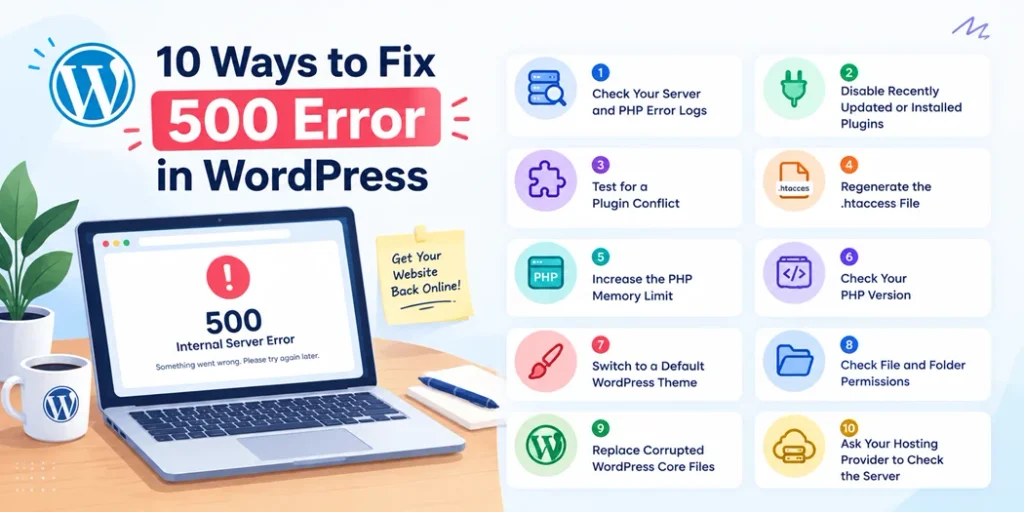
10 Ways to Fix 500 Error in WordPress
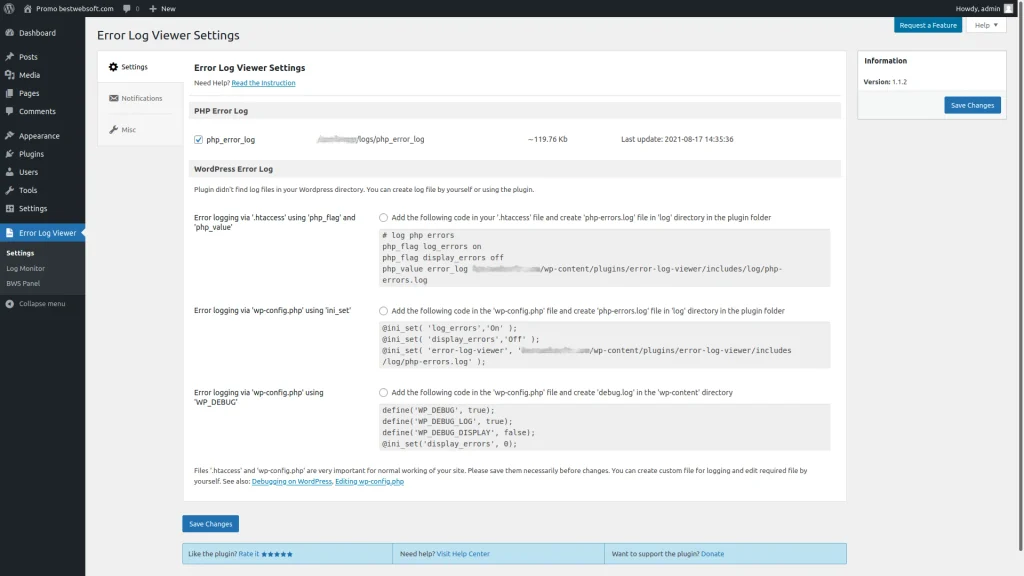
1. Check Your Server and PHP Error Logs
The best first step is to find the actual error.
A 500 response only tells you that something failed. The server or PHP error log may tell you which file, plugin, theme, or PHP process caused it.
Log in to your hosting control panel and look for options such as:
- Error Logs
- PHP Logs
- Server Logs
- Apache Logs
- Nginx Logs
The exact location depends on your hosting provider.
Look for an error recorded around the time the 500 error occurred.
For example, if the log mentions a file inside:
/wp-content/plugins/
that may indicate a plugin-related problem.
If it points to your theme directory, investigate the theme or custom code.
If you see a memory-related message, check your PHP memory configuration.
You can also use WordPress debugging to collect more information during troubleshooting. Avoid displaying detailed errors publicly on a production website because error messages can reveal technical information about your installation.
The key idea: don’t guess when a useful error log is available.
2. Disable Recently Updated or Installed Plugins
Plugins are a common place to investigate when a 500 error in WordPress appears immediately after an update or installation.
If you can access your WordPress dashboard, go to:
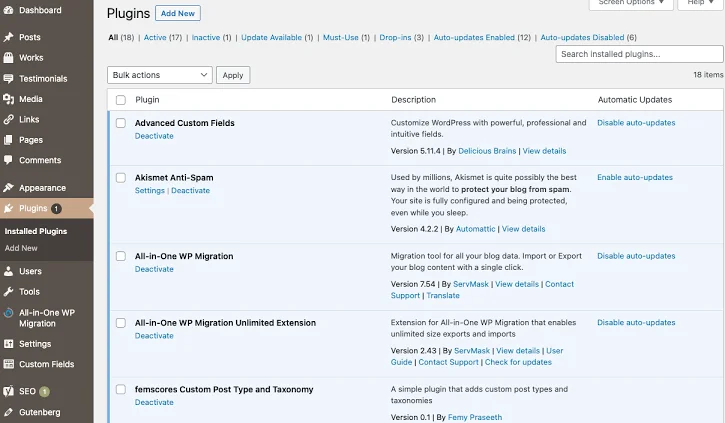
Plugins → Installed Plugins
Temporarily deactivate the plugin that was changed most recently and test your website.
If the site starts working again, you’ve found a strong candidate.
If you’re using a WordPress contact form plugin, for example, check whether the error started after installing or updating that plugin or another plugin that interacts with it. If you need help creating a form in WordPress, see our guide on add a contact form in WordPress.
Don’t immediately delete the plugin. First, confirm that it is actually responsible for the problem.
3. Test for a Plugin Conflict
Sometimes the problem isn’t one obviously broken plugin. Two plugins may conflict with each other or with your current WordPress/PHP environment.
To test this, deactivate all plugins temporarily.
Then check your website.
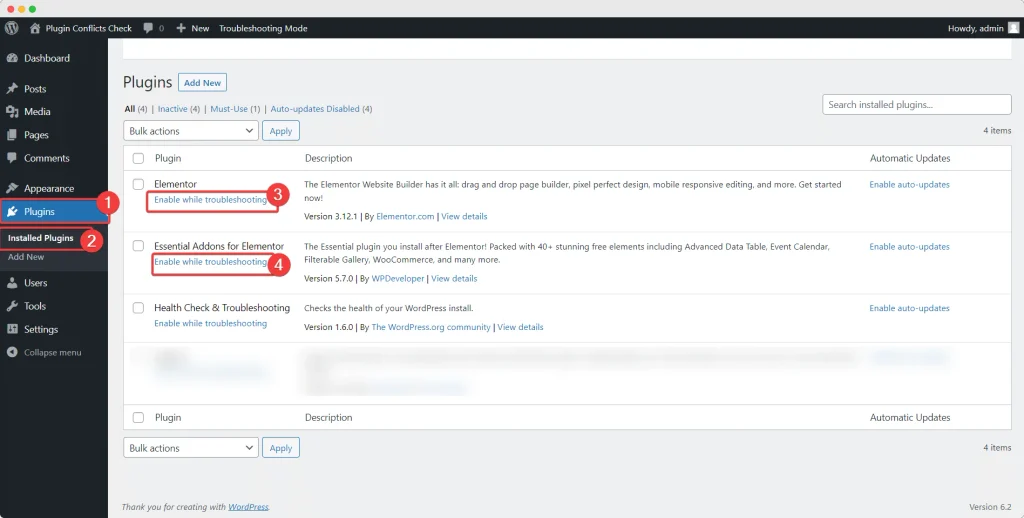
If the 500 error disappears, reactivate the plugins one at a time and test after each activation.
When the error returns, you’ve identified the likely conflict.
This approach is particularly useful when your website contains several plugins with overlapping functionality.
For example, a form plugin, email plugin, caching plugin, and security plugin may each modify different parts of the request process. A compatibility issue can sometimes appear only after one component is updated.
If your website relies on Contact Form 7, you may also want to understand how Contact Form 7 submissions are processed and managed.
4. Regenerate the .htaccess File
A corrupted .htaccess file can cause an HTTP 500 error in WordPress, particularly on websites running on Apache-based hosting.
First, make a backup copy of the existing .htaccess file.
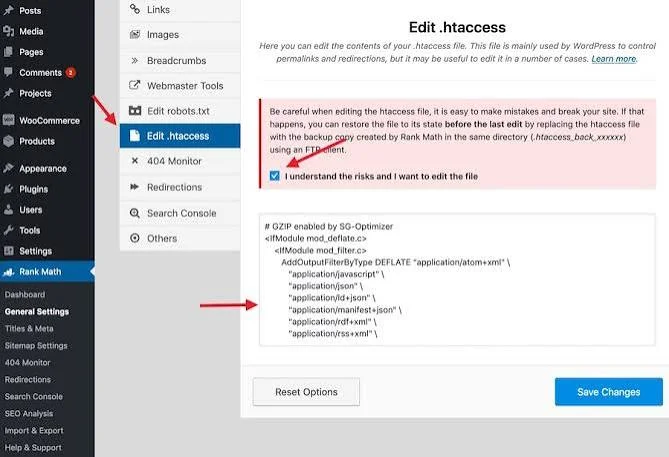
You can usually find it in your WordPress root directory alongside files such as:
- wp-config.php
- wp-admin
- wp-content
- wp-includes
Rename .htaccess temporarily, for example:
.htaccess_old
Then test your website.
If the website starts working, the old .htaccess file may have contained an invalid or conflicting rule.
If you can access WordPress after removing the old file, go to:
Settings → Permalinks
Then click Save Changes.
WordPress can regenerate its rewrite rules.
Don’t manually add random .htaccess rules from the internet. A rule that works on one hosting environment may not be appropriate for another.
5. Increase the PHP Memory Limit
Another possible cause of a WordPress 500 error is PHP running out of available memory.
This can happen when a plugin, theme, import, image process, or other PHP operation requires more memory than your current limit allows.
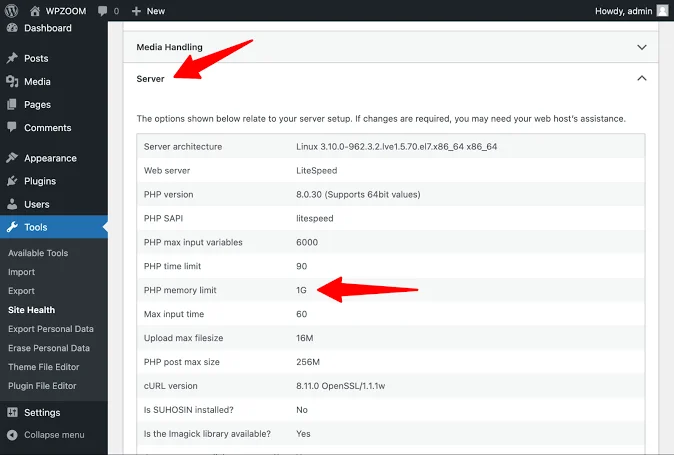
A server log may contain a message similar to:
Allowed memory size exhausted
If you see that type of message, investigate the PHP memory limit.
Depending on your hosting setup, the limit may be controlled through:
- WordPress configuration
- PHP configuration
- Hosting control panel
- Server-level configuration
Increasing the limit can resolve a genuine memory problem, but don’t treat it as a universal solution.
If a plugin suddenly consumes excessive memory, the underlying issue may still need to be addressed.
If you’re unsure what memory limit your hosting account supports, contact your hosting provider before changing server-level settings.
6. Check Your PHP Version
WordPress runs on PHP, and plugins and themes also depend on PHP compatibility.
If your hosting provider recently changed the PHP version, an older plugin or theme may no longer work correctly.
This can result in a WordPress server error or other PHP-related failure.
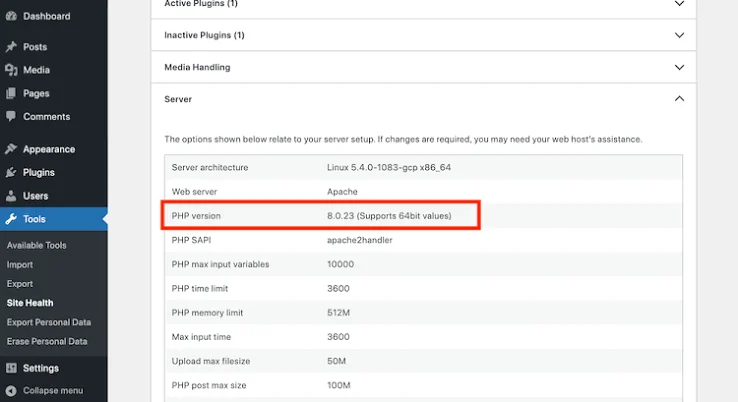
Check the PHP version configured for your website through your hosting account.
Before changing it:
- Take a backup.
- Check whether your plugins and theme support the intended PHP version.
- Change the version carefully.
- Test the website.
- Review the error logs if the problem continues.
Don’t use an outdated PHP version indefinitely simply because it makes the website work. A better long-term solution is to update or replace software that is no longer compatible.
7. Switch to a Default WordPress Theme
Your active theme can also cause a 500 error, particularly if it contains custom PHP code or has recently been updated.
If you can access the WordPress dashboard, temporarily switch to an available default WordPress theme.
Then test the website.
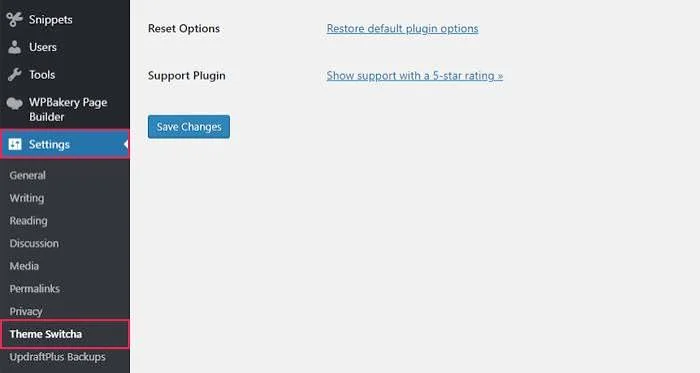
If the error disappears, investigate the previous theme.
Pay special attention to recent changes such as:
- Custom PHP snippets
- Child-theme modifications
- Theme updates
- Custom functions
- Third-party integrations
If you cannot access wp-admin, you may be able to rename the active theme directory using your hosting File Manager or FTP/SFTP. WordPress may then fall back to another available theme.
Make a backup before modifying theme files.
8. Check File and Folder Permissions
Incorrect permissions can prevent WordPress or PHP from accessing files correctly.
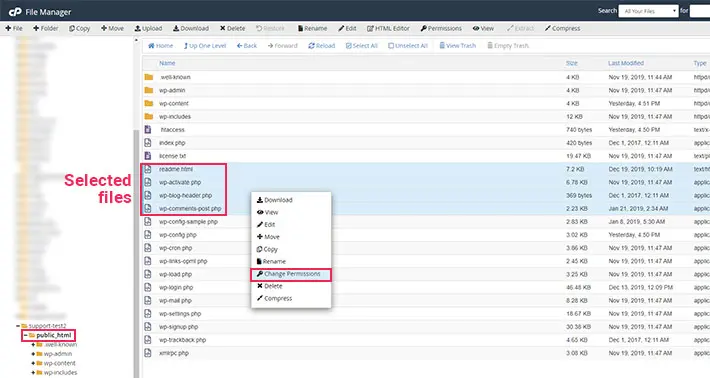
This problem can occur after:
- A website migration
- Manual file uploads
- Hosting changes
- Server configuration changes
- Incorrect FTP operations
If you suspect permissions are responsible, check them against the recommendations provided by your hosting provider.
Don’t simply give every file full permissions to make the error disappear. Overly broad permissions can create security risks.
If the problem started after a migration, ask your hosting provider to verify that the ownership and permissions of the WordPress files are configured correctly.
9. Replace Corrupted WordPress Core Files
If plugins, themes, .htaccess, PHP, and permissions appear normal, your WordPress core files may be incomplete or corrupted.
This can happen after an interrupted update or an unsuccessful file transfer.
Before replacing core files, make a complete backup.
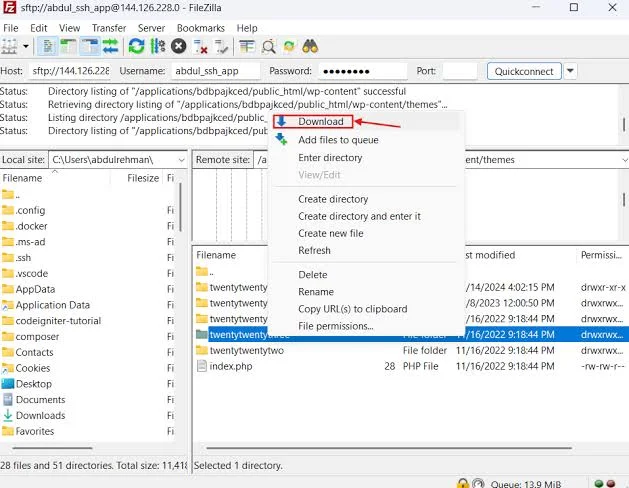
You can then use a clean WordPress package to restore the core files while protecting your site’s content and configuration.
Be careful not to blindly overwrite important files such as wp-config.php or your entire wp-content directory.
If you’re not comfortable handling WordPress core files manually, your hosting provider or a qualified WordPress developer can help.
10. Ask Your Hosting Provider to Check the Server
Sometimes the problem isn’t inside WordPress at all.
Your hosting environment may have issues involving:
- PHP workers
- Server resource limits
- Web server configuration
- Security rules
- PHP-FPM
- Database connectivity
- Server-level errors
If you’ve completed the common troubleshooting steps and the 500 error in WordPress remains, contact your hosting provider.
Give them useful information instead of simply saying “my website is broken.”
Include:
- The affected URL
- Approximate time the error occurred
- Whether the entire website is affected
- Whether wp-admin works
- Recent plugin/theme changes
- PHP version
- Relevant error-log messages
This gives the support team a much better starting point.
What If You Cannot Access wp-admin?
A common problem with a WordPress internal server error is that the dashboard may also be unavailable.
You can still perform several troubleshooting steps through your hosting File Manager or FTP/SFTP.
Start with:
- Check the server/PHP error logs.
- Temporarily disable plugins.
- Test the active theme.
- Rename .htaccess.
- Check with your hosting provider.
Don’t delete plugins, themes, or WordPress files immediately.
Renaming a file or directory temporarily is often safer because you can restore it if the change doesn’t solve the problem.
How to Prevent Future WordPress 500 Errors
You cannot prevent every server-side problem, but regular maintenance can reduce the likelihood of serious failures.
Keep WordPress, plugins, and themes updated. Remove plugins that you no longer use and avoid installing software from untrusted sources.
Before major changes:
- Create a backup.
- Test updates where possible.
- Make one major change at a time.
- Keep track of what you changed.
- Monitor error logs when something unusual happens.
A staging website can also be useful for testing plugin, theme, and PHP changes before applying them to your live site.
If your website uses forms or other important business functionality, test those features after major updates. A website may appear to load correctly while a specific plugin feature is failing in the background.
Conclusion
A WordPress 500 Error can look alarming, but the error itself is usually only a symptom of another problem.
The most effective approach is to avoid changing everything at once. Start with the error logs, think about what changed before the problem appeared, and then test plugins, themes, .htaccess, PHP settings, and server configuration systematically.
If a plugin caused the problem, identify the conflict instead of simply reinstalling WordPress. If PHP is responsible, find out whether the issue is memory, compatibility, or faulty code. And if everything on the WordPress side looks correct, your hosting provider can investigate server-level problems.
The goal isn’t just to make the error disappear. The goal is to find the reason it happened and fix the underlying issue.