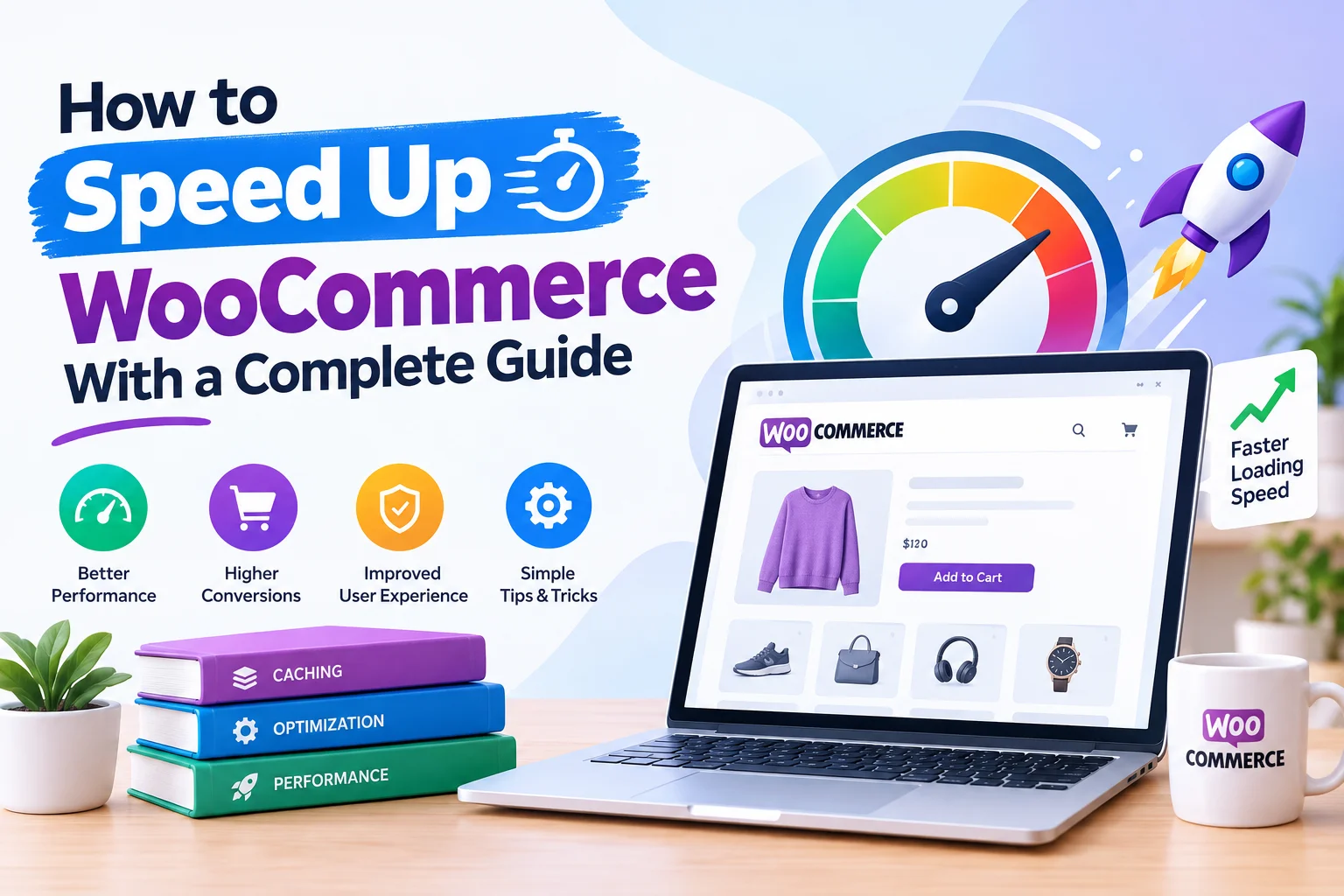
A slow WooCommerce store can affect much more than page load time. When product pages take too long to open, images load slowly, or checkout feels unresponsive, shoppers may leave before completing their purchase. Slow performance can also make your store harder to use on mobile devices and create a poor overall shopping experience.
The good news is that you can speed up WooCommerce by identifying the specific factors slowing your store down and optimizing them one by one. Hosting, images, caching, plugins, database performance, themes, scripts, and third-party services can all influence WooCommerce speed.
This guide explains practical WooCommerce speed optimization techniques, how to identify performance problems, and what you can do to make your WooCommerce store faster without compromising important functionality.
What Makes a WooCommerce Store Slow?
Before making changes, it is important to understand why your store may be slow. There is rarely one universal reason for poor WooCommerce performance.
Common causes include:
- Slow or poorly configured hosting
- Large and unoptimized product images
- Heavy WordPress themes
- Too many unnecessary plugins
- Poorly optimized JavaScript and CSS
- Missing or incorrect caching
- An overloaded WordPress database
- Too many third-party scripts
- Outdated WordPress, WooCommerce, PHP, or plugins
- Poorly optimized product and checkout pages
A store can also become slower as it grows. More products, orders, customers, plugins, images, and integrations can increase the amount of work your server needs to handle.
That is why effective WooCommerce optimization starts with finding the actual bottleneck rather than applying every available speed setting.
How to Check Your WooCommerce Speed
Before trying to make WooCommerce faster, test your current performance. This gives you a baseline that you can compare after making changes.
Don’t test only the homepage. WooCommerce stores contain several types of pages, and each can behave differently.
Test important areas such as:
- Homepage
- Shop and category pages
- Product pages
- Cart
- Checkout
- My Account pages
Pay attention to metrics such as Largest Contentful Paint (LCP), Interaction to Next Paint (INP), Cumulative Layout Shift (CLS), and Time to First Byte (TTFB).
The most useful approach is to test your store before optimization, make one or more controlled improvements, and then test again. This helps you understand which changes actually improved performance.
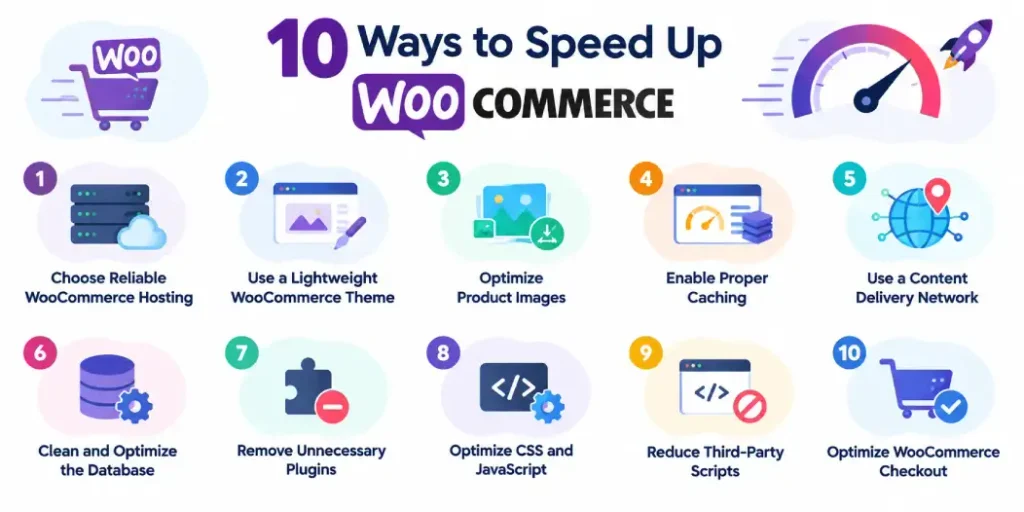
10 Ways to Speed Up WooCommerce
1. Choose Reliable WooCommerce Hosting
Your hosting environment is one of the most important factors affecting WooCommerce speed.
Unlike a simple static website, WooCommerce processes products, orders, customers, sessions, cart data, and other dynamic requests. If your server has limited resources or poor configuration, your store may remain slow even after frontend optimization.
Look for hosting that provides:
- Adequate CPU and RAM
- Fast storage
- Good server response times
- Current PHP versions
- Database optimization
- Scalable resources
- Reliable uptime
If your store is growing, upgrading hosting can sometimes produce a bigger performance improvement than making dozens of small frontend changes.
2. Use a Lightweight WooCommerce Theme
Your theme controls much of what visitors download and interact with on every page.
A theme with excessive animations, sliders, widgets, scripts, and design features can add unnecessary requests and increase page weight.
Choose a lightweight theme and keep only the design elements your store actually needs.
You can improve performance by:
- Removing unused widgets
- Limiting unnecessary animations
- Avoiding excessive sliders
- Reducing heavy visual effects
- Keeping page layouts simple
- Loading only required theme assets
A clean design can improve both WooCommerce speed and usability, particularly on mobile devices.
3. Optimize Product Images
Product images are essential for ecommerce, but they can also become one of the biggest sources of page weight.
Uploading a large image and displaying it at a much smaller size wastes bandwidth and increases loading time.
To optimize WooCommerce images:
- Resize images before uploading them
- Compress images without excessive quality loss
- Use modern formats such as WebP or AVIF when appropriate
- Avoid unnecessarily large image dimensions
- Use responsive image sizes
- Lazy-load images that are below the initial viewport
Don’t remove important product images simply to improve speed. Instead, optimize the files so customers can still see products clearly without downloading unnecessarily large assets.
4. Enable Proper Caching
Caching allows frequently requested content or resources to be served more efficiently instead of being generated from scratch for every request.
Depending on your setup, caching can include:
- Page caching
- Browser caching
- Object caching
- Server-level caching
However, WooCommerce requires more careful cache configuration than a typical WordPress content site.
Pages such as the cart, checkout, and account areas contain dynamic information and should be handled appropriately. Incorrect caching can cause customers to see outdated or incorrect information.
Therefore, don’t simply enable every caching option. Configure caching for your store and test important customer journeys afterward.
5. Use a Content Delivery Network
A Content Delivery Network, or CDN, stores and delivers static resources through servers distributed across different locations.
This can help visitors retrieve files such as:
- Images
- CSS files
- JavaScript
- Fonts
- Other static assets
A CDN can be particularly useful if your customers are located in different countries or regions.
However, a CDN does not fix every WooCommerce performance problem. If your server is slow or your database is overloaded, you still need to address those underlying issues.
Think of a CDN as one part of a broader WooCommerce speed optimization strategy rather than a complete solution by itself.
6. Clean and Optimize the Database
Your WooCommerce database stores important information about products, orders, customers, settings, and other website data.
Over time, unnecessary database records can accumulate. Depending on your website configuration, this may include old revisions, expired transients, spam comments, and other unused data.
Database optimization can help reduce unnecessary overhead, but it should be performed carefully.
Before making database changes:
- Create a reliable backup.
- Identify what can safely be removed.
- Avoid deleting active WooCommerce data.
- Test the store after cleanup.
For larger stores, database performance can become increasingly important because the amount of order and product data grows over time.
7. Remove Unnecessary Plugins
Plugins extend WooCommerce functionality, but installing more plugins does not automatically make a store better.
Some plugins may load CSS, JavaScript, database queries, external requests, or other resources on pages where their functionality is not required.
Review your installed plugins regularly and ask:
- Is this plugin still needed?
- Does another plugin already provide the same functionality?
- Does it load resources site-wide?
- Is it actively maintained?
- Does it affect product, cart, or checkout pages?
The goal isn’t to use the fewest possible plugins. The goal is to use necessary, well-maintained plugins that provide clear value.
If you’re evaluating essential functionality for your store, you can also review our 10 WooCommerce plugins to compare useful plugin categories and features.
8. Optimize CSS and JavaScript
CSS and JavaScript can significantly affect how quickly a page becomes usable.
Depending on your website, optimization may include:
- Minifying CSS and JavaScript
- Removing unused CSS
- Deferring non-critical JavaScript
- Delaying non-essential scripts
- Reducing unnecessary frontend assets
Be careful with aggressive optimization settings. A setting that improves one page can sometimes break menus, product galleries, filters, payment systems, or checkout functionality.
Make changes gradually and test the important parts of your store after optimization.
9. Reduce Third-Party Scripts
Analytics, advertising platforms, live chat, social widgets, review tools, tracking systems, and other integrations can add external requests to your pages.
Each additional service can potentially affect loading and interaction performance.
Review every third-party integration and determine whether it is genuinely necessary.
If a service is not contributing meaningful business value, consider removing it. If it is important, investigate whether it can load later or only on pages where it is required.
This is especially important on product and checkout pages, where unnecessary scripts can affect the customer journey.
10. Optimize WooCommerce Checkout
Checkout performance deserves special attention because it directly affects the final stage of a purchase.
A store can have a fast homepage and product pages but still provide a poor experience if checkout takes too long to load or respond.
To improve checkout performance:
- Remove unnecessary checkout fields
- Limit unnecessary checkout plugins
- Optimize payment integrations
- Reduce third-party scripts
- Avoid loading unrelated functionality
- Test checkout on mobile and desktop
If your store uses additional checkout functionality, such as a WooCommerce digital signature checkout, make sure the feature is implemented efficiently and does not introduce unnecessary scripts or requests.
The objective is not to remove useful checkout features. It is to make sure every feature serves a clear purpose without creating avoidable performance overhead.
Keep WooCommerce, WordPress, and PHP Updated
Software updates can improve compatibility, security, functionality, and sometimes performance.
Keep your:
- WordPress installation
- WooCommerce
- Plugins
- Themes
- PHP version
up to date.
Before updating a production store, especially one that processes regular orders, test important updates in a staging environment when possible.
After an update, check product pages, add-to-cart functionality, cart, checkout, payment methods, customer accounts, and other important features.
Performance optimization should never come at the cost of a broken purchasing process.
How to Make WooCommerce Faster Without Breaking Your Store
One of the biggest mistakes in website optimization is changing too many settings at once.
A better approach is to work systematically:
Test → identify the problem → optimize → retest → check functionality.
For example, if your product page is slow because of large images, optimize the images first and measure the result. If server response time remains high, investigate hosting or database performance.
Also remember that not every store needs the same optimization strategy. A small catalog with a few products has different requirements from a large store with thousands of products and frequent orders.
Your goal should be to remove the actual bottlenecks affecting your visitors.
WooCommerce Speed Optimization Checklist
Use this checklist when reviewing your store:
- Choose reliable WooCommerce hosting
- Use a lightweight theme
- Compress and resize product images
- Use modern image formats
- Configure caching correctly
- Consider a CDN for static resources
- Optimize the database carefully
- Remove unnecessary plugins
- Minify and optimize CSS and JavaScript
- Review third-party scripts
- Keep WordPress and WooCommerce updated
- Test product pages
- Test cart and checkout
- Check mobile performance
- Monitor Core Web Vitals regularly
You don’t necessarily need to complete every optimization at the same time. Start with the problems that have the greatest effect on your visitors.
WooCommerce vs Shopify: Which Is Faster?
WooCommerce and Shopify take different approaches to ecommerce infrastructure.
With WooCommerce, store owners have more control over hosting, themes, plugins, databases, and technical configuration. That flexibility also means performance depends heavily on how the store is built and maintained.
Shopify manages much of the underlying infrastructure for merchants, which can simplify technical management.
However, it is not accurate to say that one platform is automatically faster in every situation. A poorly configured WooCommerce store can be slow, while a well-optimized WooCommerce store can provide a fast shopping experience.
If you’re comparing the platforms for your business, see our guide to WooCommerce vs Shopify to understand the broader differences.
Build Performance Into Your WooCommerce Store From the Start
The easiest time to think about performance is before a store becomes slow.
When you build an online store on WooCommerce, make performance part of the initial setup.
Choose suitable hosting, use a lightweight theme, optimize images before uploading them, install only the functionality you need, and avoid adding third-party services without a clear business purpose.
As your store grows, monitor performance regularly rather than waiting for customers to complain about slow pages.
Performance is not a one-time task. New products, plugins, integrations, marketing campaigns, and traffic can change how your store behaves.
Should You Use Plugins for WooCommerce Performance?
Performance plugins can simplify tasks such as caching, image optimization, database cleanup, and asset management.
However, adding a performance plugin does not automatically make a store faster. Poor configuration or overlapping optimization tools can sometimes create conflicts.
Before installing another tool, identify the problem you are trying to solve.
If you need additional WooCommerce functionality, you can also evaluate solutions from PluginOrbit and choose plugins based on your store’s actual requirements rather than installing tools simply because they are available.
The best setup is one where every plugin has a clear purpose and works reliably with the rest of your WooCommerce stack.
Conclusion
A fast WooCommerce store is built through a combination of good hosting, optimized images, efficient caching, clean database management, sensible plugin usage, optimized scripts, and a streamlined checkout experience.
If you want to speed up WooCommerce, focus on faster browsing, product pages, cart, and checkout. Choosing the right WooCommerce solutions from providers like PluginOrbit can also help you add essential features without unnecessary complexity.
Start with performance testing, fix the biggest bottleneck first, and continue monitoring your store as it grows. This approach can help you improve WooCommerce speed while keeping the functionality your customers actually need.