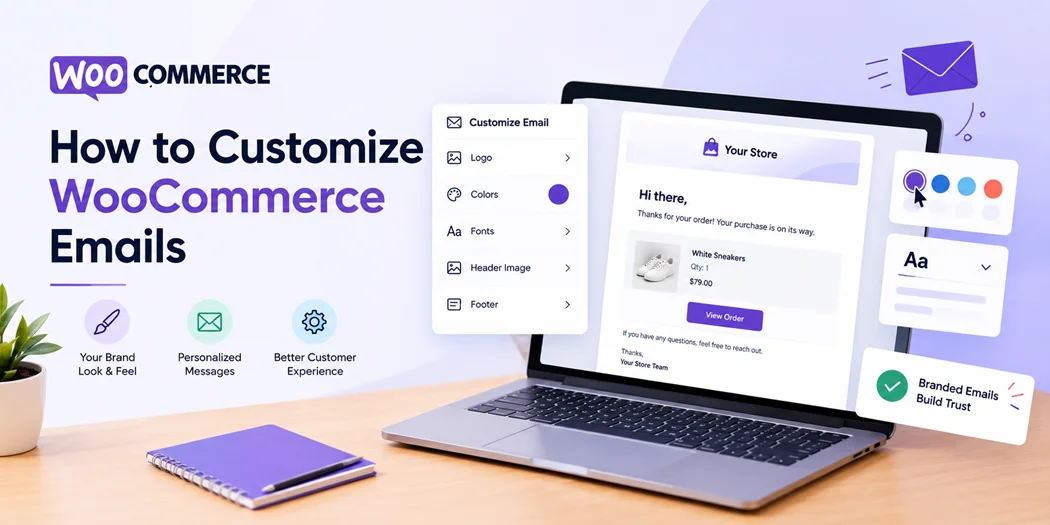
WooCommerce automatically sends emails when customers place orders, payments are processed, products are shipped, orders are refunded, or accounts are created. These emails are more than simple notifications-they are part of the customer experience after someone interacts with your store.
Keeping the same branding across your emails and when you customize your WooCommerce product page can also create a more seamless experience for customers.
The default WooCommerce emails are functional, but their basic design and messaging may not always match your brand. That is why many store owners want to customize WooCommerce emails to improve their appearance, provide clearer information, and create a more consistent shopping experience.
Fortunately, you can edit WooCommerce email templates without changing every email manually. WooCommerce provides built-in settings for basic customization, while plugins and code give you more control over layouts, content, and functionality.
Why Customize WooCommerce Emails?
WooCommerce order emails often continue the customer journey after checkout. A well-designed email can reassure customers that their order was received, explain what happens next, and make important information easier to find.
When you customize WooCommerce emails, you can:
- Match emails with your store’s branding
- Make order information easier to understand
- Add helpful customer instructions
- Customize email subject lines and headings
- Improve the visual appearance of order notifications
- Add relevant links and promotional messages
- Create a consistent experience across your store and emails
For example, instead of sending a generic order-completed message, you could include delivery information, support details, return instructions, or a short thank-you message.
The goal isn’t simply to make an email look better. Your emails should make the information customers need easier to understand.
Which WooCommerce Emails Can You Customize?
WooCommerce includes several transactional emails that are triggered by specific store actions. In addition to these standard notifications, PO Abandoned Cart for WooCommerce can help store owners send automated follow-up emails to shoppers who leave items in their carts without completing the purchase.
Depending on your WooCommerce setup, you may work with emails such as:
- New Order
- Canceled Order
- Failed Order
- Order On-Hold
- Processing Order
- Completed Order
- Refunded Order
- Customer Invoice
- Customer Note
- New Account
- Reset Password
Some messages are intended for store administrators, while others are sent directly to customers.
This distinction is important when you edit WooCommerce email templates because the purpose and audience of each message are different.
For example, an admin notification should focus on order information needed to manage the purchase, while a customer-facing email should provide useful information about the order and the next steps.
How to Customize WooCommerce Emails From WordPress
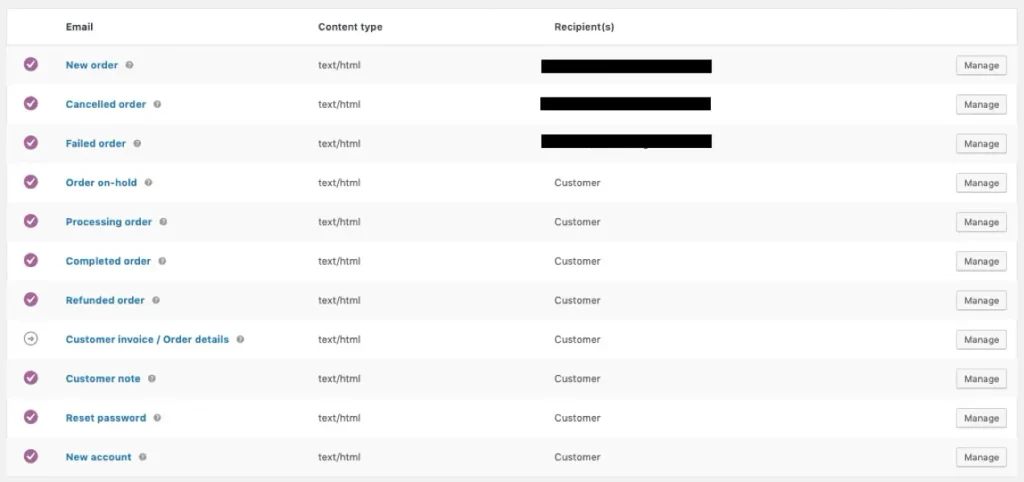
For basic changes, you don’t necessarily need a separate plugin.
Start by logging into your WordPress dashboard and going to:
WooCommerce → Settings → Emails
You’ll see the available email notifications and their current settings.
Select the email you want to change and click Manage.
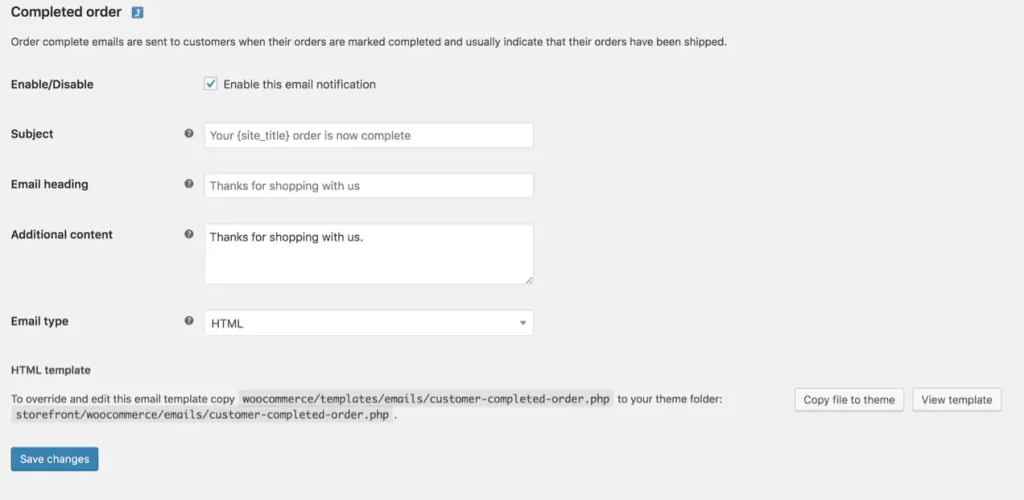
Depending on the email, WooCommerce allows you to modify settings such as:
- Recipient email address
- Subject
- Email heading
- Additional content
- Email type
Customize the Email Subject
The subject line is one of the first things customers see in their inbox.
Instead of relying entirely on the default wording, you can make the subject clearer and more aligned with your brand.
For example, a store could use a subject that clearly communicates that an order has been received or completed.
Keep your subject concise and make sure it accurately reflects the email’s purpose.
Change the Email Heading
The heading appears inside the email and provides another opportunity to communicate the main message.
You might use a simple heading such as:
Thanks for your order!
or
Your order is ready for delivery
The right wording depends on the email type and the action that triggered it.
Add Additional Content
The Additional Content field is useful when you need to provide information beyond the standard WooCommerce order details.
You could add:
- Customer support information
- Delivery instructions
- Return-policy links
- Warranty information
- A thank-you message
- Instructions for using a purchased product
This can make your transactional emails more useful without changing the underlying WooCommerce order data.
Customize WooCommerce Email Design
WooCommerce also provides global email styling options.
Go to:
WooCommerce → Settings → Emails
Then scroll down to the email template options.
Depending on your WooCommerce version and theme, you can adjust elements such as:
- Header image
- Footer text
- Base color
- Background color
- Body background
- Body text color
These settings generally apply across your WooCommerce email templates, so think about your overall brand style before making changes.
Use Your Brand Colors
Your email doesn’t need to look exactly like your website, but it should feel like it belongs to the same brand.
Use consistent colors for headings, links, buttons, and other visual elements.
For example, if your website uses a particular primary color for buttons and links, carrying that visual language into your emails can make the customer experience feel more consistent.
Add Your Logo
A branded header image or logo can make your WooCommerce emails immediately recognizable.
Make sure the image is appropriately sized and works well on mobile devices. Large images can make emails harder to view, especially for customers checking their order information on smartphones.
How to Preview WooCommerce Emails
Before sending customized emails to real customers, preview them carefully.
Check:
- Logo placement
- Text spacing
- Colors
- Links
- Order information
- Mobile appearance
- Footer details
- Subject and heading
You should also send test emails whenever possible. A design that looks good inside the WordPress dashboard may not appear exactly the same in every email client.
Testing is particularly important when you make significant design changes or add custom HTML.
When You Need an Email Customizer for WooCommerce
WooCommerce’s built-in settings work well for basic changes, but they have limitations.
If you want a visual editor, drag-and-drop sections, reusable design elements, or more advanced layout control, an email customizer for WooCommerce can make the process easier.
A dedicated email customization plugin may allow you to:
- Build custom layouts
- Add images and buttons
- Rearrange content sections
- Customize typography
- Create branded headers and footers
- Add promotional sections
- Design different email templates
- Preview emails before sending
This approach can be particularly useful for store owners who don’t want to edit PHP files.
When choosing a plugin, check whether it supports your WooCommerce version and the specific email types you need to customize.
How to Edit WooCommerce Email Templates With Code
For advanced customization, developers can modify WooCommerce email templates using PHP.
WooCommerce stores its email templates inside the plugin’s template directory. However, directly editing WooCommerce plugin files is not recommended because updates can overwrite your changes.
Instead, customized templates are generally placed within your theme or child theme using WooCommerce’s template override system.
For example, you may want to customize files related to:
- Email headers
- Email footers
- Customer invoices
- Processing orders
- Completed orders
This method provides considerably more control over the structure and content of your emails.
However, it requires familiarity with PHP, WooCommerce templates, and WordPress theme development.
Why You Should Avoid Editing Plugin Files Directly
One common mistake is opening the WooCommerce plugin directory and changing the original email template files.
Those changes can be lost when WooCommerce is updated.
A safer approach is to use the appropriate template override method and keep your customizations separate from the original plugin files.
Always create a backup before making code-level changes, especially on a live store.
Using WooCommerce Hooks for Email Customization
WooCommerce hooks provide another way to add or modify functionality without rebuilding an entire email template.
Depending on what you’re trying to accomplish, hooks can help you insert additional information at specific points in an email.
For example, a developer may use email-related hooks to add content:
- After the email header
- Around the order information
- Before the footer
- After the order table
Hooks are useful when you need to add dynamic content while keeping the existing WooCommerce email structure.
However, this approach is more suitable for developers because incorrect PHP code can cause errors on your website.
Customize WooCommerce Order Emails for a Better Customer Experience
Transactional messages can also work alongside WooCommerce abandoned cart recovery to reconnect with shoppers who leave products in their cart without completing checkout.
For example:
Order confirmation:
Confirm that the order was successfully received and provide essential order details.
Processing email:
Explain that the order is being prepared.
Completed order email:
Confirm completion and provide relevant delivery or next-step information.
Refund email:
Clearly communicate the refund status and any information the customer needs.
By tailoring your messaging to each stage, you can make your emails more useful instead of treating every message as a generic notification.
Add Useful Information to Customer Emails
Your transactional emails can also answer common customer questions before they contact support.
Depending on your business, you might include links to:
- Shipping information
- Return and refund policies
- Product instructions
- Warranty information
- Customer support
- Frequently asked questions
For digital products, you could provide instructions or access information. For physical products, you might include delivery guidance or care instructions.
The important thing is to keep the information relevant to the specific email.
Customize WooCommerce Emails Without Overcomplicating Them
A common mistake is trying to put too much information into every email.
Your customers usually want to find the most important details quickly.
A good WooCommerce email should have a clear hierarchy:
- What happened?
- What is the order status?
- What information does the customer need?
- What should they do next?
Keep promotional content secondary to the transactional purpose of the message.
For example, an order confirmation should make the order details easy to find before showing a product recommendation or promotional offer.
Best Practices for WooCommerce Email Customization
Before publishing your changes, keep these practices in mind:
1. Keep Your Branding Consistent
Use your existing brand colors, logo, typography, and tone where appropriate.
2. Prioritize Important Information
Order numbers, product details, totals, payment information, and delivery details should remain easy to locate.
3. Optimize for Mobile
Many customers read emails on smartphones. Test your layouts on smaller screens and avoid unnecessarily wide elements.
4. Test Every Important Email
Place a test order and review the emails generated throughout the order process.
5. Don’t Overuse Promotional Content
Transactional emails should primarily serve their intended purpose. Keep promotional messages relevant and secondary.
6. Keep Custom Code Maintainable
If you’re using template overrides or hooks, document your changes and test them after WooCommerce updates.
Conclusion
Learning how to customize WooCommerce emails gives you more control over one of the most important communication channels in your online store. WooCommerce already provides basic options for editing subjects, headings, additional content, and global styling, while plugins and custom code can provide deeper control.
For simple requirements, the built-in WooCommerce email settings may be enough. If you need a visual editor and more advanced design options, an email customizer can simplify the process. Developers can also use template overrides and hooks for more detailed changes.
For stores that need additional checkout functionality, Digital Signature for WooCommerce Checkout can help collect customer signatures as part of the purchase process and include signature information in order-related communication.
The best approach is to focus on clarity first. Your emails should make order information easy to understand, reinforce your brand, and give customers the next information they need.
When your WooCommerce customize emails strategy balances design, functionality, and useful information, your transactional messages become a natural extension of your store rather than just automated notifications.