A WooCommerce product page is where customers make important purchase decisions. It needs to present product information clearly, answer common questions, build trust, and make the buying process simple. While the default WooCommerce setup provides the essential elements, it may not always match the needs of every online store.
Customizing a WooCommerce product page allows you to change its layout, product information, buttons, images, and supporting sections to create a better shopping experience. The right changes can make products easier to understand and help customers move from browsing to purchasing with less friction.
This guide explains what a WooCommerce product page includes, which elements you can customize, the different ways to make changes, and how to create a clear, user-friendly layout that improves the overall shopping experience.
What Is a WooCommerce Product Page?
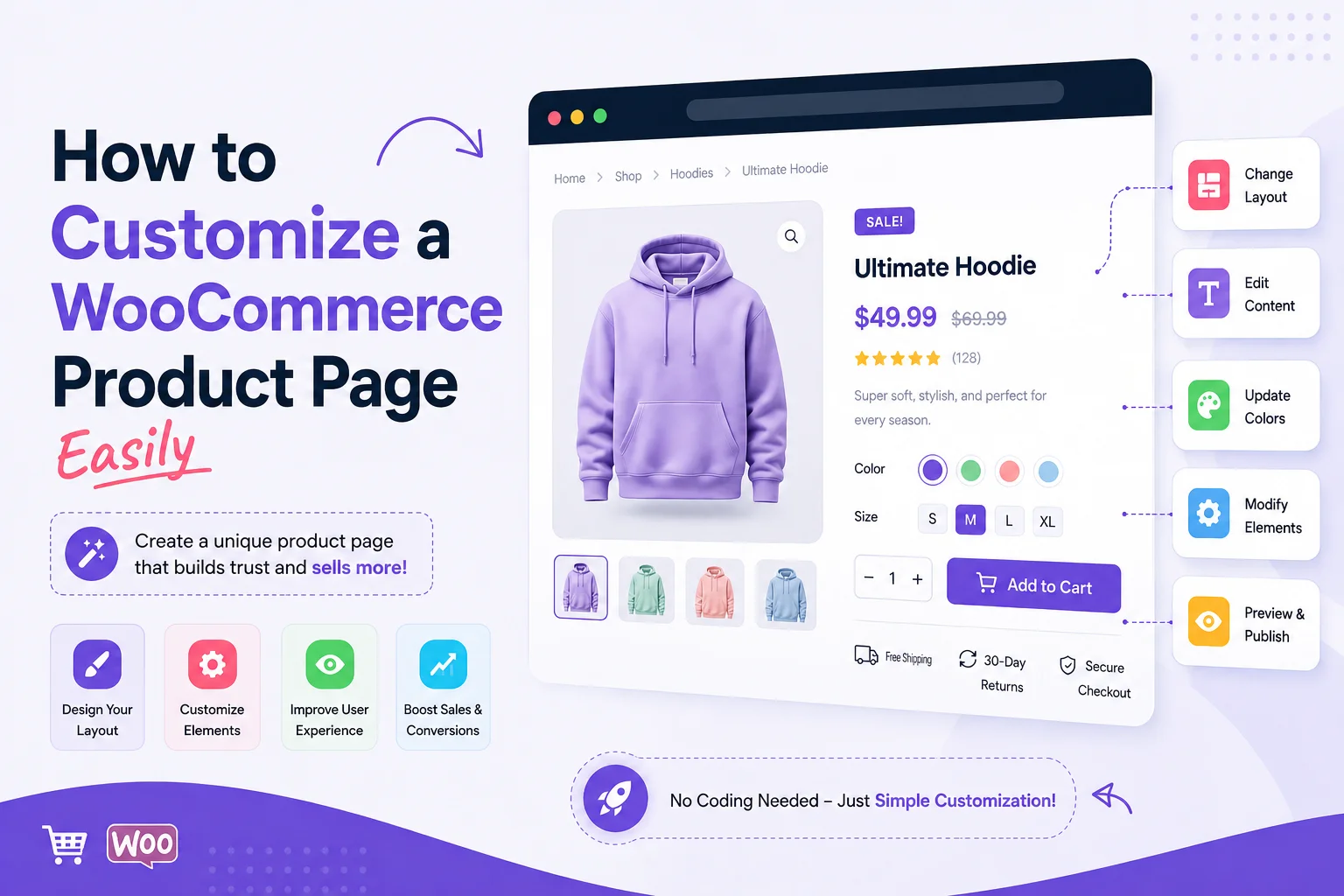
A WooCommerce product page, also called a WooCommerce single product page, is the page that displays detailed information about an individual product in an online store.
A typical product page can include:
- Product title
- Product images and gallery
- Price
- Short and long descriptions
- Product variations
- Quantity selector
- Add to Cart button
- Product categories and tags
- Customer reviews
- Additional product information
- Related products
The exact appearance depends on the WooCommerce-compatible theme, product settings, plugins, and customizations used on the website.
A good WooCommerce product page should do more than display product information. It should help visitors understand what they are buying, why the product is useful, and what they need to do next.
What Can You Customize on a WooCommerce Product Page?
WooCommerce gives store owners a useful starting point, but many businesses need a more tailored experience. You can customize several parts of the page depending on your store’s requirements.
Product Images and Gallery
Product images are often one of the first things customers notice. You can improve the presentation by adjusting the image size, gallery layout, thumbnails, and supporting media.
Use clear, consistent product photography and make sure images remain easy to view on smaller screens.
Product Title, Price, and Description
The title should immediately tell customers what the product is. Pricing should also be easy to locate and understand.
Your description can explain important product details, features, specifications, materials, compatibility, or use cases. Instead of adding unnecessary text, organize information so visitors can quickly find what matters to them.
Add to Cart and Product Options
The Add to Cart button is one of the most important elements on the page. Make sure customers can easily identify it.
For variable products, options such as size, color, quantity, or other attributes should be straightforward to select. Complicated product options can create unnecessary friction during the buying process.
Additional Product Information
You can also add useful sections such as shipping information, product specifications, FAQs, customer reviews, guarantees, or related products.
For stores that require customers to sign agreements or documents as part of a purchasing workflow, a WooCommerce Digital Signature feature can be another useful product or checkout enhancement. The important consideration is whether the additional functionality genuinely supports the customer’s journey rather than making the page more complicated.
How to Customize a WooCommerce Product Page
There is no single customization method that works for every WooCommerce store. The right approach depends on your theme, technical knowledge, required changes, and how much control you need.
Method 1: Use the WordPress Site Editor or WooCommerce Blocks
If your website uses a compatible block-based theme, you may be able to modify the single product template through the WordPress Site Editor.
A typical workflow is:
- Open the WordPress dashboard.
- Go to the Site Editor or relevant template area.
- Locate the single product template.
- Select the product blocks you want to change.
- Adjust their position, settings, or presentation.
- Preview the result on different screen sizes.
- Save the changes once everything works correctly.
This approach is useful for store owners who want to make layout changes without writing custom code.
The exact options available can vary depending on your WordPress theme and WooCommerce setup, so check your current theme’s documentation before making significant template changes.
Method 2: Use a WooCommerce-Compatible Page Builder or Plugin
A page builder can provide more visual control over product-page sections. Depending on the tool, you may be able to change the placement of product images, descriptions, buttons, tabs, reviews, and other elements.
Plugins can also add functionality that is not included in WooCommerce by default. When evaluating a Top WooCommerce Plugin, don’t look only at the number of features. Check compatibility, update history, support quality, performance impact, and whether the plugin solves a genuine problem for your store.
Adding fewer, well-maintained plugins is often better than installing multiple tools that provide overlapping features.
Method 3: Customize the Product Template With Code
Developers can customize WooCommerce templates using PHP, hooks, filters, CSS, and other WordPress development techniques.
This approach provides greater control, especially when you need a specific layout or functionality that isn’t available through the WordPress editor or a plugin.
However, custom code should be implemented carefully. Avoid directly modifying WooCommerce plugin files because updates can overwrite those changes. A child theme or another appropriate customization approach can help keep your changes separate from the core plugin.
Always test customizations on a staging environment when possible and check the product page after major WooCommerce, WordPress, and theme updates.
How to Create a Better WooCommerce Product Page Layout
A good WooCommerce product page layout should create a logical path from product discovery to purchase.
A simple structure could look like this:
Product Images → Product Title → Price → Short Description → Product Options → Add to Cart → Key Benefits → Detailed Information → Reviews → FAQs → Related Products
The exact structure can vary by product type. For example, a clothing store may need prominent size and color selectors, while a software store may need pricing information, features, compatibility details, and licensing information.
Keep the most important purchase information easy to find. Customers shouldn’t have to search through multiple sections just to understand the price or how to purchase the product.
Make the Layout Mobile-Friendly
Mobile users should receive the same essential information without struggling with the interface.
Check that:
- Product images resize correctly.
- Text remains readable.
- Buttons are easy to tap.
- Product options are simple to select.
- Important information isn’t hidden or broken.
- The page doesn’t contain unnecessary horizontal scrolling.
Don’t assume that a desktop layout will automatically provide a good mobile experience. Test the actual page on different screen sizes before considering the customization complete.
WooCommerce Product Page Best Practices
Customizing the design is only one part of creating an effective WooCommerce product detail page. The information and overall user experience matter just as much.
Use High-Quality Product Images
Show products from useful angles and use consistent image quality. If customers can’t understand the product visually, they may hesitate to purchase.
Write Helpful Product Descriptions
Avoid descriptions that only repeat basic product names or generic marketing statements. Explain what the product does, who it is for, important specifications, and any relevant limitations.
Make Product Variations Clear
If a product has multiple sizes, colors, versions, or configurations, make those choices easy to understand. Clear labels can reduce confusion and prevent incorrect selections.
Provide Trust-Building Information
Customer reviews, shipping details, return policies, product specifications, and guarantees can answer concerns before a customer reaches checkout.
If your business uses digital signing for agreements or purchase-related documentation, a solution such as Best Digital Signature Software may be relevant to a broader digital workflow. However, only add such functionality when it fits the actual needs of your customers.
Keep the Purchase Action Clear
Customers should immediately understand how to add the product to their cart or complete the next step. Avoid surrounding the primary purchase action with too many competing buttons.
Common WooCommerce Product Page Customization Mistakes
A customization can look attractive while still creating a poor user experience. Some common mistakes include:
- Adding too many design elements
- Hiding important product information
- Making product variations difficult to select
- Using unclear calls to action
- Ignoring mobile users
- Installing unnecessary plugins
- Directly editing WooCommerce core files
- Failing to test changes after updates
The goal should not be to make the page look different simply for the sake of customization. Every change should have a purpose, whether it improves clarity, usability, trust, or the purchasing experience.
Conclusion
A customized WooCommerce product page should make shopping easier, not simply make the store look different. Start with the information customers need most, create a logical layout, and remove anything that adds unnecessary friction.
Whether you manage a small store or a growing ecommerce website, a well-planned WooCommerce Product Page can provide a clearer product experience and create a stronger path from product discovery to purchase. If you use WooCommerce extensions from providers such as PluginOrbit, evaluate each solution based on its actual value, compatibility, maintenance, and fit with your store’s workflow.
Choose your customization method based on your requirements. Simple visual changes may be possible through the WordPress editor or a compatible plugin, while advanced functionality may require development work.