A contact form in WordPress gives website visitors an easy way to send questions, requests, feedback, or business inquiries without opening their email application. Instead of displaying an email address and asking visitors to contact you manually, you can place a simple form directly on your website.
A typical contact form includes fields such as name, email address, subject, and message. Depending on your website, you can also add phone numbers, product selections, file uploads, consent checkboxes, or other fields.
The easiest way to add a contact form to WordPress is usually through a WordPress contact form plugin. Most plugins let you create a form, customize its fields, configure email notifications, and add it to a page without writing code.
What Is a Contact Form in WordPress?
A contact form is an online form that allows visitors to send information directly through your website. When someone submits the form, the information can be sent to a specified email address and, depending on your setup, stored for later access.
A basic WordPress contact form commonly includes:
- Name
- Email address
- Subject
- Message
- Submit button
You can add additional fields when your website needs more information. For example, a service business might ask visitors to select a service, while an online store could let customers choose a product before submitting an inquiry.
A website contact form can therefore be as simple or advanced as your website requires.
Why Add a Contact Form to WordPress?
A contact form makes it easier for visitors to contact your business or website team. It also gives you more control over the information you collect.
Here are some common reasons to use one:
Make It Easier for Visitors to Contact You
Visitors can submit their information without manually copying an email address or opening another application. A clear form placed on your Contact page creates a straightforward communication path.
Collect Useful Information
You can request specific information before receiving an inquiry. For example, you might ask for a customer’s name, email address, phone number, company, or reason for contacting you.
Keep Your Contact Process Organized
A structured form can make incoming inquiries easier to understand. Instead of receiving an email with incomplete information, you can use required fields to collect the details your team needs.
Support Lead Generation
Businesses can use forms to collect sales inquiries, service requests, consultation requests, and other potential leads.
Reduce Unnecessary Email Exposure
Instead of displaying your email address prominently on every page, you can allow visitors to contact you through a form. Spam protection can also be added to help reduce unwanted submissions.
What Should a WordPress Contact Form Include?
The right fields depend on the purpose of your form. A simple contact form does not need to ask for unnecessary information.
For a basic form, consider:
- Name: Helps identify the person contacting you.
- Email: Gives you an address for responding.
- Subject: Helps explain the reason for the inquiry.
- Message: Gives the visitor space to provide details.
You can add optional fields when they have a clear purpose. These might include phone number, company name, service selection, product selection, file upload, or a consent checkbox.
Keeping the form short is usually a better approach than asking visitors for information you do not actually need.
How to Create a Contact Form in WordPress

The simplest way to create a contact form in WordPress is to use a dedicated form plugin. The exact interface differs between plugins, but the general process is similar.
1. Choose a WordPress Contact Form Plugin
Start by choosing a WordPress contact form plugin that provides the features your website needs.
Consider features such as:
- Drag-and-drop or simple form creation
- Different field types
- Email notifications
- Spam protection
- Submission storage
- Mobile-friendly forms
- Custom styling options
- Integration with other WordPress tools
For a basic website, a simple plugin may be enough. If you need advanced fields, stored submissions, conditional logic, signatures, or other functionality, choose a solution that supports those requirements.
2. Install and Activate the Plugin
From your WordPress dashboard, go to Plugins → Add New Plugin. Search for your chosen form plugin, install it, and activate it.
After activation, most plugins add a new menu item or form-building area to your WordPress dashboard.
3. Create Your Contact Form
Create a new form and add the fields you need.
For a standard contact form, start with:
Name → Email → Subject → Message → Submit
Check each field to make sure the labels are clear and the required fields are configured correctly.
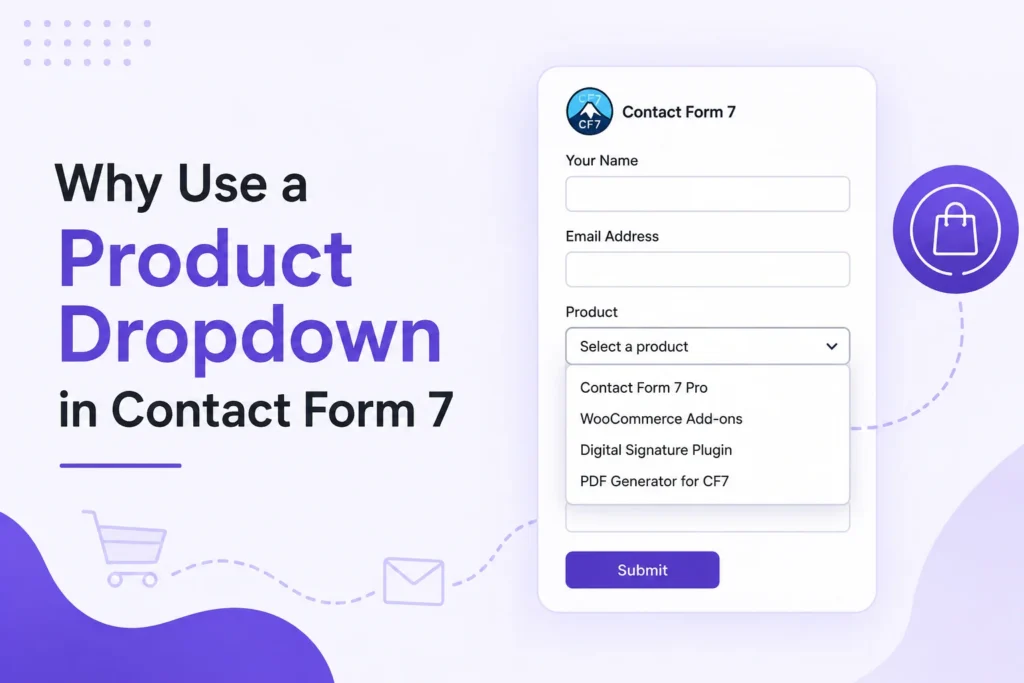
If your website needs product-related inquiries, you can also add a product selection field. For example, the Product Dropdown Selector for Contact Form 7 can be useful when visitors need to select a WooCommerce product directly within a Contact Form 7 form.
4. Configure Email Notifications
After creating the form, configure where submissions should be sent.
Set the recipient email address and create a clear notification subject. You should also configure the sender and reply-to information correctly so that you can respond to visitors easily.
For example, an email notification might use a subject such as:
New Website Contact Inquiry
Make sure the notification settings are tested before publishing the form.
5. Add the Contact Form to WordPress
Once your form is ready, you can add contact form to WordPress pages using the method provided by your plugin.
Depending on the plugin, you may be able to use:
- A WordPress block
- Shortcode
- Widget
- Page builder element
- Template integration
The most common location is a dedicated Contact page, but you can also place the form on service pages, product pages, landing pages, or other areas where visitors may need to contact you.
6. Test the Form
Never publish a new form without testing it.
Submit a test entry and check:
- Does the form submit successfully?
- Does the notification email arrive?
- Are all submitted fields included?
- Do required fields work correctly?
- Does the form look good on mobile?
- Are success and error messages displayed correctly?
Testing helps identify problems before real visitors start using the form.
How to Customize a Website Contact Form
A website contact form should fit naturally into your website design. Most form plugins provide basic customization options, while CSS can provide more control when needed.
You can customize:
- Field width
- Spacing
- Labels
- Font sizes
- Button appearance
- Input borders
- Form layout
- Error messages
Avoid adding too many visual elements. The primary goal is to make the form easy to understand and complete.
For Contact Form 7 users, CSS can also be used to create a form that matches the rest of the WordPress website. If you want more advanced form functionality, you can combine Contact Form 7 with specialized add-ons.
For example, websites that need customers to approve information or provide a signature can use a Digital Signature for Contact Form 7 solution.
How to Manage WordPress Form Submissions
Creating a form is only one part of the process. You also need a reliable way to manage WordPress form submissions.
Depending on the plugin you use, submissions may be delivered through email, stored inside WordPress, or handled through an external service.
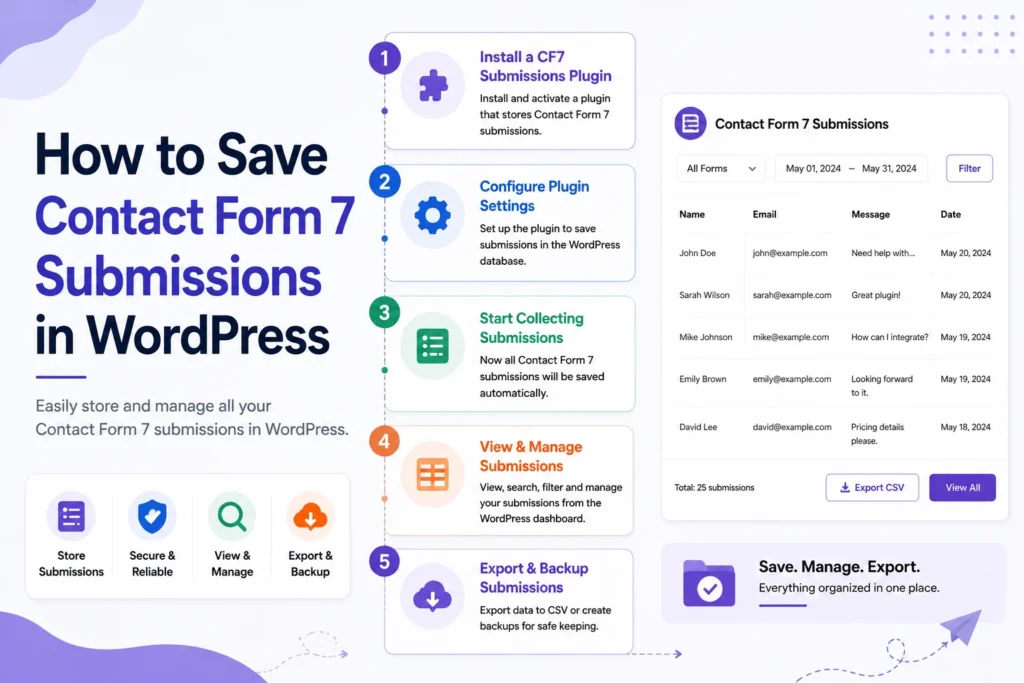
If submissions are stored in WordPress, you can review previous entries without searching through your inbox. This can be particularly useful when your website receives many inquiries.
For websites using Contact Form 7, a submission-management solution can help organize and review entries. This is useful when you need to keep a record of inquiries instead of relying only on email notifications.
When storing visitor information, make sure your website follows applicable privacy requirements and only collects information that is necessary for your purpose.
How to Prevent Spam Contact Form Submissions
Contact forms can attract spam, especially on websites that receive a large amount of traffic. Adding spam protection can help reduce unwanted entries.
Common options include:
CAPTCHA
CAPTCHA systems can help distinguish real visitors from automated submissions.
Honeypot Protection
A hidden field can be added that normal visitors do not complete. Automated bots may fill it in, allowing the submission to be identified as spam.
Validation
Email and field validation can prevent incomplete or invalid information from being submitted.
Keep Forms Simple
Only ask for information you actually need. A shorter form can reduce friction while also limiting unnecessary data collection.
Best Practices for a WordPress Contact Form
A useful WordPress contact form should be simple, clear, and reliable, while Contact Form 7 submissions should be easy to manage when your website receives regular inquiries.
Follow these practices:
- Use clear field labels so visitors know what information to provide.
- Keep the number of fields reasonable and remove unnecessary questions.
- Make important fields required when the information is essential.
- Use a clear submit button such as “Send Message” or “Submit Inquiry.”
- Add spam protection to reduce unwanted submissions.
- Make the form mobile-friendly because many visitors will access it from phones.
- Test email delivery regularly to make sure inquiries are not being missed.
- Show a clear success message after a visitor submits the form.
- Protect stored submissions because they may contain personal information.
- Review the form periodically and remove fields or features that are no longer necessary.
Common Contact Form Problems in WordPress
Even a simple form can experience technical problems. Some common issues include:
Contact Form Emails Are Not Arriving
This can happen because of incorrect notification settings or email delivery problems. Check the recipient, sender, and reply-to settings and consider using reliable SMTP configuration when necessary.
Form Submissions Are Not Being Stored
Not every form plugin automatically saves entries. If storing submissions is important, choose a plugin or add-on that provides submission storage.
Too Much Spam
Enable available spam-protection features and review your form settings.
Form Does Not Look Good on Mobile
Check the form on different screen sizes. Fields should fit within the available space and buttons should be easy to tap.
Conclusion
A contact form in WordPress provides a simple way for visitors to communicate with your business or website. With the right plugin, you can create a form, add the fields you need, configure email notifications, publish it on your website, and manage incoming submissions.
You can also explore Our Plugins for additional WordPress solutions that can extend your website’s functionality.
Start with a simple form and add advanced features only when they are useful for your visitors or business. Whether you need basic inquiries, product selection, stored submissions, or digital signatures, WordPress gives you flexible options for building a contact experience that fits your website.