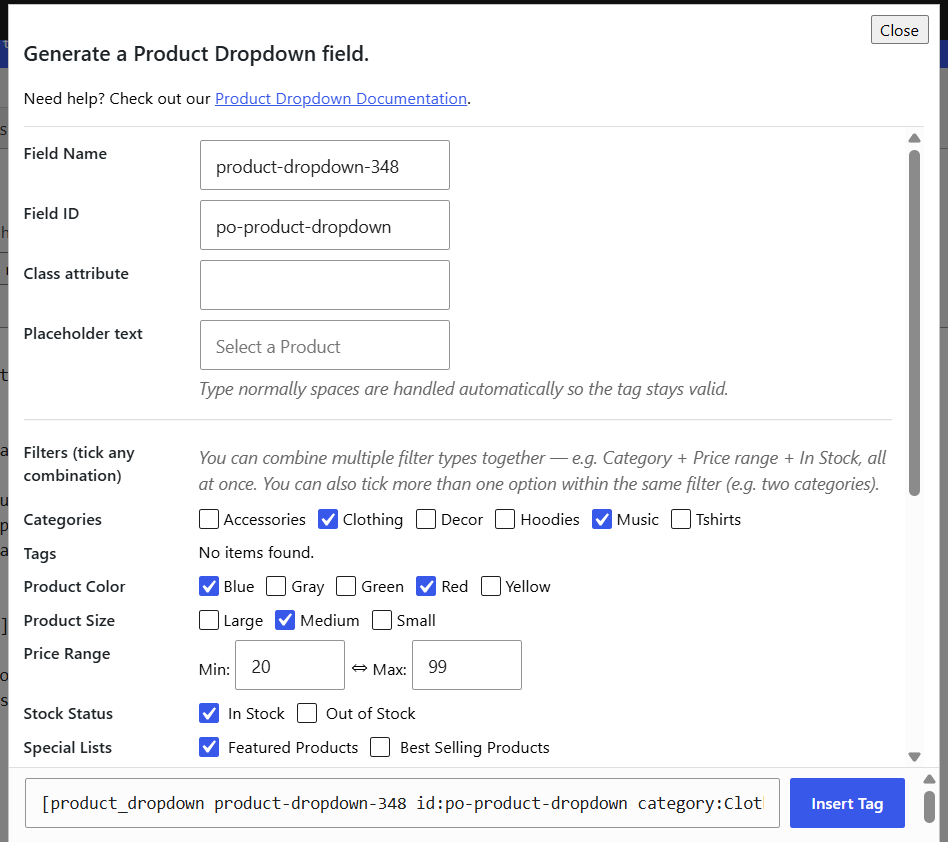
2.1 – Filtering by Category and Tags
Under Categories and Tags in the tag generator, tick any number of terms. Ticking more than one term within the same filter shows products that match any of the ticked terms (e.g. ticking “Music” and “Clothing” shows products from either category).
2.2 – Filtering by Product Attributes (Color, Size, Brand, etc.)
Any attribute you’ve created under Products → Attributes in WooCommerce is automatically detected and shown as its own filter section you don’t need to configure anything for a new attribute to appear. This includes built-in ones like Color and Size as well as fully custom attributes like Brand or Material.
2.3 – Filtering by Price Range
Enter a Min Price and/or Max Price in the Price Range row. Leave either field blank to have no lower/upper limit. Both fields are optional if you leave both empty, price is not used as a filter at all.
2.4 – Filtering by Stock Status
Tick In Stock, Out of Stock, or both, to control which products based on stock status appear in the dropdown. Leaving both unticked shows products regardless of stock status.
2.5 – Featured & Best-Selling Products
Under Special Lists, tick Featured Products to only show products marked as “Featured” in WooCommerce, or Best Selling Products to only show products with at least one recorded sale.

2.6 – Combining Multiple Filters Together
Unlike a single filter, this plugin lets you combine several filter types in one dropdown. For example: Category “Shoes” + Price $500–$2000 + In Stock will only show shoes priced between $500–$2000 that are currently in stock. Simply tick/fill in every filter you want combined they are joined together automatically (an item must match all the filter types you’ve set, and any one option within each type).
2.7 – Include or Exclude Specific Products
Use Include Product IDs to force specific products to always appear regardless of other filters, or Exclude Product IDs to hide specific products even if they’d otherwise match. Enter product IDs separated by a pipe character | for example: 12|45|102.
To find a product’s ID, go to Products in your WordPress dashboard and hover over a product title the ID appears in the link at the bottom of your browser, or check the URL when editing the product.


