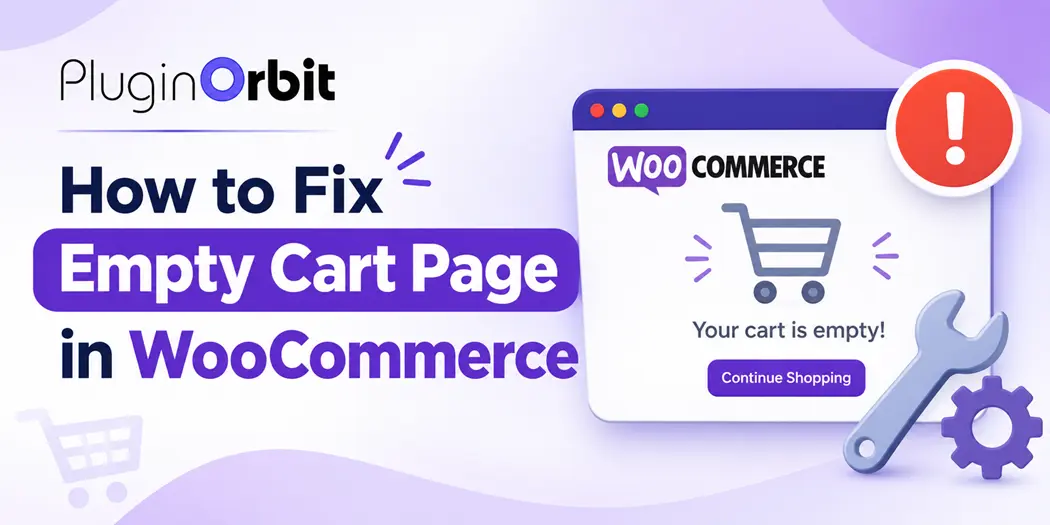
Is your WooCommerce cart page showing empty even after customers add products to their shopping carts? This issue can create a frustrating shopping experience, interrupt the checkout process, and potentially lead to lost sales.
An abandoned cart can also occur when customers add products to their shopping carts but leave without completing checkout, potentially resulting in lost sales.
If your WordPress WooCommerce empty shopping cart is not displaying products correctly, you need to identify the underlying cause before applying a fix.
In this guide, we will explain why the WooCommerce cart page is not updating and show you 10 practical ways to fix empty cart page issues.
Why Is My WooCommerce Cart Page Empty?
WooCommerce uses customer sessions and browser cookies to maintain shopping cart information while customers browse your online store.
When something interrupts this process, products may disappear from the cart or the cart page may display an empty message even after customers add items.
Here are some common reasons:
- Incorrect cart page configuration: WooCommerce may be assigned to the wrong cart page.
- Caching problems: Cached pages may display outdated cart information.
- Session issues: WooCommerce may fail to maintain customer cart sessions.
- Plugin conflicts: Another WordPress plugin may interfere with cart functionality.
- Theme compatibility: Your active theme may not display WooCommerce cart content correctly.
- JavaScript errors: Scripts responsible for updating cart information may fail.
- Cart block or shortcode problems: The required WooCommerce cart component may be missing or incorrectly configured.
Identifying which problem affects your store will help you choose the right solution.
How to Fix Empty Cart Page in WooCommerce
Follow these troubleshooting methods to resolve WooCommerce cart issues.
1. Check WooCommerce Cart Page Settings
One of the first things to check when your WooCommerce cart page is empty is whether the correct page has been assigned in WooCommerce settings.
If the cart page is missing or incorrectly assigned, WooCommerce may not display shopping cart information as expected.
To check your cart page configuration:
- Log in to your WordPress dashboard.
- Navigate to WooCommerce → Settings.
- Open the Advanced tab.
- Find the Page setup section.
- Check the assigned Cart page.
- Make sure the correct cart page is selected.
- Save your changes if you made any updates.
After saving the settings, visit your online store and add a product to the cart to test whether the problem is resolved.
2. Verify WooCommerce Cart Page Content
Another common reason for an empty WooCommerce cart page is missing or incorrect page content.
Your cart page needs the appropriate WooCommerce component to display products, quantities, prices, and cart totals.
If you use the classic WooCommerce cart experience, check whether the page contains this shortcode:
If you use the modern block-based experience, make sure the WooCommerce Cart block is present.
To verify your page:
- Navigate to Pages → All Pages.
- Find your assigned Cart page.
- Click Edit.
- Check whether the correct Cart block or shortcode is present.
- Restore the missing component if necessary.
- Update the page.
Important: Do not add the classic shortcode and Cart block together without a specific reason. Use the cart component appropriate for your store’s setup.
3. Clear Website and Browser Cache
Caching is another possible reason why the WooCommerce cart page is not updating.
Caching plugins and hosting providers can store previously generated page versions. If dynamic shopping cart pages are cached incorrectly, customers may see outdated information.
To troubleshoot caching:
- Clear your WordPress caching plugin’s cache.
- Clear your hosting or server-level cache if available.
- Clear your browser cache.
- Open your store in a private browsing window.
- Add a product to the cart.
- Visit the cart page and check whether the product appears.
Also, make sure your caching configuration excludes dynamic WooCommerce pages, especially:
- Cart page
- Checkout page
- My Account page
Do not cache customer-specific cart and checkout responses as ordinary static pages. Check your caching plugin’s WooCommerce compatibility documentation for the correct configuration.
If you want to improve overall store performance, read our guide on WooCommerce caching and performance.
4. Check WooCommerce Customer Sessions
WooCommerce uses customer sessions to maintain cart information between page visits.
If customer sessions are not working correctly, products may disappear when customers refresh the page, navigate to another page, or return to the shopping cart.
To investigate:
- Open your WordPress dashboard.
- Navigate to WooCommerce → Status → Tools.
- Review the available session-related maintenance tools.
- Check whether customer sessions are functioning correctly.
- If necessary, clear test or affected customer sessions using the appropriate maintenance tool.
Warning: Clearing customer sessions can remove active shopping cart information. Do not perform this action on a live store without considering its impact on customers.
You should also check whether your browser allows cookies and whether your website uses consistent HTTPS and domain settings.
5. Check for Plugin Conflicts
Sometimes another WordPress plugin interferes with WooCommerce cart functionality.
This can happen when plugins modify checkout fields, cart calculations, caching, session handling, or product information.
To identify a possible conflict:
- Create a backup of your website.
- If possible, reproduce the issue on a staging website.
- Temporarily deactivate non-essential plugins.
- Test the WooCommerce cart page.
- Reactivate plugins one at a time.
- Identify whether a particular plugin causes the issue.
If the problem disappears after deactivating a plugin, investigate its compatibility and configuration before deciding whether to replace it.
Avoid disabling important payment or security features on a live store while customers are shopping.
6. Check Your WordPress Theme Compatibility
Your active WordPress theme controls much of your store’s appearance and may also include custom WooCommerce templates.
An outdated or incompatible theme override can sometimes prevent cart information from displaying correctly.
To investigate:
- Update your active theme.
- Check whether the theme supports your installed WooCommerce version.
- Review any custom WooCommerce template overrides.
- Test the cart using a staging environment with a default WooCommerce-compatible theme.
- Compare the results.
If the cart works with a default theme but not your current theme, investigate theme-specific customizations.
Do not immediately change your live website’s theme without checking its impact on your store design and functionality.
7. Refresh WordPress Permalinks
Incorrect permalink rules can sometimes cause WooCommerce pages or their endpoints to behave unexpectedly.
Refreshing permalink settings is a simple troubleshooting step.
Follow these steps:
- Go to Settings → Permalinks.
- Review your current permalink structure.
- Click Save Changes without unnecessarily changing your URL structure.
- Visit your WooCommerce cart page.
- Test the cart again.
This makes WordPress refresh its rewrite rules.
Remember that permalink problems are more likely to cause URL or page-loading issues than an actual empty cart, so investigate other causes if the problem continues.
8. Check JavaScript Errors and Browser Console
WooCommerce uses JavaScript to support various interactive shopping cart features.
If a script fails to load or another plugin introduces a JavaScript conflict, cart updates may not work as expected.
To check for errors:
- Open your WooCommerce store in Chrome.
- Right-click the page and select Inspect.
- Open the Console tab.
- Refresh the cart page.
- Look for JavaScript errors.
- Investigate errors related to WooCommerce, cart scripts, or incompatible plugins.
You can also check the Network tab to identify failed requests.
If you find errors, investigate the responsible plugin, theme, script, or server configuration. Avoid deleting scripts or adding random code snippets without understanding their purpose.
9. Check WooCommerce Cart Block Compatibility
WooCommerce supports both the classic cart shortcode and the newer Cart block.
These experiences have different implementation details, so compatibility problems may occur when themes, plugins, or custom code expect one cart system but the store uses another.
To check your configuration:
- Open the assigned Cart page.
- Check whether it uses the Cart block or classic shortcode.
- Confirm that your theme supports the selected cart experience.
- Check for plugin compatibility issues.
- Test adding, removing, and updating cart quantities.
The Cart block also includes a separate Empty Cart view. This view is displayed when there are no products in the cart.
You can customize this view with a message and product recommendations, but customization will not solve an underlying session or cart-loading problem.
10. Update WooCommerce and Related Plugins
Outdated software can introduce compatibility problems or prevent important cart features from working correctly.
Check whether you are using supported versions of:
- WordPress
- WooCommerce
- Your active theme
- Cart and checkout extensions
- Caching and optimization plugins
Before updating:
- Back up your website.
- Review the update information.
- Test updates on a staging website when possible.
- Update compatible components.
- Test the complete shopping process.
After updating, add a product, open the cart, change its quantity, remove the product, and proceed through checkout using a safe test order.
How to Prevent WooCommerce Empty Cart Problems
Fixing an empty cart page is important, but preventing the problem from happening again is equally valuable.
Follow these practices:
- Keep WooCommerce and WordPress updated.
- Exclude dynamic cart and checkout pages from page caching.
- Use compatible plugins and themes.
- Avoid unnecessary modifications to WooCommerce cart templates.
- Test cart functionality after installing new plugins.
- Check customer sessions and cookies.
- Monitor JavaScript errors and failed requests.
- Test your store on desktop and mobile devices.
You should also review the product browsing experience. Customers need to find products easily, add them to their carts, and move through checkout without unnecessary interruptions.
For additional guidance, see our article about WooCommerce product browsing experience.
Conclusion
An empty WooCommerce cart page can affect customer experience and interrupt the purchasing process. Fortunately, most issues can be investigated by checking cart page settings, caching configuration, customer sessions, plugin compatibility, and theme functionality. You should also customize WooCommerce emails to keep customers informed about their orders and provide a smoother shopping experience.
Start with the simplest checks and test your store after each change. If the problem continues, investigate JavaScript errors, failed requests, and server-side configuration.
By maintaining proper WooCommerce cart functionality and regularly testing the shopping experience, you can help customers add products, review their orders, and complete purchases without unnecessary interruptions.