When a WooCommerce store has only a few products, shoppers can usually browse the catalog without much effort. But as the number of products, categories, prices, sizes, colors, and other options grows, finding the right product becomes harder.
This is where a WooCommerce product filter and product search can make a major difference.
Once shoppers find the right item, a customized product page can provide the product details they need to make a purchase decision.
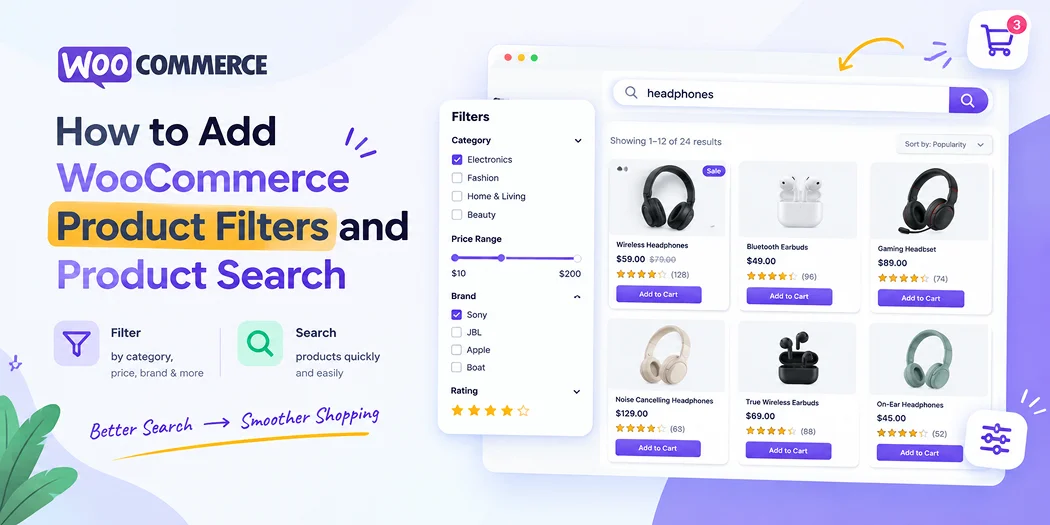
Product filters let shoppers narrow a catalog using information such as category, price, attributes, rating, availability, or tags. A WooCommerce product search helps customers find a specific product by entering a name, keyword, SKU, or other relevant information.
What Are WooCommerce Product Filters and Product Search?
A WooCommerce product filter allows customers to reduce a large product list according to specific criteria.
For example, a clothing store could allow shoppers to filter products by:
- Category
- Size
- Color
- Price
- Brand
- Rating
- Stock availability
Product search works differently. Instead of selecting several criteria, customers enter what they are looking for into a search field.
For example, a customer could search for “wireless headphones” or enter a product SKU to find a specific item.
The two features work well together. Search helps customers who already know what they want, while filters help customers who are comparing products or exploring a category.
Why Add Product Filters to WooCommerce?
The larger your catalog becomes, the more important product discovery becomes.
Imagine a store with 500 products. Asking customers to browse page after page to find a product is not an efficient shopping experience.
With Product Filters for WooCommerce, shoppers can quickly reduce the number of products displayed.
For example:
All Products → Electronics → Headphones → Under $100 → In Stock
Instead of looking through hundreds of products, the customer sees only the products that match their requirements.
Good filtering can help with:
- Faster product discovery
- Easier catalog navigation
- Better shopping experiences
- More useful category pages
- Easier comparison between products
- Improved mobile browsing
- Reduced frustration when searching a large catalog
However, adding filters is not simply about adding as many options as possible. The filters should reflect the information customers actually use when making purchasing decisions.
How to Add a WooCommerce Product Filter
There are several ways to add Filters for WooCommerce, depending on your store setup and the type of filtering experience you want.
1. Use the WooCommerce Product Filters Block
Modern WooCommerce stores can use the Product Filters block with a Product Collection.
The block supports filtering options such as price, rating, attributes, availability, categories, brands, and tags. WooCommerce also provides controls for how filters behave on smaller screens.
For example, the Product Filters block can be placed near the product collection on a shop or catalog template.
A typical layout could look like this:
Product Filters | Product Collection
The shopper selects a filter on one side while the matching products are updated in the product collection.
WooCommerce documentation states that the Product Filters block can update products without requiring a full page reload by default. This creates a smoother browsing experience for shoppers.
2. Use a Dedicated Product Filter Plugin
Another option is to install a dedicated WooCommerce filtering plugin.
This approach can be useful when your store needs filtering functionality beyond the standard options available in your current WooCommerce setup.
Depending on the plugin, you may get features such as:
- AJAX filtering
- Multiple filter types
- Attribute filtering
- Price sliders
- Searchable filters
- Custom filter layouts
- Mobile filter drawers
- Filter widgets
- Advanced product queries
Before installing one, check compatibility with your WooCommerce version, theme, product templates, and other plugins.
Avoid installing multiple plugins that perform essentially the same job. More functionality does not automatically mean a better store.
3. Add Filters to Relevant Store Pages
Product filters are most useful where customers are actively browsing products.
Good locations include:
- Main shop page
- Product category pages
- Brand pages
- Search results
- Custom product catalog pages
You do not necessarily need to display every filter everywhere.
For example, a “Shoes” category may benefit from size, color, brand, and price filters, while a “Laptops” category may need RAM, storage, processor, screen size, and price.
This category-specific approach keeps the interface relevant.
How to Choose the Right WooCommerce Product Filters
The best filters depend on your product catalog.
Category Filters
Category filters help customers move between broad product groups.
For example:
Clothing → Men → Shirts
They work particularly well for stores with a large number of product categories.
Attribute Filters
Attributes are useful for characteristics such as size, color, material, capacity, or compatibility.
For example, a clothing store might use:
Color: Black, White, Blue
Size: S, M, L, XL
WooCommerce documentation recommends using product attributes for characteristics such as size and color rather than treating those characteristics as unrelated categories or tags.
Price Filters
Price filtering is useful when customers have a specific spending range.
A customer might select:
$25–$50
instead of browsing products outside their budget.
Availability Filters
Availability filters help shoppers avoid products that cannot currently be purchased.
For example:
In Stock
can immediately remove unavailable products from the results.
Rating Filters
Rating filters can be useful when customer reviews play an important role in purchasing decisions.
A shopper might choose products rated four stars or higher.
The important point is to use filters that support actual shopping decisions. If customers rarely use a particular filter, it may only add visual clutter.
How to Add WooCommerce Product Search
A product filter helps customers narrow results, but a search box is often better when the customer already knows what they want.
A WooCommerce product search can be placed on the shop page, sidebar, header, or another prominent area of the store.
For example:
Search products…
A shopper could enter:
- Running shoes
- USB cable
- Office chair
- Product name
- SKU
WooCommerce’s Product Search functionality supports live search experiences where matching products can appear as the customer types. Depending on the configuration, search can consider product titles, excerpts, content, categories, tags, attributes, and SKUs.
That makes search especially useful for stores with large catalogs.
Search and Filters Work Better Together
You do not necessarily have to choose between product search and filters.
The strongest catalog experience often combines both.
For example:
Search: “running shoes”
Then apply:
Category: Men
Size: 10
Color: Black
Price: Under $100
Availability: In stock
This gives customers two different ways to navigate the catalog.
Search is useful for known-item discovery.
Filters are useful for product exploration and comparison.
Using both can make a large WooCommerce catalog significantly easier to navigate.
Where Should You Place Product Search?
Placement matters.
A search box should be easy to find without taking attention away from the products.
Good locations can include:
- Store header
- Shop page
- Product category pages
- Sidebar
- Mobile filter/search area
If customers frequently search for specific products, placing search near the top of the catalog can be particularly useful.
WooCommerce’s documentation also supports placing product search functionality in prominent areas such as sidebars or directly on pages where customers browse products.
Make the Filtering Experience Mobile-Friendly
A filter that works well on desktop can become frustrating on mobile.
On a smaller screen, displaying 10 or 15 filter options permanently can push the product grid far down the page.
A better approach is often a collapsible filter interface or filter drawer.
For example:
Filter Products
When the customer taps the button, the available filters open.
WooCommerce provides a mobile-specific setting that can display filters in a drawer on smaller screens.
When testing mobile filters, check:
- Can customers open the filters easily?
- Can they remove an individual filter?
- Is there a clear “Clear filters” option?
- Are buttons large enough to tap?
- Does the product list update correctly?
- Can customers return to the product list easily?
The filter should help shoppers, not become another obstacle.
How to Keep WooCommerce Product Filters Fast
Adding filters can improve usability, but poorly configured filtering can also create performance problems.
If filtering triggers expensive database queries, loads too many assets, or conflicts with other plugins, customers may experience slow results.
That is why filtering should be part of your overall performance strategy.
If your store already feels slow, address the underlying performance issues rather than simply adding more optimization plugins.
You can also review practical techniques to make WooCommerce faster, including improving image sizes, reducing unnecessary plugins, using appropriate hosting, optimizing caching, and keeping WordPress and WooCommerce updated.
Performance matters because shoppers expect the catalog to respond quickly when they change filters or search for products.
Keep Your WooCommerce Product Page Consistent
Filtering gets customers to the right products, but the product page still needs to complete the shopping experience.
After a shopper selects a product, make sure the WooCommerce product page provides the information needed to make a purchase decision.
Important elements can include:
- Clear product title
- Price
- Product images
- Product description
- Variations
- Availability
- Shipping information
- Reviews
- Add to Cart button
- Relevant product specifications
There is little value in creating excellent filters if the product page is difficult to understand or navigate.
The journey should feel connected:
Search or Filter → Product → Product Information → Add to Cart → Checkout
Use Product Selection Where a Store Needs It
Not every product-related workflow needs to happen on the shop page.
Some businesses use Contact Form 7 for product inquiries, quotation requests, custom orders, or customer questions.
In that situation, a Product Dropdown Selector for Contact Form 7 can allow visitors to select WooCommerce products directly from a structured form instead of manually typing the product name.
This can be useful when customers need to identify a specific product before submitting an inquiry.
The key is to match the tool to the customer journey. Use catalog filters for product discovery and a product selector when a form-based workflow makes more sense.
Avoid Overloading Your Store With Plugins
It can be tempting to install several plugins for filtering, search, product grids, performance, analytics, and other functionality.
But every additional plugin should have a clear purpose.
Before adding a WooCommerce plugin, ask:
- What problem does it solve?
- Do customers actually need this feature?
- Does WooCommerce already provide the functionality?
- Is the plugin maintained?
- Does it work with my theme and other plugins?
- Will it affect performance?
- Is the interface mobile-friendly?
Choosing fewer, well-maintained tools is often better than creating a complicated plugin stack.
If you are comparing solutions for different WooCommerce requirements, you can also review Our Plugins and select functionality based on the specific problem you are trying to solve.
Test Product Filters Before Launch
Never assume that a filter works correctly simply because it appears on the page.
Test combinations that real customers might use.
For example:
Category + Price
Category + Color + Size
Search + Availability
Brand + Rating + Price
Also test edge cases.
What happens when no products match?
What happens when a customer removes one filter?
Does the product count update?
Does the URL change correctly if your filtering solution uses query parameters?
Does the filter work on mobile?
Testing these scenarios can reveal problems that are easy to miss during setup.
What If WooCommerce Product Search Returns No Results?
A good search experience should help customers recover from a failed search.
Instead of simply displaying:
No products found.
Consider providing:
- A search box for another query
- Popular categories
- Related products
- Suggested search terms
- A link back to the main shop
- Clear filter-reset controls
The goal is to keep the customer moving instead of creating a dead end.
For example:
No products matched the “blue running jacket.”
Try another search or browse our jackets category.
This is much more useful than leaving the visitor on an empty results page.
Should You Use Product Filters on Every WooCommerce Store?
Not necessarily.
A small store with 10 or 20 products may not need an advanced filtering system.
A large catalog with hundreds or thousands of products is a different situation.
Product filters become more valuable when customers need to compare products based on multiple characteristics.
As a simple rule:
Small catalog: Search may be enough.
Medium catalog: Search + basic filters can improve navigation.
Large catalog: Search + category, attribute, price, availability, and other relevant filters can provide a much better discovery experience.
The right setup depends on your catalog size, product structure, customer behavior, and purchasing process.
Conclusion
Adding a WooCommerce product filter and WooCommerce product search can make a large product catalog much easier to navigate.
The most effective setup is not necessarily the one with the most filters. It is the one that helps customers quickly answer questions such as:
What products do you have?
Which products match my requirements?
Which products are within my budget?
Is the product available?
Where can I find the exact product I want?
Start with the filters customers actually need, add search for faster product discovery, make the interface mobile-friendly, and monitor performance as your catalog grows.
Most importantly, connect the catalog experience with a useful product page and a simple checkout process. When search, filtering, product information, performance, and checkout work together, WooCommerce becomes easier for customers to browse and easier for store owners to manage.