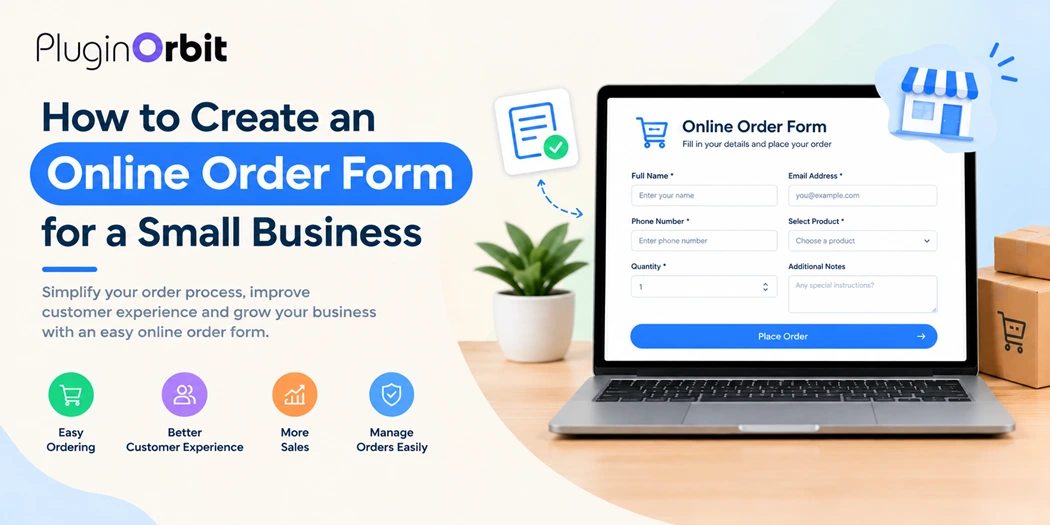
Creating an online order form helps small businesses collect customer details, product selections, quantities, delivery preferences, and special instructions in one place.
Instead of managing orders through scattered emails, phone calls, or social media messages, businesses can provide a simple form that customers complete whenever they are ready to place an order.
You can create an online order form using WordPress, Contact Form 7, or WooCommerce, depending on how your business sells products.
A basic form works well for collecting order requests, while a WooCommerce product order form can support a more complete shopping experience with product pricing, a cart, checkout, and payment options.
This guide explains how to create an online order form, which fields to include, how to let customers select products, and how to manage submissions efficiently.
What Is an Online Order Form?
An online order form is a web form that allows customers to select products or services and submit their order details through a website. Depending on the setup, it can collect product names, quantities, customer contact information, shipping details, and additional requirements.
For example, a small bakery might use an order form for cakes, while a clothing business could allow customers to select sizes, colors, and quantities. A B2B company might use a custom product order form to collect bulk purchase requests before confirming prices.
Online order forms are useful for:
- Small businesses selling products directly to customers.
- Home-based businesses accepting orders online.
- Restaurants and bakeries collecting advance orders.
- Wholesale suppliers managing bulk order requests.
- Service providers collecting booking or purchase requirements.
- Businesses that need to review orders before confirming payment.
The right form depends on whether you want to collect order inquiries or complete purchases directly through your website.
Why Should Small Businesses Create an Online Order Form?
An online order form gives customers a clear way to submit their requirements without contacting your business manually for every order.
Here are the main benefits.
Simplifies the ordering process: Customers can select products, enter quantities, and provide their contact information in one place.
Reduces manual work: A structured form helps reduce repetitive questions and makes order details easier to review.
Collects consistent information: Required fields help ensure customers provide important details before submitting their requests.
Supports custom orders: Businesses can collect size preferences, product variations, delivery instructions, and other specific requirements.
Improves order organization: When submissions are stored properly, you can review requests and follow up without searching through multiple conversations.
An effective form should be easy to complete on desktop and mobile devices. Keep the questions relevant, explain what happens after submission, and avoid requesting unnecessary information.
How to Create an Online Order Form in WordPress
WordPress offers several ways to create an online order form. You can use a form plugin for simple order requests or WooCommerce when you need product listings, checkout, and payment functionality.
Follow these steps to build a form that matches your business needs.
Step 1: Choose the Right Order Form Method
Start by deciding how customers will place orders on your website.
A contact form plugin is suitable when customers need to submit product requests and your team will confirm availability, pricing, or delivery details manually.
WooCommerce is generally a better option when you want customers to browse products, add items to a cart, calculate totals, and complete checkout.
Before selecting a tool, consider the number of products you sell, whether prices are fixed, how you collect payments, and whether you need custom order information.
If you are setting up a form for the first time, start with this tutorial on add a contact form to WordPress. It explains the basics of adding a form to your website.
Step 2: Add the Essential Order Form Fields
The fields you include determine whether customers can provide enough information for your business to process their requests.
A typical online product order form may contain the following fields:
- Customer name: Identify the person placing the order.
- Email address: Send order confirmations and follow-up messages.
- Phone number: Contact customers when clarification is required.
- Product selection: Let customers choose the items they want.
- Quantity: Collect the number of units requested.
- Product options: Include sizes, colors, materials, or other variations when applicable.
- Delivery address: Collect shipping details if delivery is available.
- Special instructions: Allow customers to describe custom requirements.
- Payment preference: Include relevant options when your process supports them.
Only request information that you actually need. For example, a business that sells digital products may not need a shipping address.
You should also mark required fields clearly and provide helpful labels so customers understand what to enter.
Step 3: Create a Product Selection Field
Product selection is one of the most important parts of an order form. Customers should be able to identify the products they want without guessing or entering inconsistent names.
For a business with a few products, a dropdown menu may be sufficient. If you offer many products, a searchable selector or product list may provide a better experience.
If you use Contact Form 7, you can explore a WooCommerce product selector to understand how product selection can be incorporated into a form.
For example, a small business selling handmade products might allow customers to choose a candle, select its fragrance, and enter the required quantity.
Make sure your product choices are easy to understand. If customers need to select variations, provide separate fields for options such as size or color rather than combining everything into one confusing list.
Step 4: Add a WooCommerce Product Dropdown
A dropdown is useful when customers need to select one item from a predefined list. It can keep an order form compact and reduce errors caused by manually entered product names.
For instance, a printing business could offer business cards, flyers, brochures, and posters in a product dropdown. Customers could then enter the quantity and provide additional specifications.
If you are building a form with Contact Form 7, see this resource on adding a WooCommerce product dropdown.
When creating a dropdown, use clear product names and keep the options updated. If the available products, prices, or variations change frequently, establish a process for maintaining the form.
Remember that a dropdown field alone does not automatically create a WooCommerce cart, calculate a verified order total, or process payment. Those features require the appropriate store or payment functionality.
Step 5: Customize the Order Form Design
A professional order form should match your website and make the next action obvious.
Use clear labels, readable text, consistent spacing, and a visible submit button. Arrange related fields together, such as customer information, product selection, and delivery details.
For a better mobile experience:
- Use fields that are easy to tap.
- Avoid overly long dropdown lists when possible.
- Keep instructions short and specific.
- Display validation messages near the relevant fields.
- Test the form on different screen sizes.
You can also add a short introduction explaining what customers can order and how your team will respond.
For example, a custom furniture business might display a message stating that customers can submit their preferred dimensions and receive a quote before confirming the purchase.
Step 6: Configure Form Notifications and Confirmations
After customers submit an order form, they should know whether their request was received.
Configure an email notification to send the relevant order information to your business email address. Where appropriate, send the customer a confirmation message containing the submitted details and an explanation of the next steps.
Your confirmation could explain that your team will check product availability and contact the customer to confirm the order.
Before publishing the form, test whether notifications arrive correctly. Check the recipient address, email subject, message fields, and spam folder. If emails are unreliable, review your WordPress email configuration and consider an appropriate SMTP solution.
Never tell customers that payment has been completed unless the payment system has actually confirmed it.
Step 7: Publish and Test the Form
Once the fields and notifications are ready, add the form to a suitable page on your website.
You might create a dedicated Order Online page and link to it from your navigation menu, product pages, or homepage.
Before accepting real orders, submit several test entries. Check whether:
- All required fields work correctly.
- Product selections and quantities are recorded accurately.
- Email notifications contain the correct information.
- Confirmation messages appear after submission.
- The form works on mobile devices.
- Customer information is handled securely.
Testing helps identify problems before customers encounter them. Repeat these checks whenever you change the form, add new products, or update the ordering process.
How to Create a WooCommerce Product Order Form
If your business sells products through WordPress, WooCommerce can provide a more complete ordering experience than a standalone contact form.
A WooCommerce product order form may be useful when customers need to select products, choose variations, review prices, and proceed to checkout.
To set up this type of ordering process:
- Install and configure WooCommerce on your WordPress website.
- Add your products with accurate names, descriptions, prices, and images.
- Configure product variations, such as sizes or colors, where needed.
- Set up shipping, taxes, and payment methods that apply to your business.
- Customize the product selection and checkout experience to suit your customers.
- Place a test order and verify the cart, totals, payment flow, and order confirmation.
If your business requires customers to request a custom price instead of purchasing at a fixed price, a standard checkout may not be the right first step.
For those situations, a WooCommerce Quote Request Form can help collect product details, quantities, and customer requirements before you provide a quotation.
Choose your setup based on the actual transaction you want to support. A request form collects information; a properly configured WooCommerce checkout handles the purchase process.
How to Create a Custom Product Order Form
A custom product order form is useful when customers need to specify requirements that cannot be covered by standard product options.
For example, a gift shop may accept personalized messages, a clothing business may collect custom measurements, or a manufacturer may need dimensions and bulk quantities before confirming an order.
To create a useful custom form, start by identifying the information your team needs to prepare the order. Add fields for relevant product options, quantities, reference files where necessary, and special instructions.
Use conditional fields when supported by your form tool so customers see additional questions only when they apply. For instance, selecting a personalized product could reveal a field for entering the requested text.
Keep the form manageable. Too many questions can discourage customers from completing it, particularly on mobile devices.
If you receive custom orders regularly, organize submissions so your team can review requirements, contact customers, confirm pricing, and track the order through the next stages.
How to Manage and Save Online Order Form Submissions
Collecting order details is only part of the process. You also need a reliable way to review and retrieve submissions.
If you use Contact Form 7, email notifications can alert you when a customer submits a form. However, relying entirely on email may make older requests difficult to find, especially when your business receives many submissions.
Consider a submission storage solution that keeps customer entries accessible in your WordPress dashboard. This makes it easier to review product selections, retrieve contact information, and follow up on pending requests.
PluginOrbit provides a guide on how to save Contact Form 7 submissions.
For better order management, establish a simple process for recording each request, checking product availability, contacting the customer, and updating its status. Limit access to customer information to authorized team members and retain personal data only as long as necessary.
For businesses processing completed WooCommerce purchases, use WooCommerce order management features to review orders and track their status rather than treating every order as an ordinary contact form submission.
Best Practices for a High-Converting Online Order Form
A form should make ordering straightforward while giving your business the information it needs. Use these practices to improve the customer experience.
Keep the form short: Include essential questions first and remove fields that do not support the order process.
Use clear product descriptions: Customers should understand what they are selecting, including important variations and pricing information.
Make the next step obvious: Use a descriptive button label such as “Submit Order Request” or “Proceed to Checkout,” depending on the functionality.
Optimize for mobile: Ensure that customers can select products, enter details, and submit the form comfortably on smaller screens.
Explain what happens next: Tell customers whether they will receive a confirmation, a quotation, or a payment request.
Protect customer information: Use HTTPS, keep WordPress and plugins updated, and configure access and data retention appropriately.
Monitor submissions: Review incomplete requests, common customer questions, and errors so you can improve the ordering process over time.
Conclusion
Creating an online order form helps small businesses organize product requests, collect accurate customer information, and make ordering more convenient. The best setup depends on whether you need a simple request form, a custom product order form, or a complete WooCommerce purchasing process.
Start with the essential fields, make product selection clear, configure reliable notifications, and test the entire process before publishing. As your business grows, explore WordPress and WooCommerce plugins to improve order management and support more complex ordering needs.
With the right approach, your online order form can become a practical part of your website’s sales and customer service workflow.