Contact Form 7 is one of the most widely used WordPress plugins for creating contact and inquiry forms. But there is an important limitation many website owners discover after setting up their forms: Contact Form 7 does not provide a built-in dashboard for storing and managing submitted entries.
That means receiving a form notification by email is not always enough. If you need to review submissions later, search through previous entries, export customer information, or keep form data available inside WordPress, you need a reliable way to store those submissions.
In this guide, you’ll learn how to save Contact Form 7 submissions in WordPress, what happens to form data after someone clicks Submit, and how you can manage stored entries more efficiently.
Does Contact Form 7 Save Submissions in WordPress?
By default, Contact Form 7 is primarily designed to process form submissions and send the submitted information through email. It does not function as a complete database or submission-management system.
For example, imagine a customer submits:
- Name
- Email address
- Phone number
- Product selection
- Message
Contact Form 7 can process these fields and include the submitted information in an email notification. However, if you want to open your WordPress dashboard months later and browse all previous submissions in one place, you need an additional storage solution.
This distinction is important because email delivery and database storage are two different things.
An email tells you that a form was submitted. A stored entry gives you a structured record that you can review and manage later.
Why Save Contact Form 7 Submissions?
Saving submissions becomes particularly useful when a website receives regular inquiries, leads, registrations, or customer requests.
1. Keep a record of submitted information
Email notifications can become difficult to organize when submission volume increases. Storing entries in WordPress gives you a central place to review the information collected through your forms.
2. Reduce the risk of losing important inquiries
A message can be overlooked, deleted, or buried in an inbox. Keeping a separate submission record gives your team another place to access important information.
This does not replace proper backups, access controls, and data-retention policies, but it can make day-to-day submission management much easier.
3. Find previous submissions faster
When submissions are stored in a structured format, you can review previous entries without searching through hundreds of individual emails.
This is especially useful for websites that receive customer inquiries, support requests, applications, or sales leads.
4. Manage more than basic contact information
A Contact Form 7 form may contain many different fields. Depending on your form, you might collect names, phone numbers, dropdown selections, checkboxes, messages, or other information.
A proper submission-storage solution should preserve the submitted values in a way that makes them easy to review.
How to Save Contact Form 7 Submissions in WordPress
The simplest approach is to use a dedicated Contact Form 7 submission-storage or database plugin.
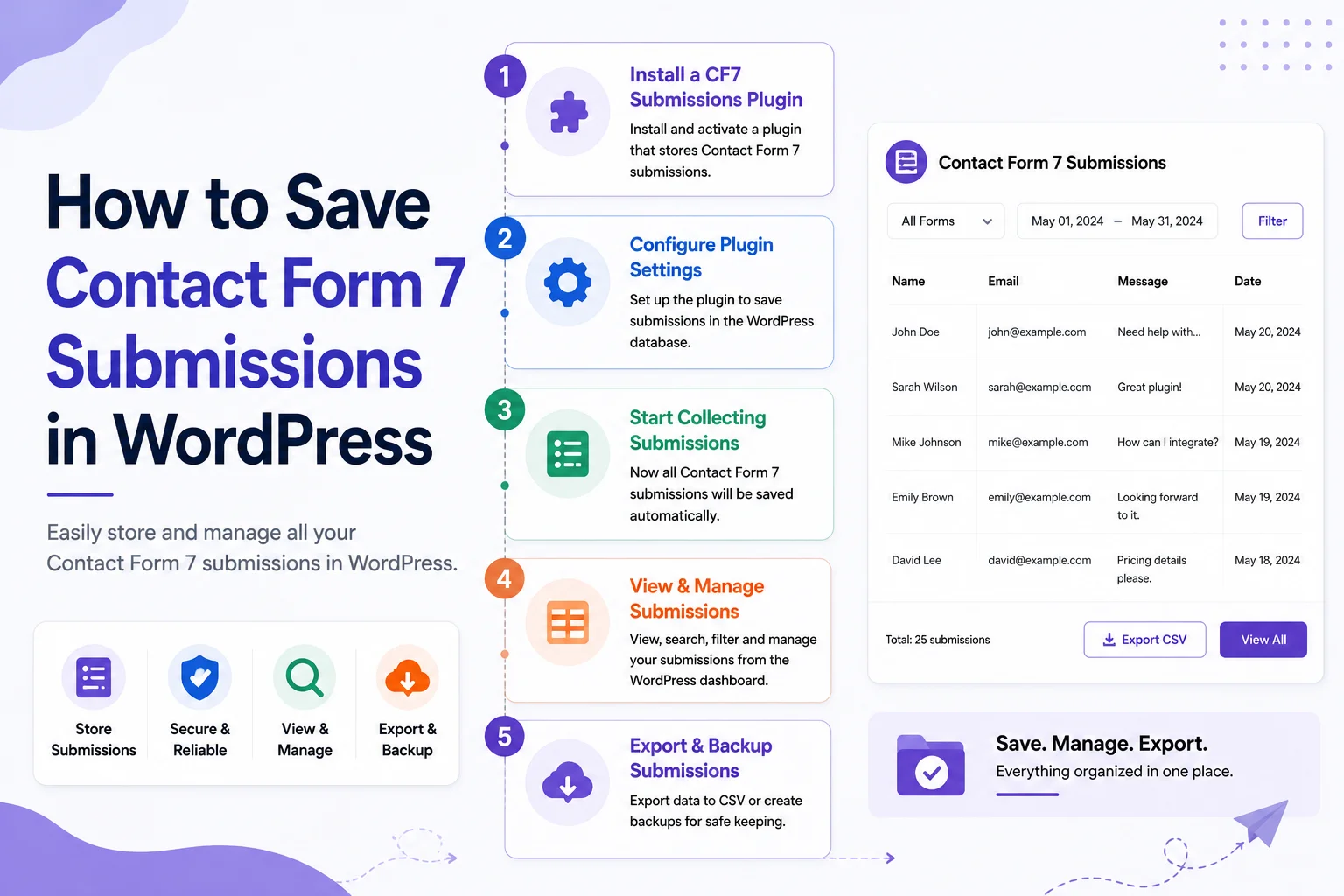
A typical workflow looks like this:
Visitor submits form → Contact Form 7 processes the submission → submission is stored → administrator views the entry in WordPress
Here is how the process generally works.
Step 1: Create your Contact Form 7 form
First, create the form you want visitors to complete.
For example, a basic contact form might include:
- Name
- Subject
- Message
If your website needs more structured information, you can also use additional Contact Form 7 fields such as dropdowns, checkboxes, radio buttons, or product-related selections.
Make sure every field you want to store has a clear field name and that your form is working correctly before adding a submission-management solution.
Step 2: Install a submission-storage solution
Because Contact Form 7 does not provide a native submission-management dashboard, install a plugin designed to save and manage Contact Form 7 entries.
Look for a solution that clearly explains:
- How submissions are stored
- Where administrators can view entries
- Which Contact Form 7 fields are supported
- Whether entries can be searched or filtered
- Whether data can be exported
- How the plugin handles security and privacy
Avoid choosing a plugin only because it has a long feature list. The most important question is whether it reliably solves your actual submission-management problem.
If you want to explore ways to manage Contact Form 7 entries, see our guide to Contact Form 7 Submissions.
Step 3: Submit a test entry
After configuring the storage solution, submit your form yourself.
Use realistic test information and check whether the entry appears correctly in your WordPress dashboard.
Verify that:
- The submission is saved
- All expected fields are present
- Field values are displayed correctly
- Email notifications still work
- Special fields such as dropdowns or checkboxes are handled correctly
Testing before sending real visitors to the form can help identify configuration problems early.
Step 4: View and manage saved entries
Once submissions are being stored, administrators can use the plugin’s entry-management interface to review previous submissions.
Depending on the solution you choose, you may be able to:
- View individual submissions
- Search entries
- Filter submissions
- Review submission dates
- Export records
- Delete unwanted entries
The exact features depend on the plugin, so check its documentation before assuming a particular function is available.
How Contact Form 7 Fields Store Submission Data
One area that can cause confusion is the difference between a form field and the information submitted through that field.
A Contact Form 7 form can contain fields such as:
[text* your-name]
[email* your-email]
[tel your-phone]
[select product “Product A” “Product B”]
[textarea your-message]
When a visitor completes the form, the values associated with these fields become part of the submission.
For example:
| Form field | Example submitted value |
| your-name | Pitter dock |
| your-email | Peeter58@example.com |
| your-phone | 555-0100 |
| product | Product A |
| your-message | I would like more information |
A reliable storage solution should map these submitted values correctly so that administrators can understand the entry later.
This becomes especially important when a form contains custom fields or more complex input options.
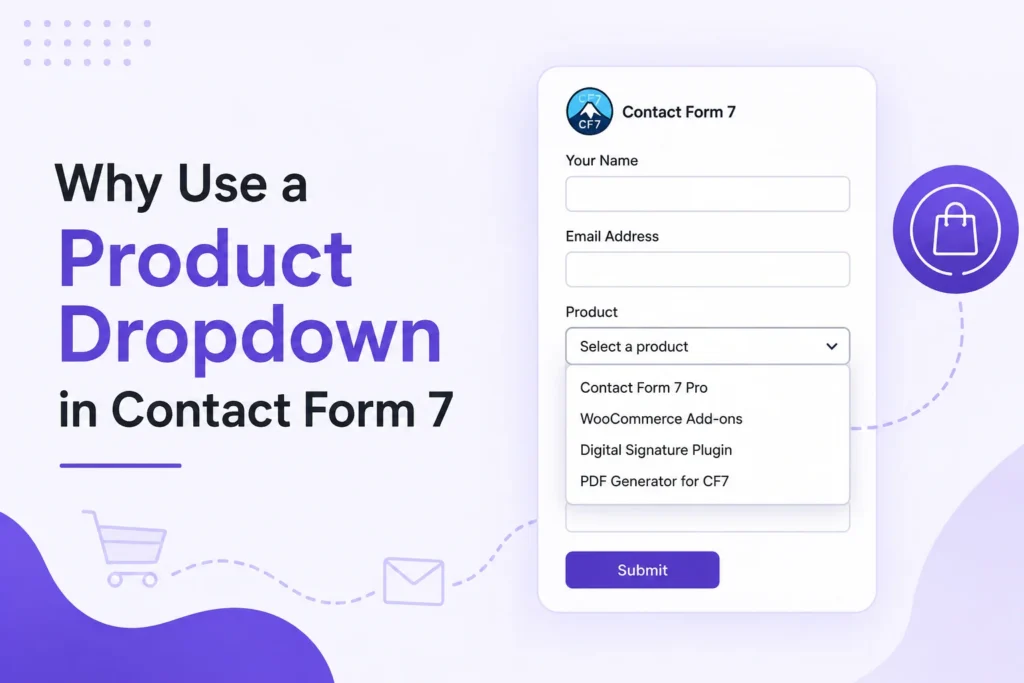
What About Contact Form 7 Product Selections?
Some businesses use Contact Form 7 for product inquiries rather than simple contact messages.
For example, a visitor may choose a product from a dropdown and then submit their contact information.
In that situation, storing both the customer’s details and selected product can make the submission much more useful for follow-up.
If your website uses product-related fields in Contact Form 7, you can also explore our Contact Form 7 Product Selector guide to learn more about handling product selections in forms.
Can You Save Contact Form 7 Submissions Without Using a Plugin?
Technically, custom development can be used to capture and store Contact Form 7 submission data. However, this approach requires more technical knowledge and ongoing maintenance.
You would need to consider:
- WordPress database structure
- Contact Form 7 hooks and events
- Data validation
- Sanitization
- Access permissions
- Security
- Data retention
- Compatibility with WordPress updates
For most website owners, using a maintained submission-management solution is more practical than building a custom storage system from scratch.
Custom development can make sense when you have a specific workflow that existing solutions cannot handle.
How to Store Contact Form 7 Submissions More Reliably
Saving entries is only one part of responsible form-data management.
If your website collects personal information, consider the following:
Limit who can access submissions
Only authorized WordPress users should be able to view sensitive form information.
Keep WordPress and plugins updated
Updates can include security fixes and compatibility improvements. Keep your WordPress installation, Contact Form 7, and submission-storage plugin up to date.
Use secure hosting and HTTPS
Form submissions should be transmitted over a properly secured website connection. HTTPS is essential for protecting information while it travels between the visitor and your website.
Avoid collecting unnecessary information
Only ask visitors for information that your business actually needs. Fewer unnecessary fields can also make forms easier to complete.
Define a retention policy
Do not keep personal information indefinitely without a reason. Decide how long your business needs to retain submissions and remove records that are no longer required, subject to your legal and business obligations.
What If Your Form Collects Digital Signatures?
Some businesses use Contact Form 7 for agreements, approvals, registrations, or customer confirmations.
In these cases, a standard text field may not be enough. You may need a dedicated workflow for capturing and handling a customer’s signature.
For example, a customer might:
- Complete a Contact Form 7 form.
- Review the required information.
- Provide a digital signature.
- Submit the form.
- Have the submission and related information stored for later reference.
If this matches your use case, see our guide on Collect digital signature to understand how signature collection can fit into an online form workflow.
The important point is that a signature workflow can introduce additional legal, privacy, and record-keeping considerations. Do not assume that every digital signature has the same legal effect in every country or situation.
How to Manage Contact Form 7 Entries Efficiently
Once your website starts receiving a larger number of submissions, simply storing the data may not be enough.
You may also need tools for:
- Searching entries
- Filtering submissions
- Reviewing submission details
- Exporting records
- Organizing customer inquiries
- Removing outdated entries
This is where a dedicated submission-management tool can provide more value than relying on email notifications alone.
If you are looking for a more structured way to manage entries, explore Submission Manager for Contact Form 7. The right solution depends on your website’s submission volume, the type of information you collect, and the features your team actually needs.
Conclusion
If your Contact Form 7 forms are important to your business, relying only on email notifications can make submission management difficult as your website grows.
The practical approach is to use a reliable solution that can save Contact Form 7 submissions and give authorized WordPress users a convenient way to review and manage those entries.
Before choosing a solution, look beyond basic data storage. Check field compatibility, entry management, export options, security, maintenance, and documentation to make sure the Contact Form 7 solution you choose fits your website’s needs. Pluginorbit focuses on practical WordPress and Contact Form 7 solutions designed to make managing form submissions simpler.
For a small website with occasional inquiries, simple storage may be enough. For a business receiving regular leads or customer requests, a dedicated Contact Form 7 database and submission-management workflow can make those records much easier to manage.
The goal is not simply to collect more form data. It is to make sure the information your visitors submit remains accessible, organized, and useful to your team.