When someone adds products to a WooCommerce cart but leaves without completing the purchase, that cart can represent a potential sale for your store.
The problem is that you can’t do much about an abandoned cart if you don’t know which customers left, what they added, or how much their cart was worth. That’s why how to see abandoned carts in WooCommerce is an important question for store owners who want to improve their sales recovery process.
In this guide, we’ll look at how abandoned carts work, how you can view them, what information you can check, and what you can do after finding them.
What Is an Abandoned Cart in WooCommerce?
An abandoned cart is created when a customer adds one or more products to their shopping cart but leaves the store without completing checkout.
There can be many reasons behind this. A customer may be comparing prices, checking shipping costs, waiting for payday, getting distracted, or facing an issue during checkout. Sometimes, they simply aren’t ready to buy yet.
For a WooCommerce store owner, these unfinished purchases are worth keeping track of because some customers may still return and complete their orders.
Can You See Abandoned Carts in WooCommerce?
This is where things can get confusing.
WooCommerce has an Orders section where you can manage orders and their statuses, but an abandoned shopping cart isn’t necessarily an order. If a customer leaves before completing checkout, there may be no normal WooCommerce order for you to open and review.
To view abandoned carts in WooCommerce, you therefore need a system that tracks these carts separately.
A WooCommerce abandoned cart plugin can add this functionality by recording eligible carts and displaying them in a dedicated section of your WordPress dashboard.
For stores that are still getting familiar with WooCommerce, understanding the difference between products, carts, checkout, and orders is also useful the complete WooCommerce beginner’s guide covers these basic concepts in one place.
How to See Abandoned Carts in WooCommerce
The easiest way to manage abandoned carts is to use a dedicated plugin that tracks them and provides an admin interface for reviewing them.
1. Install an Abandoned Cart Plugin
Start by installing a WooCommerce plugin that supports abandoned cart tracking.
PO Abandoned Cart for WooCommerce is designed to track both logged-in and guest customer carts. Guest carts can be tracked after the shopper enters their email address during checkout.
You can install the plugin from the WordPress plugin directory or upload the plugin files manually. After activation, its recovery tools are available under WooCommerce → Cart Recovery.
2. Open WooCommerce → Cart Recovery
From your WordPress dashboard, go to:
WooCommerce → Cart Recovery
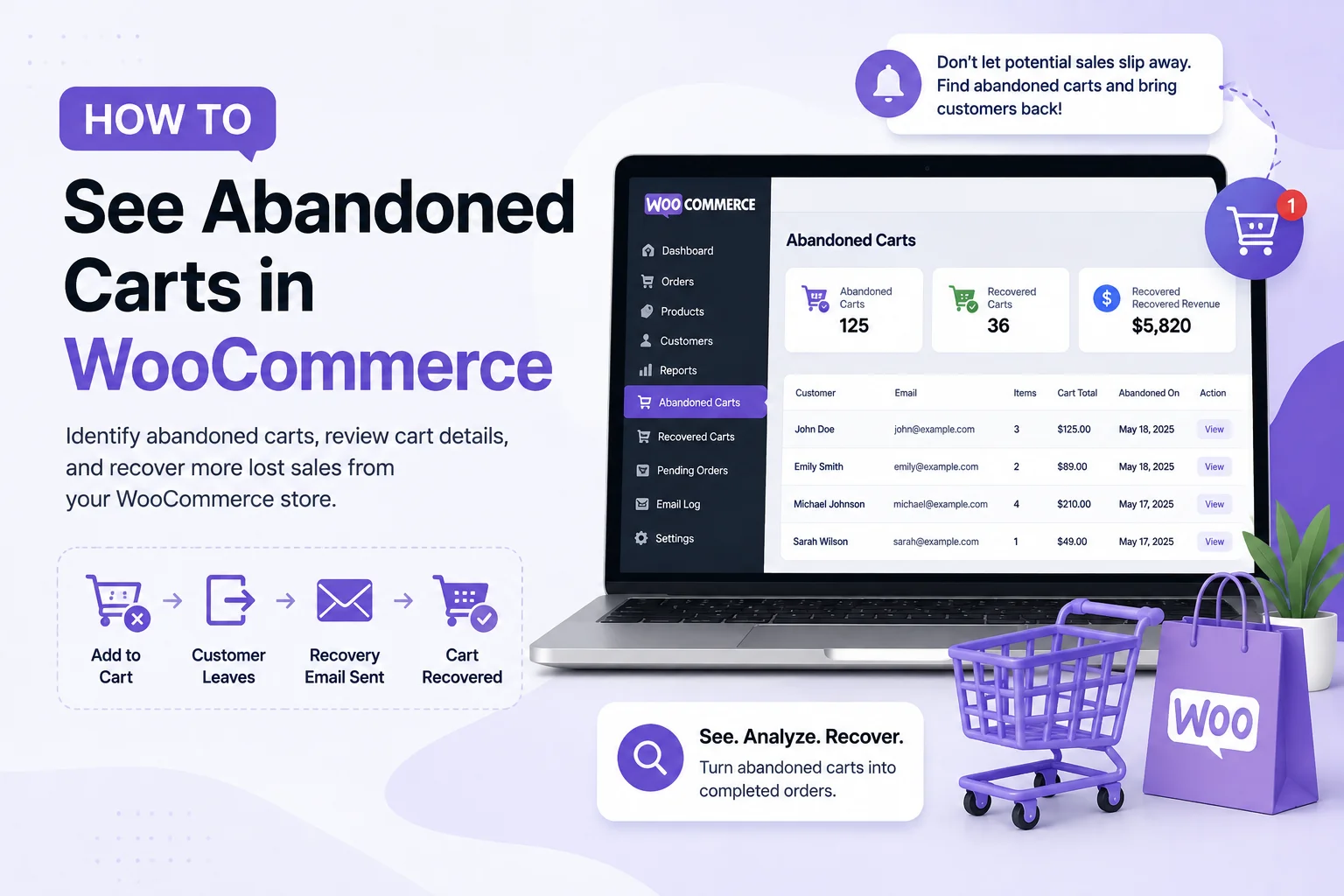
The plugin provides separate sections for managing abandoned carts, recovered carts, pending orders, and email logs.
This keeps your recovery activity separate from regular WooCommerce orders and makes it easier to focus on unfinished purchases.
3. Open the Abandoned Carts Section
Select Abandoned Carts to see the carts that have been recorded as abandoned.
Instead of showing only a customer name or cart ID, the plugin provides useful cart information such as the products added, variations, quantities, prices, subtotals, and total cart value.
This is particularly useful for stores that sell variable products.
For example, if a customer added a T-shirt in a particular size and color, those selections remain available when the cart is viewed and recovered. The plugin supports variable products and variations in its cart tracking.
What Information Can You See in an Abandoned Cart?
Knowing that a cart was abandoned is useful, but having the details makes the information much more actionable.
Depending on the cart, you can review:
- Customer email
- Products added to the cart
- Selected product variations
- Quantity
- Product price
- Line subtotal
- Cart total
This information helps you understand what the customer was interested in and how much potential revenue was left in the cart.
The cart details also become useful when creating a WooCommerce abandoned cart email, because customers are more likely to recognize a reminder when it contains the actual products they selected.
How to Find a Specific Abandoned Cart
As your store grows, you may end up with a large number of abandoned carts. Searching through them one by one isn’t practical.
PO Abandoned Cart for WooCommerce uses the native WordPress list-table interface and supports search, pagination, and bulk actions, making larger recovery lists easier to manage.
You can also review recovered carts separately. The recovered-cart history records converted carts along with their associated orders and values, so you can see which abandoned purchases eventually resulted in a sale.
What Can You Do After Finding an Abandoned Cart?
Finding an abandoned cart is only the beginning. Once you know which carts were left behind, you can decide how you want to follow up.
Send an Abandoned Cart Recovery Email
A recovery email reminds the customer about the products they left in their cart and gives them an opportunity to return.
PO Abandoned Cart for WooCommerce supports multiple recovery email rules, allowing you to set different delays and subject lines for your follow-up messages. The emails can also display product names, variations, quantities, prices, subtotals, and the cart total.
This means you can create a recovery sequence instead of relying on a single reminder.
Give Customers a Cart Restore Link
Making a customer rebuild their cart from scratch adds unnecessary friction.
The plugin provides a one-click restore link that brings the customer’s cart back with the same products, selected variations, and quantities.
The customer can then continue toward checkout without having to search for the products again.
Send Recovery Emails Manually
Automation is useful, but sometimes you may want to review a cart yourself before contacting the customer.
PO Abandoned Cart for WooCommerce lets you send recovery emails manually to individual carts. You can also select multiple carts and send recovery emails in bulk.
This gives you more control when managing abandoned carts from the WordPress dashboard.
What About Pending WooCommerce Orders?
Not every unfinished purchase is an abandoned cart.
A customer may complete checkout but leave an order in a pending payment status. In this situation, there is already an order, but the payment hasn’t been completed.
These orders can also be worth following up on.
PO Abandoned Cart for WooCommerce has a dedicated Pending Orders section where you can manage follow-up emails for unpaid orders, including manual and bulk follow-ups.
This lets you handle abandoned carts and pending-payment orders as separate parts of your recovery process.
How to Track Recovered Carts
Once you start sending recovery emails, you need to know whether customers are actually returning and completing their purchases.
The plugin includes a recovery dashboard that shows abandoned carts, recovered carts, and recovered revenue.
You can also review recovered-cart history and email logs to understand what happened after a recovery message was sent.
This is where abandoned cart tracking becomes more useful than simply keeping a list of unfinished carts. You can compare abandoned carts with recovered purchases and get a clearer picture of the results of your recovery efforts.
If you’re looking at the bigger picture of recovering lost purchases, our guide to WooCommerce abandoned cart recovery covers additional strategies that can be used alongside cart tracking.
Why Use a WooCommerce Abandoned Cart Plugin?
Managing abandoned carts manually becomes difficult as a store gets more customers.
A dedicated plugin can automatically track eligible carts, organize them in the dashboard, send recovery emails, restore carts, and keep a record of recovered purchases.
PO Abandoned Cart for WooCommerce brings these tools together under WooCommerce → Cart Recovery. It supports guest and logged-in carts, variable products, multiple recovery emails, manual and bulk recovery, pending-order follow-ups, recovery statistics, and email logs.
If you want to compare the available features before installing it, the PO Abandoned Cart for WooCommerce product page provides the full plugin overview.
Final Thoughts
If you’ve been wondering how to see abandoned carts in WooCommerce, the key is having a system that can identify and record carts before they disappear from view.
Once abandoned carts are available in your dashboard, you can check the products customers selected, review cart values, send recovery emails, restore carts, and monitor which purchases were eventually recovered.
For a WooCommerce store that regularly receives unfinished purchases, this can make abandoned cart management much easier and give you a better understanding of where potential sales are being lost.