Moving an online store to a new platform can feel complicated, especially when your store already has products, customers, orders, and search traffic. A Shopify to WooCommerce Migration requires more than copying product information.
You also need to consider customer data, order history, URLs, SEO settings, payment methods, shipping, and the overall shopping experience.
The good news is that you can plan the migration in stages and reduce the risk of data loss or broken pages. In this guide, you’ll learn how to migrate from Shopify to WooCommerce, what data you can transfer, how to prepare your new store, and what to check after the migration.
Why Migrate from Shopify to WooCommerce?
Shopify and WooCommerce take different approaches to running an online store. Shopify is a hosted ecommerce platform, while WooCommerce works with WordPress and gives store owners more control over their hosting, website structure, and customization.
Businesses may choose to switch from Shopify to WooCommerce for several reasons, including:
- Greater control over website customization
- More flexibility with WordPress
- Access to a large ecosystem of WooCommerce extensions
- More control over hosting and website files
- Ability to customize store functionality
- Integration with the wider WordPress ecosystem
However, migration should be based on your store’s requirements rather than assuming one platform is suitable for every business. If you are still comparing the platforms, review WooCommerce vs Shopify before starting the migration.
What Data Can You Transfer from Shopify to WooCommerce?
One of the first questions store owners ask is what happens to their existing data during migration.
Depending on the migration method you use, you may be able to transfer:
| Store data | Migration possibility |
| Products | Yes |
| Product descriptions | Yes |
| Product images | Yes |
| Product categories | Yes |
| Product variations | Yes |
| SKUs | Yes |
| Customer information | Usually |
| Order history | Usually |
| Reviews | Depends on the migration method |
| Coupons | Depends on the migration method |
| Store settings | Usually need to be configured separately |
| Shopify theme | Not directly transferable |
The exact fields available during migration depend on your export files, migration tool, and WooCommerce configuration. Before starting, create a backup of your important Shopify data and verify what your chosen migration method supports.
Before You Start Your Shopify Store Migration
Good preparation can prevent many problems later. Before you transfer Shopify to WooCommerce, complete these steps.
1. Back Up Your Shopify Data
Keep copies of your important store information, including products, customers, orders, images, and other business data.
Do not make major changes to your original store until you have confirmed that your important information is safely backed up.
2. Set Up WordPress and WooCommerce
Your new store needs a working WordPress and WooCommerce installation before you begin importing data.
Configure the basic store settings, including:
- Store location
- Currency
- Tax settings
- Shipping options
- Payment methods
- User accounts
- Email settings
If you are unfamiliar with the platform, start by understanding what is WooCommerce and how it works with WordPress.
3. Create a URL Inventory
Make a list of important URLs from your Shopify store. Include product pages, category pages, blog posts, landing pages, and other pages that receive search traffic or backlinks.
This list will help you create a redirect plan after migration.
4. Prepare Your SEO Information
Before moving your store, record important SEO information such as:
- Page titles
- Meta descriptions
- Product URLs
- Canonical URLs
- Image alt text
- Important backlinks
- Organic landing pages
This makes it easier to identify anything that needs to be recreated or updated on WooCommerce.
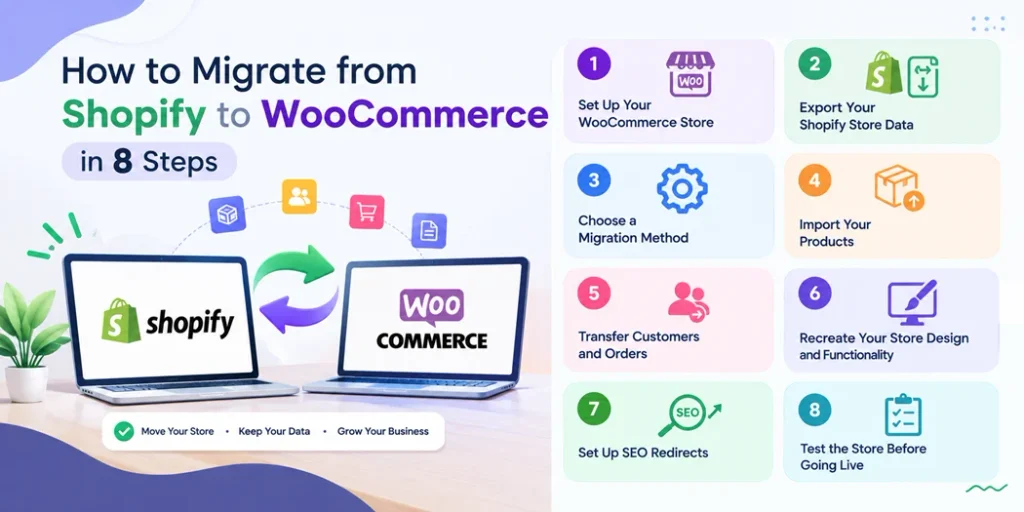
How to Migrate from Shopify to WooCommerce in 8 Steps
Now that your new store is prepared, you can begin the actual migration.
Step 1: Set Up Your WooCommerce Store
Install WordPress and WooCommerce on your chosen hosting environment. Then configure your basic ecommerce settings.
Set up your store location, currency, tax rules, shipping methods, payment gateways, and customer account settings.
If you need a complete setup walkthrough, our guide on Build an Online Store on WooCommerce can help you understand the main configuration steps.
Step 2: Export Your Shopify Store Data
Export the information you need from Shopify before importing anything into WooCommerce.
Depending on your requirements, this can include:
- Products
- Categories or collections
- Product variations
- Customers
- Orders
- Product images
- Other available store data
Keep the original export files somewhere secure. They can be useful if you need to verify information after migration.
Step 3: Choose a Migration Method
There are several ways to move store data from Shopify to WooCommerce.
Manual migration: You can manually recreate or import information. This may be manageable for a small store but can become time-consuming as the catalog grows.
CSV migration: Structured product data can often be exported and imported using CSV files. This approach requires careful field mapping.
Migration tools or services: Dedicated migration solutions can automate parts of the process. Before choosing one, check exactly which products, customers, orders, images, and other data it supports.
The right approach depends on your store size, data structure, technical requirements, and budget.
Step 4: Import Your Products
Products are usually one of the largest parts of an ecommerce migration.
Check that the following information has been transferred correctly:
- Product names
- Descriptions
- Prices
- SKUs
- Stock quantities
- Product images
- Categories
- Attributes
- Variations
Pay particular attention to variable products. A product with multiple sizes, colors, or other attributes needs to be configured correctly in WooCommerce.
You should also review each important WooCommerce product page after importing the catalog.
Step 5: Transfer Customers and Orders
Next, migrate customers and order information supported by your chosen method.
Check customer records, billing information, shipping information, and order history. Some account credentials or platform-specific information may not transfer directly and may require additional setup.
For customer data, follow applicable privacy and data-protection requirements and only transfer information that your migration process legitimately supports.
After the transfer, compare a sample of customer and order records with your original Shopify data to identify missing or incorrectly mapped fields.
Step 6: Recreate Your Store Design and Functionality
Your Shopify theme cannot simply be transferred and installed as a WooCommerce theme. You will need to recreate the appearance and functionality of your store within WordPress.
Review:
- Homepage
- Header and navigation
- Product pages
- Category pages
- Cart
- Checkout
- Footer
- Contact forms
- Promotional sections
- Custom functionality
WooCommerce plugins can also be used to add features that are not included in the basic installation.
Before adding extensions, review your requirements and avoid installing unnecessary plugins that could add maintenance or performance overhead.
Step 7: Set Up SEO Redirects
SEO is one of the most important parts of a Shopify store migration.
Your old Shopify URLs may not match your new WooCommerce URLs. If important URLs change without proper redirects, visitors and search engines may encounter broken pages.
Create a redirect map such as:
Old Shopify URL → New WooCommerce URL → 301 redirect
Pay particular attention to:
- Product URLs
- Category URLs
- Blog posts
- Important landing pages
- High-traffic pages
- Pages with valuable backlinks
Also review your internal links, XML sitemap, canonical URLs, robots.txt configuration, and indexing settings after the new store is live.
Step 8: Test the Store Before Going Live
Do not consider the migration complete until you have tested the customer journey.
Check:
- Product pages
- Product variations
- Search
- Cart
- Checkout
- Payment methods
- Shipping
- Coupon codes
- Customer accounts
- Contact forms
- Mobile experience
- Redirects
- Images
- Analytics and tracking
Place test orders where appropriate and verify that the complete checkout process works correctly.
What to Do After Shopify to WooCommerce Migration
Launching the WooCommerce store is not the final step.
After the Shopify to WooCommerce Migration, monitor your website and look for problems that may only become visible after launch.
Monitor SEO and Indexing
Check your important URLs in search tools and monitor:
- Indexing
- Organic traffic
- Search queries
- Crawl errors
- 404 pages
- Redirect errors
If you see a drop in traffic, investigate technical issues before assuming the migration itself caused the change.
Check Your Store Performance
A newly migrated store may contain large images, unnecessary plugins, or poorly optimized resources.
Test important pages on both desktop and mobile. If your store needs performance improvements, use our guide on How to Speed Up WooCommerce for practical optimization ideas.
Review Your Plugins
Your WooCommerce store may need extensions for payments, shipping, product features, forms, analytics, security, or other functionality.
Choose plugins based on actual store requirements and keep them updated. You can also review WooCommerce plugins when planning the features your new store needs.
Common Shopify to WooCommerce Migration Mistakes
Avoiding common mistakes can make the migration process much smoother.
1. Migrating without a backup
Always keep copies of your important store data before making major changes.
2. Forgetting URL redirects
Changing URLs without mapping old pages can create broken links and SEO issues.
3. Not checking product variations
Imported variable products should be reviewed individually.
4. Ignoring customer and order data
Do not assume every field automatically transfers. Verify important records after migration.
5. Skipping checkout testing
A store can look correct while payment, shipping, or checkout functionality is still broken.
6. Launching without SEO checks
Review redirects, metadata, canonical URLs, sitemap settings, and indexing after launch.
Shopify to WooCommerce Migration Checklist
Use this quick checklist before considering your migration complete:
- Back up Shopify data
- Set up WordPress and WooCommerce
- Export products and other required data
- Import products and variations
- Transfer supported customer and order data
- Recreate your store design
- Configure payments and shipping
- Map old and new URLs
- Set up 301 redirects
- Test checkout and customer accounts
- Check mobile performance
- Submit your WooCommerce sitemap
- Monitor indexing and 404 errors
- Review analytics and organic traffic
- Fix any post-launch issues
Conclusion
A successful Shopify to WooCommerce Migration is a process rather than a single import. The goal is to move the required store data while maintaining a functional shopping experience and protecting important SEO assets.
Start by backing up your Shopify data, prepare your WooCommerce store, migrate products and customer information carefully, recreate important functionality, and set up redirects before launch. Finally, test the complete store and monitor SEO performance after going live.
With a structured migration plan, you can migrate from Shopify to WooCommerce while giving yourself a clear process for identifying and fixing issues along the way.