WordPress makes it possible to build and manage a website without extensive coding knowledge, but technical problems can still interrupt your work. You might encounter a blank screen, a failed update, a database connection error, a broken page, or a website that refuses to load.
These common WordPress errors can affect website performance, user experience, and even your ability to access the WordPress dashboard.
The good news is that many WordPress problems can be resolved by checking a few settings, reviewing recent changes, or correcting a configuration issue. The key is to identify the cause before making changes that could affect your website.
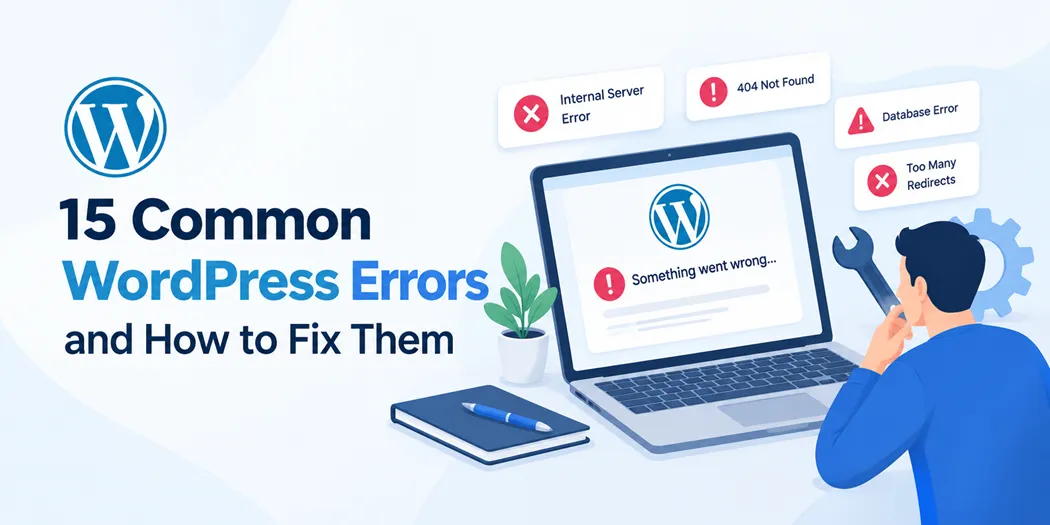
This article covers 15 common WordPress errors and fixes, explains why they occur, and provides practical troubleshooting steps to help you restore your website safely.
What Causes Common WordPress Errors?
WordPress errors can occur for several reasons, including incompatible plugins, outdated themes, incorrect file permissions, insufficient PHP memory, server problems, and database connection failures.
Sometimes, an error appears immediately after installing a plugin or updating WordPress. In other cases, a website may stop working because of a hosting issue or an expired service.
Before attempting any WordPress error fixes, create a backup of your website if possible. A backup allows you to restore your files and database if a troubleshooting step causes another problem.
Also, note any recent changes you made. This information can help you identify the source of the issue faster.
15 Common WordPress Errors and How to Fix Them
1. WordPress White Screen of Death
The WordPress White Screen of Death occurs when a website displays a blank page instead of its normal content. In some cases, the WordPress dashboard becomes inaccessible as well.
Common causes:
- Plugin or theme conflicts
- PHP errors
- Insufficient PHP memory
- Incompatible code changes
How to fix it:
Start by checking whether the problem affects the entire website or only one page. If the dashboard remains accessible, deactivate recently installed plugins one at a time and check whether the website returns to normal.
If you cannot access the dashboard, use your hosting control panel or SFTP to temporarily rename the suspected plugin’s folder. You can also switch to a default WordPress theme if the active theme appears responsible.
Enable WordPress debugging temporarily if necessary to identify PHP errors. Avoid displaying error details publicly on a live website, and disable debugging after completing the investigation.
2. Error Establishing a Database Connection
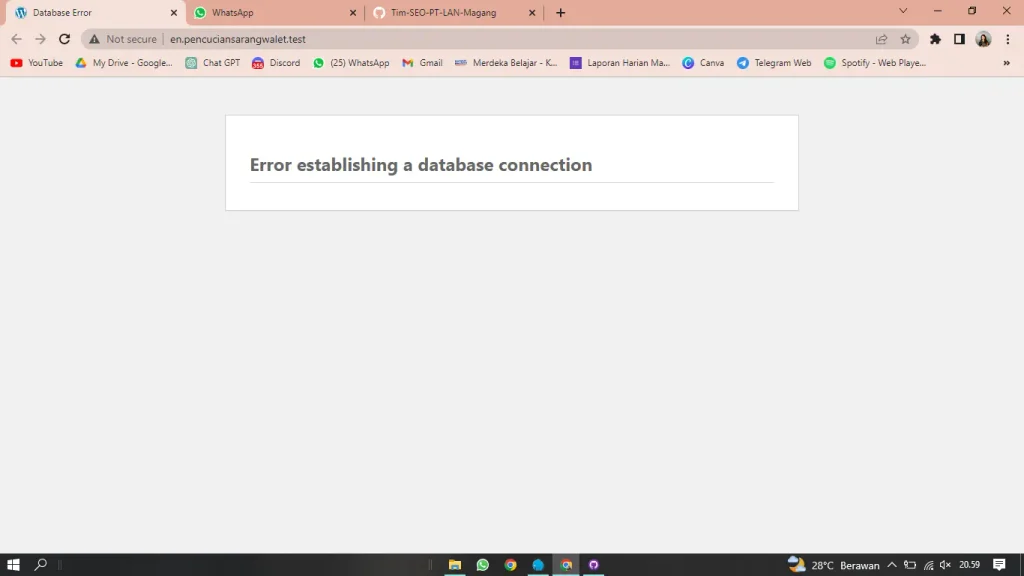
This error means WordPress cannot connect to the database required to load your website. Because WordPress stores posts, pages, settings, and other information in the database, a failed connection can make the entire site unavailable.
Common causes:
- Incorrect database credentials
- Database server downtime
- Database server overload
- Corrupted database tables
How to fix it:
Check the database name, username, password, and host in your wp-config.php file. Confirm that the credentials match those provided by your hosting company.
If the credentials are correct, check your hosting provider’s server status and database service. You can also ask the host to investigate connection limits or database corruption.
Do not change database credentials randomly. Incorrect changes can make the problem worse.
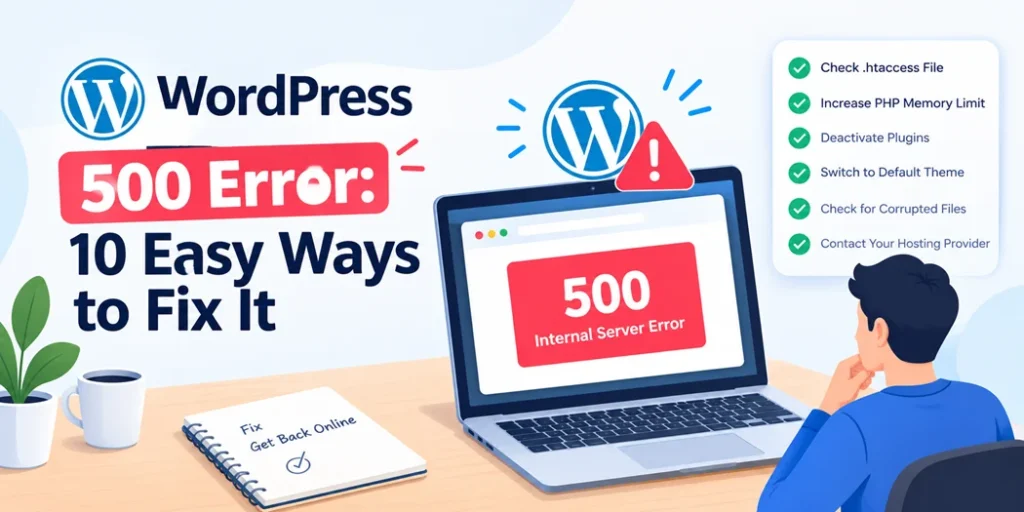
3. WordPress 500 Internal Server Error
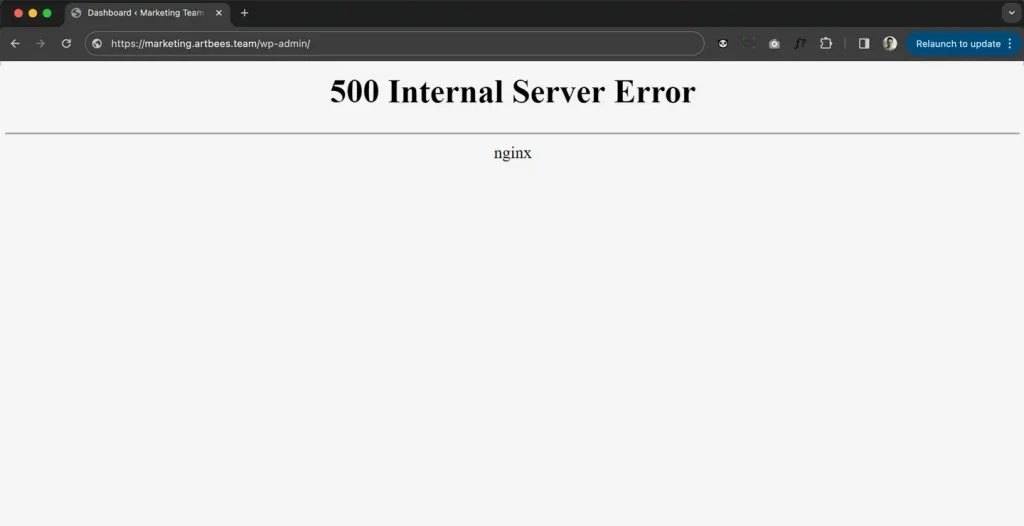
A 500 Internal Server Error indicates that the server encountered an unexpected problem while processing a request. The message does not identify the exact cause, so troubleshooting is necessary.
How to fix it:
First, check your hosting error logs for PHP errors or other server issues. Then, deactivate recently installed plugins and test your website again.
If the problem continues, rename the .htaccess file in your WordPress root directory to temporarily disable the existing rules. If the website starts working, regenerate the rules through Settings → Permalinks in the WordPress dashboard.
Back up the original file before changing it. If neither step works, contact your hosting provider to investigate server configuration and resource limits.
4. WordPress 404 Page Not Found Error
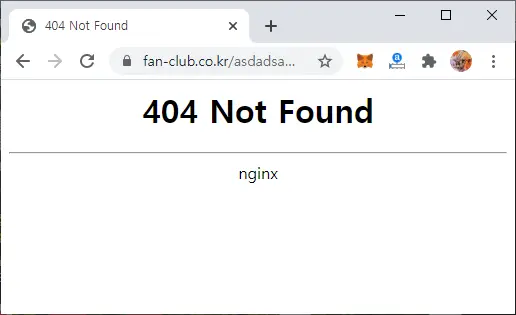
A 404 error appears when a requested page cannot be found. It may affect individual posts, product pages, or other URLs while the homepage continues to work.
Common causes:
- Incorrect URL or deleted content
- Broken permalink rules
- Incorrect redirects
- Missing pages
How to fix it:
Open Settings → Permalinks in your WordPress dashboard and click Save Changes without changing the current structure. This can refresh the permalink rules.
If the issue affects only one page, confirm that the page exists and that its URL is correct. Review redirects and check whether the page was moved or deleted.
For deleted content, restore the page or redirect the old URL to a relevant replacement when appropriate.
5. WordPress Memory Exhausted Error
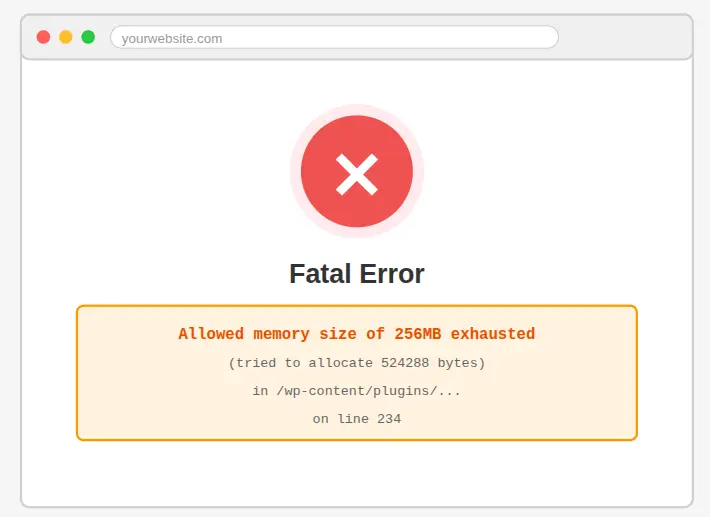
WordPress may display a memory exhaustion message when a script exceeds the available PHP memory limit. This can happen during plugin operations, image processing, imports, or other resource-intensive tasks.
How to fix it:
Check your hosting account’s PHP memory limit and resource usage. If your hosting plan supports it, increase the available PHP memory to an appropriate value.
You can also deactivate unnecessary plugins and remove resource-heavy functionality that your website does not need.
If the error continues despite sufficient memory, investigate the specific script causing the problem. Increasing the limit alone will not fix inefficient code or a plugin that consumes excessive resources.
6. WordPress Login Page Refreshing or Redirecting
Sometimes, users enter their login credentials only to return to the login page repeatedly. This problem may result from cookie settings, incorrect website URLs, caching, or redirect conflicts.
How to fix it:
Clear your browser cookies and cache, then try logging in using a private browsing window. If the problem continues, clear your website’s caching plugin and server cache.
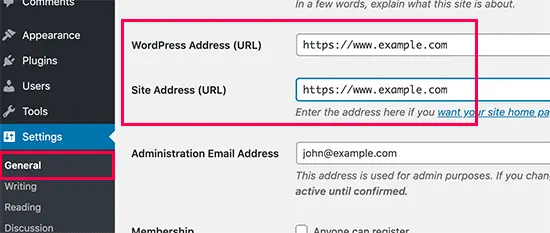
Check the WordPress Address and Site Address under Settings → General, if you can access the dashboard. Both should use the correct domain and protocol.
If the dashboard is inaccessible, review the relevant settings in wp-config.php or ask your hosting provider for help. Avoid changing URL settings without confirming the correct values.
7. WordPress Failed to Update
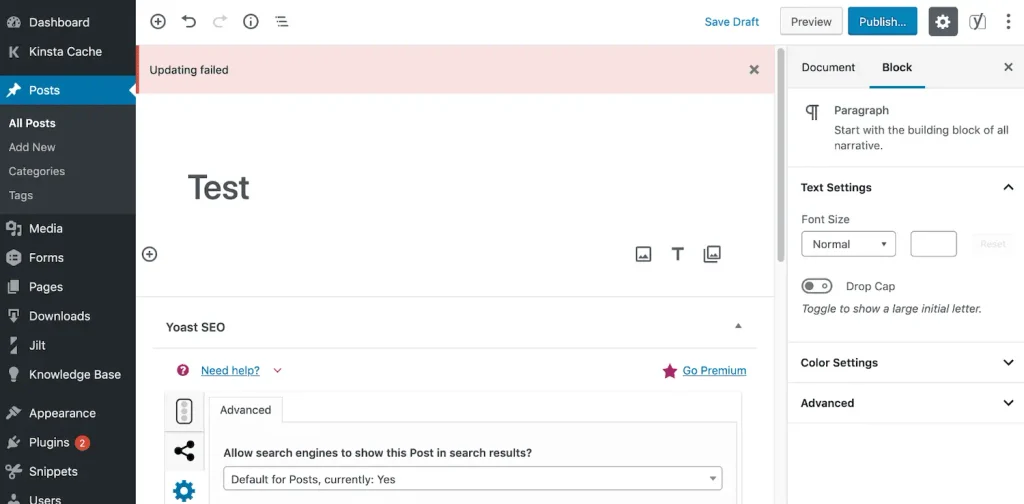
A failed WordPress update can leave your website running an older version or temporarily stuck in maintenance mode. Updates may fail because of interrupted connections, insufficient disk space, file permission problems, or server restrictions.
How to fix it:
Check whether the update actually failed before trying again. Review the dashboard and hosting logs, and confirm that your server meets the software requirements.
Create a backup, check available disk space, and ensure WordPress has the necessary file permissions. If the website remains in maintenance mode after an interrupted update, check whether a .maintenance file remains in the WordPress root directory. Remove it only after confirming that no update is still running.
For major updates, test the process on a staging site whenever possible.
8. WordPress Plugin Conflicts
Plugin conflicts occur when two plugins, or a plugin and your active theme, interfere with each other’s functionality. You may notice broken layouts, missing features, dashboard errors, or pages that stop working.
How to fix it:
Start by reviewing plugins installed or updated shortly before the problem appeared. Back up your website, then deactivate plugins one at a time to identify the one causing the issue.
If you cannot access the dashboard, you may temporarily disable plugins through your hosting file manager or SFTP.
Once you identify the source, check for updates, review the plugin documentation, and contact the developer if necessary. Avoid keeping multiple plugins that perform the same function unless they are known to work together.
A consistent WordPress plugin troubleshooting process helps you isolate conflicts without making unnecessary changes to the entire website.
9. WordPress Syntax Error
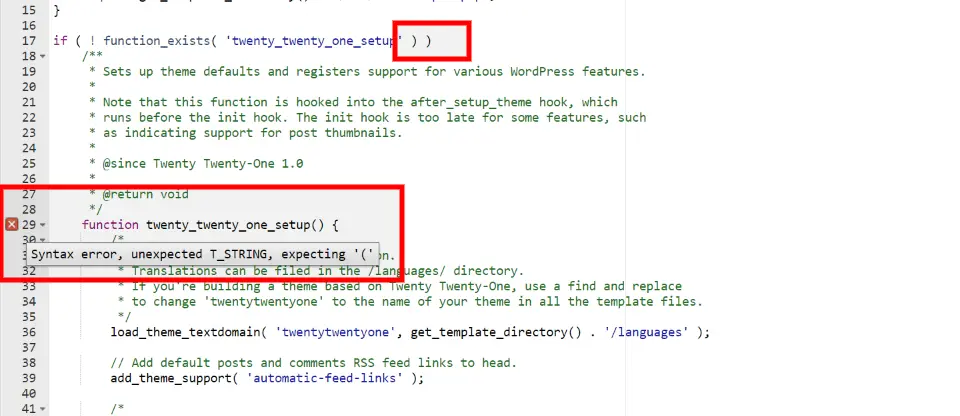
A syntax error can occur when PHP code contains a missing bracket, an incorrect character, or another coding mistake. This often happens after manually editing a theme file, plugin file, or custom code snippet.
How to fix it:
If the error appeared immediately after editing code, undo the latest change. Check the error message for the affected file and line number.
Restore the original file from a backup or use SFTP to correct the code. If you added custom functionality, test it in a staging environment before applying it to your live website.
Avoid editing WordPress core files to resolve a theme or plugin problem. Doing so can create additional issues and may cause your changes to disappear during an update.
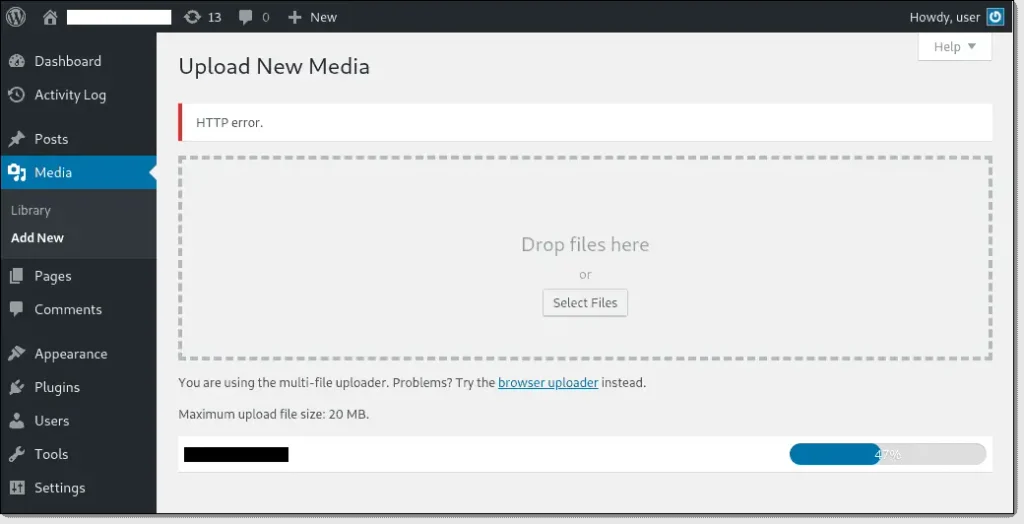
10. WordPress Image Upload Failed
Image uploads can fail because of file-size restrictions, unsupported formats, insufficient storage, incorrect permissions, or server configuration issues.
How to fix it:
Check the image format and file size first. Try uploading a smaller image to determine whether the original file is too large.
If the problem affects every image, review the PHP upload limits and available hosting storage. Confirm that the WordPress uploads directory has appropriate permissions.
If images upload successfully but do not display, check their URLs and investigate caching or mixed-content issues. Do not change folder permissions to unrestricted values, as this can create security risks.
11. WordPress Stuck in Maintenance Mode
WordPress temporarily enters maintenance mode during certain updates. If an update is interrupted, the website may continue displaying a maintenance message.
How to fix it:
Check that no WordPress, plugin, or theme update is currently running. If the process has stopped and the website remains stuck, connect through your hosting file manager or SFTP.
Locate the .maintenance file in the WordPress root directory and remove it only when you have confirmed that the update is no longer active.
Afterward, open the dashboard and check for incomplete updates. Run updates again if needed, preferably after creating a backup.
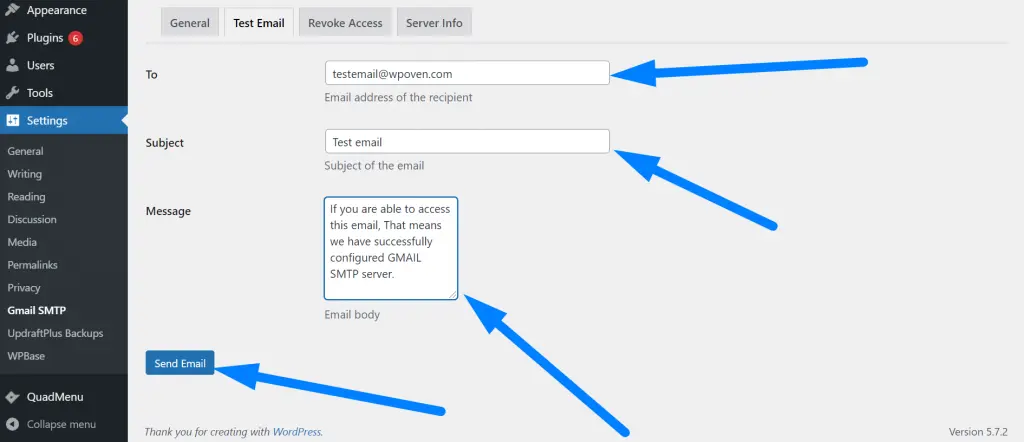
12. WordPress Email Not Sending
WordPress may display successful form submissions or other confirmation messages even when the corresponding email never reaches the recipient. This can affect contact forms, password resets, order notifications, and business inquiries.
How to fix it:
Check the recipient address, spam folder, and email configuration first. Confirm that the website can send email through a properly configured mail service.
For more reliable delivery, consider configuring SMTP through a reputable email provider. Review the sender address and domain authentication settings, including SPF and DKIM where applicable.
If the issue involves Contact Form 7, test the form’s mail settings and confirm that its field tags match the actual form fields.
For setup instructions, refer to this guide on how to add a contact form in WordPress.
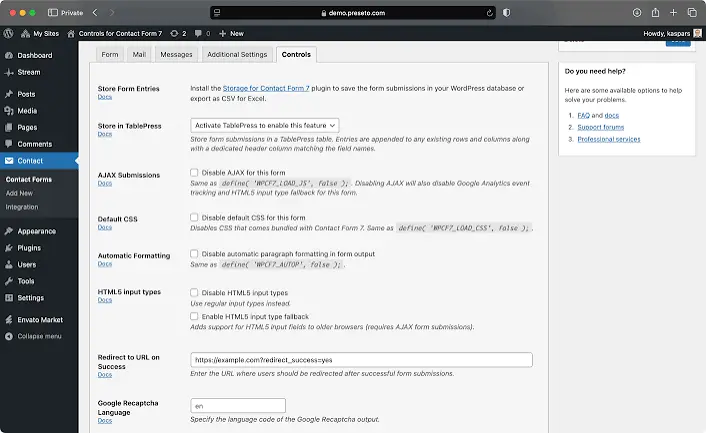
13. Contact Form 7 Submissions Missing
A contact form may appear to work correctly while some inquiries are never stored in a database. By default, Contact Form 7 does not provide a built-in database archive of every submission, so relying only on email can make record management difficult.
How to fix it:
First, test the form and review its mail configuration. Check whether notifications are reaching the correct address and whether spam filtering is affecting delivery.
If you need a searchable record of submissions, use a compatible storage solution. The Contact Form 7 submission guide explains how submission storage works and why email notifications alone may not be sufficient.
For websites that need to retain and manage form entries, OrbitVault Submission Manager for Contact Form 7 provides a relevant option to evaluate. Confirm its features and compatibility with your current setup before installing it.
14. WordPress Website Running Slowly
A slow website is not always caused by a single error. Large images, excessive plugins, unoptimized database queries, poor caching, and limited hosting resources can all affect performance.
How to fix it:
Start by testing your website with a performance tool and identifying the slowest pages or resources. Compress large images, remove unnecessary plugins, and enable suitable page caching.
Use a content delivery network when it makes sense for your audience, and keep WordPress, themes, and plugins updated. Review database and server performance if the website remains slow.
Avoid installing several optimization plugins that perform overlapping tasks. Measure performance after each significant change to understand which improvements are helping.
15. WordPress Mixed Content or SSL Error
Mixed-content warnings occur when an HTTPS page loads certain resources, such as images or scripts, through insecure HTTP connections. Visitors may see browser warnings, and some resources may be blocked.
How to fix it:
Confirm that your SSL certificate is valid and correctly installed. Check the WordPress Address and Site Address to ensure they use HTTPS when your site is configured for secure connections.
Search for outdated HTTP resource URLs in your theme settings, page content, or database. Update them carefully, using a backup and a suitable search-and-replace method when necessary.
Finally, clear your caches and test the website in a browser. Avoid forcing HTTPS before confirming that the SSL certificate works correctly.
How to Troubleshoot WordPress Errors Safely
When several issues appear at once, a systematic approach can save time and prevent further damage.
Follow these WordPress debugging steps:
- Create a backup: Save your website files and database before making significant changes.
- Identify the error: Record the exact message, affected URL, and time the issue started.
- Review recent changes: Check recently installed plugins, theme updates, custom code, and server changes.
- Check error logs: Use your hosting control panel or WordPress debugging tools to locate relevant PHP and server errors.
- Test one change at a time: Disable a suspected plugin or adjust one setting, then test the affected page.
- Verify the result: Check the homepage, dashboard, forms, and other important features after applying a fix.
- Ask for technical support: Contact your hosting provider or the relevant plugin developer when the problem requires server access or code-level investigation.
If you are starting from scratch, understanding how to build a WordPress website can also help you become familiar with its dashboard, themes, plugins, and core settings.
How to Prevent Common WordPress Problems
Fixing an error is important, but preventing it from returning is equally valuable. A simple maintenance routine can reduce the likelihood of recurring WordPress issues.
- Keep software updated: Install compatible WordPress, theme, and plugin updates after reviewing their requirements.
- Back up regularly: Maintain recent backups and test your restoration process.
- Use trusted plugins: Choose maintained plugins from reputable developers and avoid unnecessary installations.
- Test major changes: Use a staging site to check updates and custom code before deploying them.
- Monitor website performance: Watch for unusual loading times, server errors, and resource usage.
- Secure your website: Use strong passwords, appropriate user permissions, HTTPS, and reliable security practices.
- Check form functionality: Submit test inquiries periodically and verify that emails and stored records work as expected.
If you are unfamiliar with WordPress features and settings, reviewing a reliable WordPress website setup resource can help you understand the configuration choices that influence website stability.
Conclusion
Common WordPress errors can affect everything from website access and page loading to email delivery and form submissions. The best solution depends on the underlying cause, so start with a backup, identify the error, and troubleshoot systematically rather than changing several settings at once.
Regular updates, reliable backups, compatible plugins, and routine testing can help prevent many common WordPress problems. If an error persists after basic troubleshooting, consult your hosting provider or a qualified WordPress developer to resolve it safely.