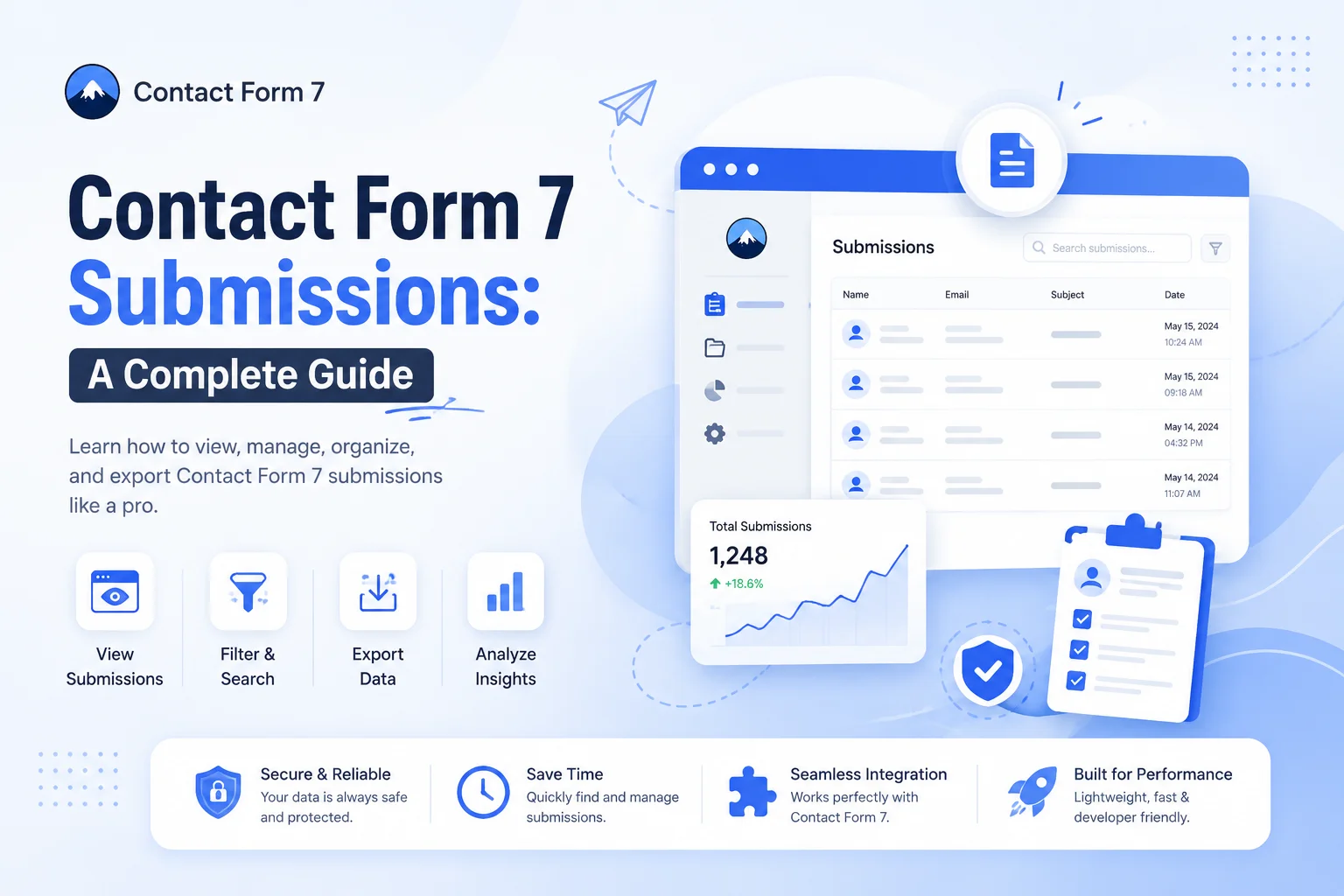
Contact Form 7 is one of the most widely used WordPress plugins for creating contact forms. It makes it easy to collect inquiries, feedback, support requests, registrations, and other information from website visitors.
But creating a form is only one part of the process. Once visitors start submitting information, you also need a reliable way to save, view, organize, and manage Contact Form 7 submissions.
By default, Save Contact Form 7 Submissions focuses primarily on sending submitted information through email. This can work for simple websites, but managing submissions becomes more difficult when your website receives a large number of inquiries.
what Contact Form 7 submissions are, how they work, where submission data is stored, how to save submissions in WordPress, and how to manage them more efficiently.
What Are Contact Form 7 Submissions?
A Contact Form 7 submission is the information a visitor sends through a Contact Form 7 form on your WordPress website.
For example, a contact form may collect:
- Name
- Email address
- Phone number
- Subject
- Message
- Product or service information
- Other custom fields
When a visitor completes the form and clicks the submit button, the information becomes a form submission.
Businesses can use contact form submissions for a variety of purposes, including customer inquiries, sales and service requests, support questions, appointment requests, feedback, and other general communications.
It’s also common to use the terms Contact Form 7 submissions and Contact Form 7 entries interchangeably. Both generally refer to information submitted through a Contact Form 7 form.
How Does Contact Form 7 Handle Submissions?
Contact Form 7 processes the information submitted through a form and can send that information through email notifications.
For example, when someone submits a contact form, the website can send an email containing the visitor’s name, email address, and message to the website administrator.
A basic workflow looks like this:
- A visitor opens your Contact Form 7 form.
- They enter their information.
- They click the Submit button.
- Contact Form 7 processes the form.
- The configured email notification is sent.
- The website owner receives the submitted information.
This approach is convenient for many websites.
However, relying only on email can create problems when you need to search through previous submissions, keep long-term records, export entries, or prevent data loss.
That’s why many website owners look for a way to save Contact Form 7 submissions in WordPress.
Where Are Contact Form 7 Submissions Stored?
One of the most common questions website owners ask is: Where are Contact Form 7 submissions stored?
Contact Form 7 itself primarily handles form processing and email delivery rather than providing a built-in submissions database for managing historical entries.
This means that if you want to keep a searchable database of Contact Form 7 entries inside your WordPress dashboard, you generally need an additional solution designed to save those submissions.
Saving submissions in a database can make it easier to:
- View previous entries
- Search for specific submissions
- Keep records organized
- Retrieve older customer inquiries
- Export submitted information
- Reduce dependence on email
For websites that receive regular form submissions, keeping a reliable record can make submission management much easier.
How to Save Contact Form 7 Submissions in WordPress
If your website receives important inquiries through Contact Form 7, saving submissions can help ensure that the information remains accessible.
A common solution is to use a Contact Form 7 entries plugin that stores submitted data in WordPress.
With a submission-saving plugin, the general process looks like this:
- Install and activate the submission-saving plugin.
- Connect it with your Contact Form 7 forms.
- Configure the required settings.
- Allow new submissions to be stored.
- Open the entries section from your WordPress dashboard.
- View and manage saved submissions.
The exact setup depends on the plugin you choose.
Why Save Contact Form 7 Entries?
Saving entries can be especially useful when your forms collect information that you may need later.
For example, imagine a business receives 50 customer inquiries every week. Searching through hundreds of emails to find one particular message can take time.
A centralized submission database can make it easier to locate the information you need.
How to View Contact Form 7 Submissions
Once Contact Form 7 submissions are being stored, you need an easy way to access them.
A submission management solution can provide a dedicated area inside WordPress where administrators can review saved entries.
Depending on the solution, you may be able to:
- View individual submissions
- Search entries
- Filter submissions
- Review submission dates
- Check submitted field values
- Delete unwanted entries
- Export submission data
This can be much more convenient than manually searching through email messages.
For example, if you’re looking for an inquiry submitted by a specific customer, a searchable entries interface can help you find it more quickly.
How to Manage Contact Form 7 Submissions
Simply saving submissions isn’t always enough. As the number of entries increases, you also need an efficient way to manage them.
A good submission management workflow should make it easy to search, review, organize, and remove entries when necessary.
Search Submissions
Searching is useful when you have hundreds or thousands of stored entries.
You may want to search by:
- Customer name
- Email address
- Subject
- Message content
- Submission date
Filter Entries
Filtering can help narrow down your results and find specific submissions more quickly.
For example, you may want to review submissions from a particular date range or identify entries related to a specific form.
Delete Unwanted Entries
Old or unnecessary submissions may eventually need to be removed.
Deleting entries can help keep your database organized and reduce unnecessary stored information.
Before deleting submissions, make sure they are no longer needed and consider your organization’s data-retention requirements.
Export Submission Data
Exporting can be useful when you need to analyze submissions outside WordPress, create reports, or keep a separate backup.
Depending on the tool you use, submissions may be available in common formats such as CSV.
How to Export Contact Form 7 Submissions
Exporting Contact Form 7 submissions can be helpful for businesses that want to analyze or organize their collected data.
For example, you may want to export submissions to:
- Analyze customer inquiries
- Create internal reports
- Share data with a team
- Keep an additional copy of important records
- Import information into another system
A submission management plugin with export functionality can simplify this process.
Instead of manually copying information from individual emails, you can export multiple entries together.
Why Save Contact Form 7 Submissions?
For businesses that rely on contact forms to collect leads, customer inquiries, or support requests, having a reliable way to manage submissions can make everyday workflows much easier.
PluginOrbit provides WordPress and WooCommerce plugins designed to help website owners improve their site functionality and manage common website tasks more efficiently.
There are several reasons why website owners choose to save Contact Form 7 submissions.
Prevent Data Loss
Important inquiries can be difficult to recover if they exist only in email.
Saving submissions separately provides an additional place to access important information.
Keep a Searchable Record
A database of entries makes it easier to search and retrieve previous submissions.
Reduce Dependence on Email
Email is useful for notifications, but it isn’t always the best way to manage large volumes of form data.
A dedicated submission database gives you a more structured way to manage entries.
Manage Submissions From WordPress
Keeping submissions inside the WordPress dashboard can make them easier to review alongside the rest of your website management tasks.
Export Data When Needed
Export functionality allows you to move or analyze submission information more conveniently.
Improve Workflow Efficiency
A centralized submission management system can reduce the time spent searching through emails and manually organizing form data.
Best Way to Manage Contact Form 7 Submissions
There are several ways to handle Download Contact Form 7 submissions, and the right approach depends on your website’s requirements.
| Method | Best For | Potential Limitation |
| Email notifications | Simple websites | Difficult to organize large volumes |
| Manual spreadsheets | Small numbers of submissions | Requires manual work |
| Database storage | Websites with regular submissions | Requires an appropriate solution |
| Contact Form 7 entries plugin | Easy submission management | Requires an additional plugin |
For a website receiving only a few inquiries each month, email notifications may be enough.
For a business receiving regular leads, support requests, or customer inquiries, saving entries in a searchable database is generally a more practical approach. You can also explore our plugins to find tools designed to simplify and improve your WordPress and WooCommerce workflows.
Contact Form 7 Submissions Plugin
A Contact Form 7 submissions plugin can extend the functionality of Contact Form 7 by providing a way to save and manage submitted entries.
Instead of relying only on email notifications, you can use a dedicated solution to keep submission data accessible from your WordPress dashboard.
CF7 Entries Saver
CF7 Entries Saver is designed to help WordPress users save and manage Contact Form 7 entries.
Depending on the features available in your plugin version, it can provide a more centralized approach to handling submitted form data.
A solution like CF7 Entries Saver can be useful for website owners who want to:
- Save Contact Form 7 entries
- Keep submission records in WordPress
- Access previous submissions
- Manage collected form data
- Reduce dependence on email for historical records
The main advantage of using an entries-saving solution is that submitted information can become easier to access and manage as your website grows.
Common Problems With Contact Form 7 Submissions
Even when a Contact Form 7 form is configured correctly, website owners can run into submission-related problems.
Contact Form 7 Submissions Not Being Saved
If submissions aren’t being stored, check whether you have a submission-saving solution configured correctly.
Also verify that the plugin is active and compatible with your WordPress and Contact Form 7 setup.
Contact Form 7 Submission Emails Not Arriving
If emails aren’t reaching the recipient, the issue may be related to WordPress email configuration, hosting, spam filtering, or mail delivery.
In this situation, saving submissions independently can provide an additional record of submitted information.
Losing Submitted Form Data
If your only record of a submission is an email and that email is deleted or missed, retrieving the original information can become difficult.
Saving entries in a database can provide a more reliable historical record.
Difficulty Finding Old Submissions
Searching through a large email inbox can be time-consuming.
A dedicated submissions interface can make it easier to locate previous entries.
Managing a Large Number of Entries
As submission volume increases, manual management becomes less efficient.
Search, filtering, pagination, and export features can help make larger volumes of submissions easier to handle.
Best Practices for Managing Contact Form 7 Submissions
Managing form submissions involves more than simply saving them.
Store Important Submissions Securely
Make sure access to submitted information is limited to authorized WordPress users.
Back Up Your Website
Regular website backups can help protect important data from unexpected issues.
Limit Access to Sensitive Information
Some forms may collect personal information. Only users who need access to the data should have appropriate permissions.
Delete Unnecessary Data
Don’t keep submissions indefinitely without a reason. Establish a sensible data-retention process based on your business requirements and applicable privacy obligations.
Keep Plugins Updated
Keeping WordPress, Contact Form 7, and related plugins updated can help maintain compatibility and security.
Follow Privacy Requirements
If your forms collect personal information, make sure your submission-storage practices align with applicable privacy laws and your website’s privacy policy.
Conclusion
Contact Form 7 makes it simple to create forms and collect information from website visitors, but managing those submissions becomes increasingly important as your website grows.
Using a dedicated solution such as CF7 Entries Saver can help turn individual form submissions into an organized collection of entries that you can access from your WordPress dashboard. Similarly, if you’re exploring ways to improve your WooCommerce store with additional functionality, our guide to WooCommerce Digital Signature Plugins covers some useful options to consider.
If your website receives only occasional inquiries, email notifications may be sufficient. However, businesses and websites that receive regular submissions can benefit from having a centralized way to save, view, search, manage, and export Contact Form 7 submissions.
The key is to choose a submission-management workflow that fits your website’s needs while keeping stored information secure, organized, and accessible.