Managing customer orders is an essential part of running a successful online store. Every purchase involves several activities, including payment confirmation, inventory updates, order processing, shipping, and customer communication.
When these tasks are not organized properly, store owners may face delayed deliveries, incorrect order updates, and unnecessary manual work.
WooCommerce provides built-in tools to view orders, check payment information, update order statuses, and manage customer details from the WordPress dashboard. However, handling a growing number of orders requires a consistent process that keeps every stage organized.
WooCommerce Order Management helps store owners monitor purchases from checkout to fulfillment, identify pending tasks, and maintain accurate order records. With the right workflow and additional tools where needed, businesses can reduce repetitive work and provide a more reliable shopping experience.
This guide explains how to manage WooCommerce orders, understand order statuses, organize daily operations, and use automation to improve order processing.
What Is WooCommerce Order Management?
WooCommerce order management is the process of handling customer purchases after they place an order through an online store. It includes reviewing order details, confirming payments, updating statuses, managing inventory, arranging fulfillment, and keeping customers informed.
WooCommerce provides an order management interface inside WordPress, where administrators and shop managers can access individual orders and review important information.
A typical order management process includes:
- Order review: Check customer details, purchased products, quantities, and order totals.
- Payment verification: Confirm whether the payment has been received or requires further action.
- Order processing: Prepare products for packing, shipping, or digital delivery.
- Status updates: Change the order status as it moves through the fulfillment process.
- Customer communication: Send relevant notifications about payment, processing, and delivery.
- Order records: Maintain accurate information for customer support and business operations.
For beginners, understanding what WooCommerce is provides useful background before configuring these store management processes.
How to Manage WooCommerce Orders From the Dashboard
WooCommerce includes an order management interface in the WordPress administration area. Store owners can use it to review incoming purchases, search for specific orders, update order information, and manage multiple orders.
Follow these steps to manage orders:
Step 1: Open the WooCommerce Orders Page
Log in to your WordPress dashboard and navigate to:
WooCommerce → Orders
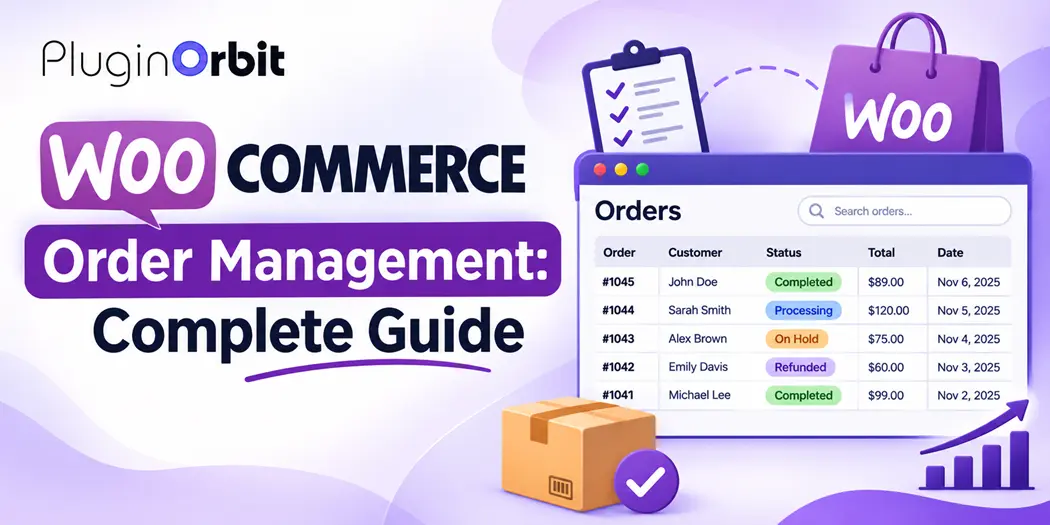
This page displays the orders received by your store. Each row provides important information, such as the order number, customer name, date, current status, and order total.
The available information helps you identify which orders need attention without opening every record individually.
Step 2: Review Individual Order Details
Select an order number to open its details.
You can review information such as:
- Customer billing and shipping addresses
- Purchased products and quantities
- Payment method and transaction details
- Shipping information
- Order subtotal, taxes, fees, and total
- Customer and internal order notes
Check these details before processing an order. This is particularly important when a customer has entered incorrect shipping information or requested a change.
Step 3: Update the Order Status
After reviewing the order, select the appropriate status based on its current stage.
For example, a successfully paid physical product order generally moves to Processing while the store prepares it for fulfillment.
Update the status only after confirming that the required action has taken place. This helps prevent customers from receiving incorrect order notifications.
Step 4: Add Order Notes
WooCommerce allows store administrators to add notes to individual orders.
You can use private notes to record internal instructions, payment verification, or fulfillment updates. Customer-facing notes can communicate relevant information directly to the buyer.
Keeping useful notes makes it easier for team members to understand previous actions when handling customer questions.
Step 5: Review and Complete Fulfillment
Before completing an order, confirm that the product has been packed, shipped, or delivered according to your store’s fulfillment process.
For physical products, check shipping information and tracking details where applicable. For digital products, confirm that the appropriate download or access instructions are available.
Once the order has been fulfilled, update its status accordingly.
Understanding WooCommerce Order Statuses
Order statuses indicate what is happening with a customer’s purchase. Understanding them helps store owners identify which orders are waiting for payment, require processing, or have already been completed.
Here are the main WooCommerce order statuses:
| Order Status | What It Means |
| Pending payment | The order has been placed but payment is still pending. |
| Processing | Payment has been received, and the order is awaiting fulfillment. |
| On hold | The order is waiting for payment confirmation or another required action. |
| Completed | The order has been fulfilled. |
| Cancelled | The order has been cancelled. |
| Refunded | The order has been fully refunded. |
| Failed | The payment attempt has failed. |
WooCommerce may also use Draft for temporary checkout records, particularly with the block-based checkout process.
Why Order Status Management Matters
Incorrect order statuses can create confusion for both store owners and customers.
For example, marking an order as Completed before shipping the product may give the customer the impression that fulfillment has finished. Similarly, treating an On hold order as paid without checking the payment can create financial and inventory problems.
Review payment confirmations and fulfillment actions before changing statuses. If your store uses offline payment methods, verify the transaction before moving the order forward.
How to Create an Efficient WooCommerce Order Workflow
An organized order workflow helps store owners handle purchases consistently, especially when multiple people are involved in payment verification, packing, shipping, and customer support.
Instead of processing orders differently each time, establish a repeatable process.
1. Receive and Review New Orders
Start by reviewing newly submitted orders. Check the customer’s contact information, purchased products, quantities, and payment method.
Identify missing information or unusual order details before moving to the next stage.
2. Confirm Payment
Check the payment status before preparing products for fulfillment.
For online payments, review the payment gateway confirmation. For bank transfers or other offline methods, verify that the payment has actually arrived.
This step reduces the risk of shipping products against unconfirmed payments.
3. Prepare Products for Fulfillment
Once payment is confirmed, prepare the purchased products.
Depending on your business, this may involve checking inventory, picking products, packaging orders, arranging shipping, or preparing digital access.
4. Update Order Information
Keep order statuses and notes accurate throughout fulfillment.
If your store provides tracking information, add it using the appropriate shipping integration or extension. Customers should be able to understand the current progress of their purchases.
5. Complete Orders and Handle Follow-Ups
After fulfillment, update the order status and make sure the customer receives the relevant notification.
If an order is delayed, cancelled, or refunded, record the reason and communicate the necessary information.
A consistent workflow makes it easier to manage WooCommerce orders without overlooking important tasks.
How to Improve WooCommerce Order Management With Automation
Manually reviewing every order, updating information, and sending customer notifications can become difficult as an online store grows.
WooCommerce supports several automated processes, including payment-related status changes, stock adjustments, and order email notifications. Additional functionality can be introduced through compatible plugins and integrations.
Consider these ways to improve your workflow:
Automate Order Notifications
Order emails keep customers informed about important purchase updates. Configure the relevant notifications and make sure the message content includes useful information.
You can also customize WooCommerce order emails to improve the presentation, branding, and clarity of customer communication.
Use Bulk Actions for Repetitive Tasks
When several orders require the same status update, bulk actions can reduce repetitive administrative work.
Select the relevant orders, choose an available bulk action, and apply the change. Always review the selected orders before confirming an update.
Connect Compatible Store Integrations
Shipping, payment, inventory, and accounting integrations can help reduce manual data entry between different business processes.
Before installing an integration, check whether it supports your WooCommerce version, checkout setup, and order storage configuration.
Monitor Automated Tasks
Automation does not eliminate the need for supervision.
Review scheduled actions, email delivery, payment notifications, and integration logs when something does not work as expected. This helps identify failed tasks before they affect customer orders.
How to Manage Abandoned and Incomplete Purchases
Not every shopper who adds products to a cart completes checkout. Some leave because of unexpected costs, payment difficulties, complicated checkout steps, or distractions.
These incomplete purchases should be considered separately from submitted WooCommerce orders.
Store owners can identify abandoned carts in WooCommerce to understand where potential purchases are being lost.
For stores that want to follow up with eligible shoppers, WooCommerce abandoned cart recovery can help automate reminder emails and encourage customers to return to their carts.
Keep in mind that an abandoned cart is not necessarily a confirmed order. Do not treat every incomplete checkout as a paid or submitted purchase.
Common WooCommerce Order Management Problems and How to Avoid Them
Even with built-in management tools, store owners can encounter issues that affect daily operations.
Here are some common problems and practical ways to address them.
Orders Stuck on Pending Payment
An order may remain Pending payment when the customer has not completed payment or the payment gateway has not confirmed the transaction.
What to do: Check the payment gateway, transaction records, and order notes before changing the status. Do not manually mark an unpaid order as Processing without verifying payment.
Incorrect Order Status Updates
Manually changing a status without following the actual fulfillment stage can create confusion.
What to do: Establish clear rules for when each status should be updated. Make sure everyone handling orders follows the same process.
Missing Customer Notifications
Customers may not receive expected order emails because of email delivery issues, incorrect configuration, or conflicts with other plugins.
What to do: Review WooCommerce email settings and test message delivery. Check your WordPress email configuration and use a reliable SMTP service if necessary.
Inventory and Order Information Mismatches
Incorrect stock levels can result in orders for products that are unavailable.
What to do: Enable appropriate stock management settings, review product inventory regularly, and check whether connected inventory integrations are synchronizing correctly.
Difficulty Managing a Growing Number of Orders
As order volume increases, finding individual records and processing multiple purchases can take more time.
What to do: Use order filters, search, bulk actions, and suitable integrations. Review your workflow regularly to identify tasks that can be simplified.
Best Practices for a More Efficient WooCommerce Order Management System
A reliable order management process depends on accurate information, consistent procedures, and regular monitoring.
Follow these practices to improve daily store operations:
- Review new orders regularly: Avoid leaving incoming purchases unattended for long periods.
- Verify payments before fulfillment: Confirm transactions before shipping physical products or providing paid services.
- Keep order statuses accurate: Update records only when the corresponding action has taken place.
- Maintain clear customer communication: Send useful notifications about payment, processing, and fulfillment.
- Use bulk actions carefully: Review selected orders before applying changes to multiple records.
- Protect customer information: Limit dashboard access to authorized users and follow appropriate data protection practices.
- Test important integrations: Check payment, shipping, inventory, and email functionality after updates.
- Maintain regular backups: Protect important store information and establish a recovery process.
If you want to expand your store’s functionality, review these Must-Have WooCommerce Plugins to identify tools that address your actual business requirements.
Conclusion
Effective WooCommerce order management requires more than viewing incoming purchases. Store owners need a consistent process for verifying payments, updating order statuses, preparing fulfillment, maintaining accurate records, and communicating with customers.
WooCommerce provides essential tools to handle these activities through its administration dashboard. As your store grows, you can improve the process with bulk actions, compatible integrations, and automation that addresses repetitive tasks.
Start by organizing your existing order workflow, identifying areas that require manual effort, and improving the steps that have the greatest impact on customer experience. A well-managed process makes daily store operations easier to control and helps your business handle increasing order volumes more confidently.