Contact Form 7 is a popular way to create forms in WordPress, but standard form fields are not always enough for business workflows. If customers need to approve a request, confirm information, accept terms, or sign an agreement, asking them to print a document and send it back can create unnecessary delays.
A Digital Signature for Contact Form 7 solves this problem by adding signature collection directly to the form. Instead of switching between different tools, visitors can complete the form and provide their signature in the same process.
This can make forms easier to complete, reduce manual paperwork, and create a smoother submission process for businesses that need customer consent or approval.
What Is a Digital Signature for Contact Form 7?
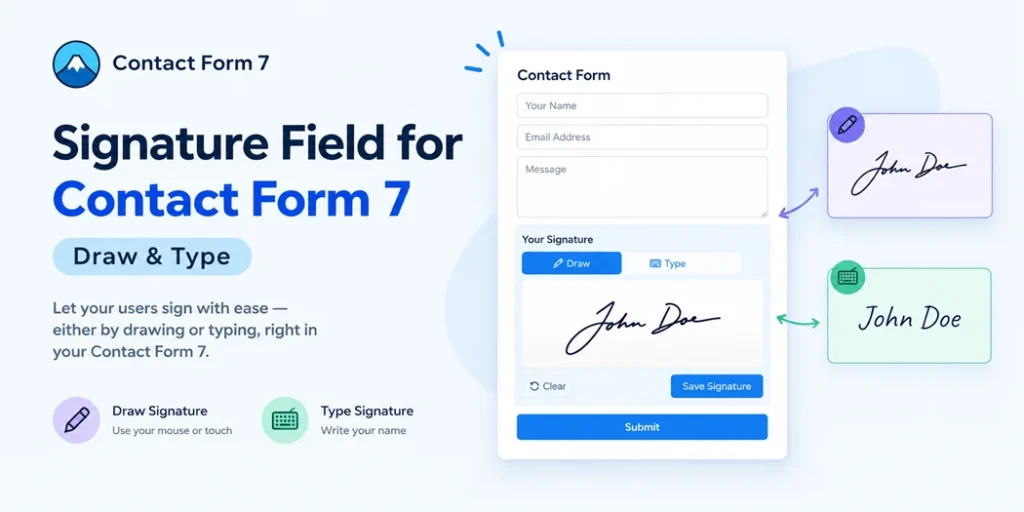
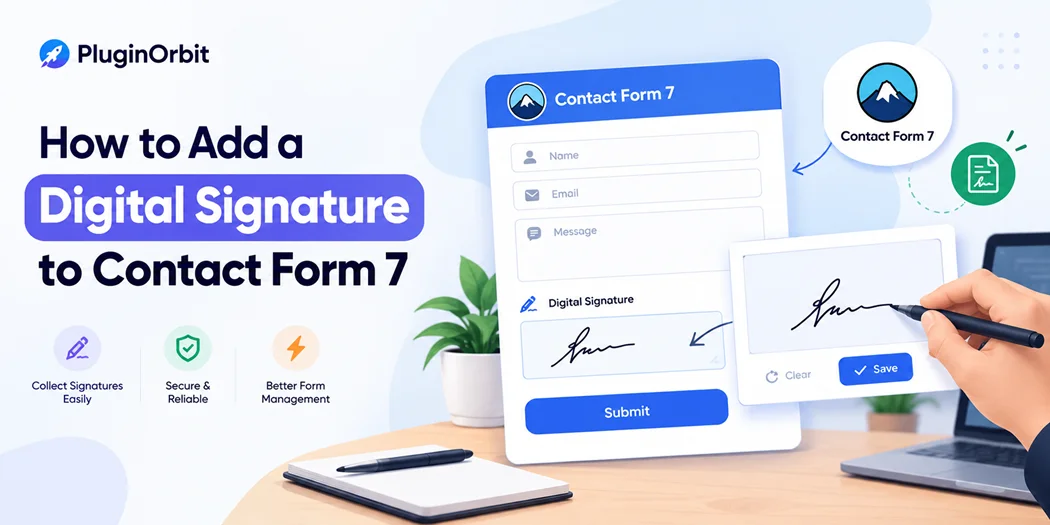
A Digital Signature for Contact Form 7 allows website visitors to provide a signature while completing a Contact Form 7 form. Depending on the solution you use, the visitor may be able to draw a signature using a mouse, touchscreen, or other supported input method.
The signature becomes part of the submitted form workflow rather than requiring a separate document-signing process.
For example, a business could create a form containing:
- Customer name
- Email address
- Phone number
- Service or product selection
- Terms and conditions
- Signature field
- Submit button
This setup is useful when collecting information and approval at the same time.
A Contact Form 7 signature field can be particularly helpful for service businesses, online applications, consent forms, registrations, agreements, and other workflows where a customer’s confirmation needs to accompany their submitted information.
If your form also requires customers to select a WooCommerce product, you can combine the signature workflow with a Product Dropdown Selector for Contact Form 7.
Why Add a Signature Field to Contact Form 7?
A common problem with paper-based signing is that it creates extra steps.
A customer may need to:
- Receive a document.
- Download or print it.
- Sign it manually.
- Scan or photograph it.
- Send it back.
- Wait for confirmation.
Every additional step gives users another reason to abandon the process.
Adding a signature field directly to a WordPress form removes much of this friction. The customer can enter their information, review the required details, sign, and submit the form from one place.
This can be especially useful when your business handles a large number of forms.
Common use cases
A Contact Form 7 signature field can be used for:
- Customer consent forms
- Service agreements
- Quote approvals
- Registration forms
- Waivers
- Delivery confirmations
- Client onboarding
- Authorization forms
- Application forms
- Internal approval workflows
The goal is not simply to add another field to a form. It is to make the entire submission process easier for both the customer and the business.
For a broader look at why organizations move away from paper-based signing workflows, see the advantages of digital signatures.
How to Add a Digital Signature to Contact Form 7
Adding a signature to Contact Form 7 generally involves installing a compatible signature solution, creating the form, adding the signature field, configuring it, and testing the complete submission process.
The exact settings depend on the plugin you choose, but the overall workflow is straightforward.
Step 1: Install a Contact Form 7 signature solution
First, choose a signature plugin or extension that supports Contact Form 7.
Look for a solution that works with your current WordPress setup and provides the signature functionality your forms require.
Before installing it on a live website, check compatibility with your WordPress version, Contact Form 7 version, theme, and other important form-related plugins.
Step 2: Create or edit your Contact Form 7 form
Open the Contact Form 7 form where you want to collect a signature.
Think about the information users need to provide before signing. For example, an agreement form might contain:
- Full name
- Email address
- Phone number
- Service details
- Agreement or consent checkbox
- Signature
- Submit button
Place the signature field near the confirmation or consent section so users understand what they are signing.
Step 3: Add the signature field
After installing a compatible solution, add the signature field to your Contact Form 7 form.
A visitor should be able to provide their signature without leaving the form.
For desktop users, this may involve drawing with a mouse or trackpad. On mobile devices, a touchscreen can provide a more natural signing experience.
The field should be easy to identify and large enough for users to sign comfortably.
Step 4: Configure the signature field
Depending on your plugin, you may have configuration options for the signature field.
These can include:
- Required or optional signature
- Field dimensions
- Instructions for users
- Signature behavior
- Validation
- Mobile interaction
- Form-specific settings
If a signature is mandatory for submission, make the field required. This prevents incomplete forms from reaching your inbox.
It is also helpful to give users a short instruction such as “Sign using your mouse, finger, or touchscreen.”
Step 5: Configure submission and email handling
Collecting the signature is only part of the workflow. You also need to make sure the submitted information can be handled correctly after the form is completed.
Check your Contact Form 7 mail settings and confirm that the submitted form data is being processed as expected.
If the signature needs to be stored, displayed, exported, or associated with other submission information, verify that your chosen solution supports the workflow you need.
Step 6: Test the complete form
Never assume the form works correctly just because the signature field appears.
Test it yourself before sending customers to it.
Check:
- Desktop signing
- Mobile signing
- Touchscreen input
- Required-field validation
- Empty signature submission
- Successful form submission
- Email notifications
- Signature visibility or storage
- Form appearance on different screen sizes
A signature form should feel simple to complete. If the signing area is too small, difficult to clear, or awkward on mobile devices, users may struggle to finish the form.
How a Digital Signature Improves the Form Experience
The biggest benefit of adding a signature directly to Contact Form 7 is convenience.
Customers do not have to leave your website to complete a separate signing process. They can provide their information and signature within the same form.
This can help reduce:
Paperwork
Digital form submissions can reduce the need to print and physically handle documents.
Back-and-forth communication
When information and signatures are collected together, there may be less need to email documents between customers and staff.
Incomplete submissions
A required signature field can prevent users from submitting a form without providing the required confirmation.
Customer friction
A simple online process can be easier than downloading, printing, scanning, and uploading paperwork.
Administrative work
Keeping form information and signatures within one workflow can make submissions easier to process.
However, businesses should still consider their legal, privacy, security, and compliance requirements before choosing a signing solution. A signature captured through a website is not automatically equivalent to every form of legally recognized digital signing.
Digital Signature vs Electronic Signature: What’s the Difference?
The terms digital signature and electronic signature are often used interchangeably, but they are not technically identical.
An electronic signature is a broad concept covering electronic methods used to indicate a person’s intent to sign or approve something. This can include typing a name, checking an acceptance box, drawing a signature, or using another electronic method.
A digital signature is a more specific technology that can use cryptographic mechanisms to help verify the signer and detect whether signed data has been altered.
For a Contact Form 7 workflow, it is important to understand what your particular plugin actually provides rather than assuming every online signature field offers the same level of verification or security.
If you are comparing the terminology and use cases in more detail, see our guide to digital vs electronic signature.
Can You Use a Digital Signature With a WooCommerce Product Form?
Yes. A signature workflow can be useful when a WooCommerce-related form requires customers to select a product or provide additional information before confirming their request.
For example, a business could create a workflow such as:
Product selection → Customer information → Terms/consent → Signature → Submission
This can be useful for customized orders, service requests, product-related approvals, or other workflows where additional customer confirmation is required.
If customers need to select products inside a WordPress form, you can use a product-selection solution alongside your signature workflow. This is particularly useful when the standard form fields do not provide the product-selection experience your business needs.
The important point is to keep the form logical. Customers should understand what they are selecting, what they are agreeing to, and why their signature is required.
What to Look for in a Contact Form 7 Signature Plugin
Not every signature solution provides the same features. Before choosing one, consider how the plugin fits into your actual workflow.
1. Easy signature capture
Users should be able to sign without complicated instructions.
2. Mobile support
Many customers complete forms on smartphones. Touch-friendly signing should therefore be a priority.
3. Contact Form 7 compatibility
The plugin should integrate properly with the forms you already use instead of forcing you to rebuild your entire workflow.
4. Signature data handling
Consider how signatures are stored, accessed, displayed, or associated with submitted form information.
5. Validation
If a signature is mandatory, the plugin should provide a reliable way to prevent incomplete submissions.
6. Privacy and security
Signatures can be sensitive information. Review how the solution handles submitted data and make sure its configuration fits your business requirements.
7. Workflow compatibility
Think beyond the signature field itself. Consider email notifications, submission management, exports, customer records, and other steps that happen after submission.
If you are comparing different solutions, our top 5 digital signature plugins can help you evaluate different options before making a decision.
PO Digital Signature for Contact Form 7
For businesses that already use Contact Form 7 and want to collect signatures within their existing forms, PO Digital Signature for Contact Form 7 provides a dedicated way to add signature functionality to the form workflow.
Instead of sending customers to a separate signing platform, you can build the signing experience directly into the Contact Form 7 form.
This can be useful when your goal is to keep the process simple:
Complete the form → Review the information → Sign → Submit
The right configuration will depend on your form and business requirements, but keeping the signature process inside the existing form can reduce unnecessary steps for customers.
Conclusion
Adding a Digital Signature for Contact Form 7 can turn a basic information-collection form into a more complete approval or consent workflow. Instead of asking customers to print, sign, scan, and return documents, businesses can give them a simpler way to provide their information and signature online.
The best setup depends on what you need to collect, how signatures should be handled after submission, and what security or compliance requirements apply to your business.
Start with the customer journey. If adding a signature directly to your Contact Form 7 form removes unnecessary steps without making the form harder to use, it can be a practical improvement to your WordPress workflow.