A standard contact form allows visitors to submit their name, email address, and message. However, when customers want to ask questions about specific products, manually typing product names can make the enquiry process more complicated.
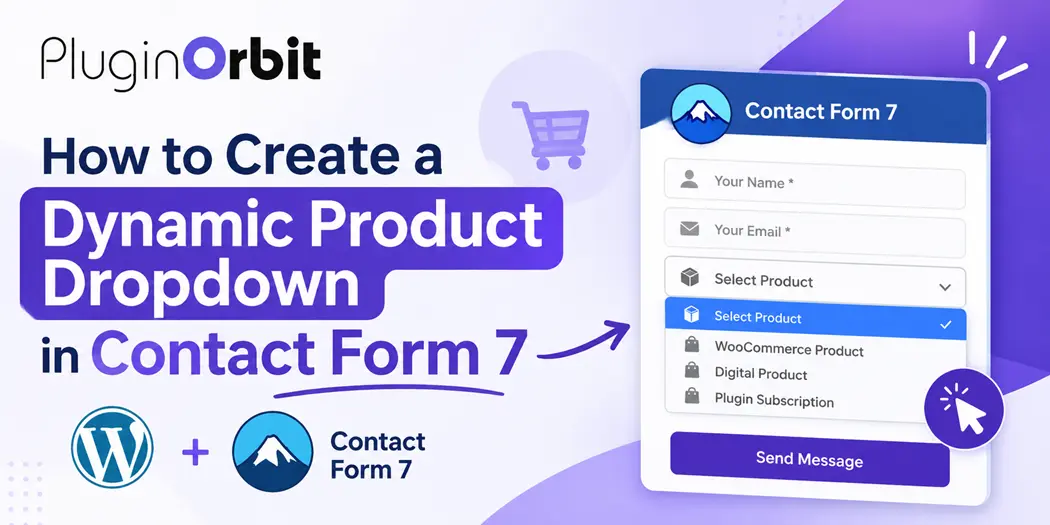
A dynamic product dropdown selector in Contact Form 7 solves this problem by allowing visitors to select products directly from your WooCommerce store. Instead of manually adding product names to a dropdown, you can use a product selector that retrieves product information from your store.
create a dynamic product dropdown in Contact Form 7, display WooCommerce products, enable multiple product selection, customize dropdown options, and receive selected product details through email.
What Is a Dynamic Product Dropdown in Contact Form 7?
A dynamic product dropdown is a form field that automatically displays products from your WooCommerce catalogue. Customers can select the products they are interested in while submitting a contact, enquiry, or quotation request form.
Unlike a standard dropdown, where administrators manually enter every option, a dynamic product selector retrieves available product information from the connected product catalogue.
For example, imagine you operate an online store selling clothing, electronics, and accessories. When a customer opens your enquiry form, they can choose a product directly from the dropdown instead of manually entering its name.
A dynamic product dropdown can be useful for:
- Product enquiry forms.
- Custom order requests.
- Bulk purchase enquiries.
- Wholesale quotation requests.
- Product availability questions.
- Customer support forms.
If you want to understand the basic functionality first, explore our guide on WooCommerce product dropdown in Contact Form 7.
Why Use a Dynamic Product Selector in WordPress?
A product selection field can improve the way customers communicate with your business. It also helps store administrators receive more structured enquiries.
Here are some practical benefits.
1. Automatically Display WooCommerce Products
You don’t have to manually update dropdown options whenever you add new products. A properly configured dynamic selector can retrieve products from your WooCommerce catalogue.
2. Reduce Manual Product Entry
Customers can select the exact product they want to discuss. This reduces spelling mistakes and confusion caused by similar product names.
3. Support Multiple Product Enquiries
If a customer is interested in several products, a multiple-selection dropdown can make it easier to include those products in one enquiry.
4. Improve the Enquiry Experience
A searchable product selector can help customers find products more quickly, particularly when your store has a large catalogue.
5. Simplify Business Communication
When a form submission includes the selected product details, your team has more context before responding to the customer.
These are some of the practical benefits of using a product dropdown instead of asking customers to type product information manually.
What Do You Need Before Creating a Dynamic Product Dropdown?
Before configuring a WordPress dynamic product selection form, make sure you have the following:
- A WordPress website with administrator access.
- WooCommerce installed and activated.
- Contact Form 7 installed and activated.
- Product information added to your WooCommerce catalogue.
- A product dropdown extension compatible with Contact Form 7.
If you haven’t created a contact form yet, start by learning how to create a contact form in WordPress.
You should also check that your products are published and have the correct visibility settings. Draft and private products are not publicly accessible in the same way as published products.
How to Create a Dynamic Product Dropdown in Contact Form 7
The easiest approach for non-technical users is to use a compatible product selector extension rather than manually writing custom PHP or JavaScript.
For this tutorial, we’ll use the Product Dropdown Selector for Contact Form 7 by PluginOrbit.
Step 1: Install and Activate the Required Plugins
First, log in to your WordPress dashboard.
Navigate to Plugins → Add New Plugin and install the following:
- Contact Form 7.
- WooCommerce.
- Product Dropdown Selector for Contact Form 7.
Activate the required plugins after installation.
Make sure WooCommerce and Contact Form 7 are both active before configuring the product selector.
Step 2: Open Your Contact Form 7 Form
Navigate to Contact → Contact Forms in your WordPress dashboard.
You can either create a new form or edit an existing one.
For this example, create a form named Product Enquiry Form.
A typical enquiry form might include:
- Customer name.
- Email address.
- Phone number.
- Product selection.
- Quantity.
- Message.
- Submit button.
Adding a dedicated product selection field helps customers identify the product they want to discuss.
Step 3: Add the Dynamic Product Dropdown Field
Open your Contact Form 7 form editor.
Look for the Product Dropdown option in the form-tag generator toolbar added by the extension.
Open the tag generator and configure the available product selection settings.
Depending on the selected options, you can configure:
- Field name and ID.
- Product categories.
- Product tags.
- Product attributes.
- Product price range.
- Product stock status.
- Dropdown layout.
- Search functionality.
- Multiple product selection.
- Product sorting.
Choose the settings that match your enquiry form requirements.
For example, if your store sells electronics, you might configure the dropdown to display products from the Electronics category.
Click Insert Tag and save your Contact Form 7 form.
Step 4: Configure Product Display Options
A good dynamic product selector should make it easy for customers to identify the right product.
Depending on the extension’s available features, you can configure the dropdown to display product names, prices, images, and other relevant details.
Consider these settings:
Product category filtering: Display only products from selected categories.
Product search: Allow visitors to search for a product instead of scrolling through a long list.
Product sorting: Organize products alphabetically or by another supported sorting option.
Product visibility: Avoid presenting products that customers cannot reasonably enquire about.
If your website contains hundreds or thousands of products, consider an AJAX-powered search option where supported. This can load matching results as visitors type instead of loading the entire catalogue at once.
Step 5: Enable Multiple Product Selection
Do you want customers to select more than one product?
A Contact Form 7 multiple product dropdown can be useful for bulk enquiries, wholesale requests, and quotation forms.
Open the product dropdown settings and enable the multiple-selection option if your extension supports it.
For example, a customer could select:
- Wireless Keyboard.
- Wireless Mouse.
- Laptop Stand.
Instead of submitting three separate forms, the customer can include multiple products in one enquiry.
Make sure the form’s email configuration can capture all selected product values correctly.
Step 6: Configure Email Notifications
Displaying a product dropdown is only one part of the process. You should also ensure that the selected product information reaches your business inbox.
Open the Contact Form 7 form editor and navigate to the Mail tab.
Add the product dropdown’s generated mail-tag to the message body.
For example:
Product Enquiry Details
Customer Name: [your-name]
Customer Email: [your-email]
Selected Product: [your-product-field]
Message: [your-message]
Important: Replace the example product mail-tag with the actual mail-tag generated for your form field.
Save the email settings and submit a test enquiry.
Confirm that the selected product or products appear correctly in the notification email.
How to Customize Contact Form 7 Dropdown Fields
A well-designed dropdown should be easy to understand and use on desktop and mobile devices.
You can customize your product selector using the options supported by your extension and theme.
Consider these improvements:
- Use a clear placeholder such as “Select a Product”.
- Add meaningful field labels.
- Display prices when they help customers make a decision.
- Enable searchable selection for larger product catalogues.
- Use suitable spacing and readable typography.
- Ensure dropdown options are easy to select on mobile devices.
For more customization ideas, explore our guide on customize Contact Form 7 dropdown fields.
Remember to test the form after changing CSS or JavaScript. Custom styling should not interfere with the dropdown’s functionality.
How to Test Your WordPress Dynamic Product Selection Form
Before publishing your form, test the complete customer journey.
Use this checklist:
- Open the page containing your enquiry form.
- Confirm that the product dropdown loads correctly.
- Check whether the expected WooCommerce products appear.
- Search for a product if searchable selection is enabled.
- Select one product and submit a test enquiry.
- Repeat the test with multiple products if multiple selection is enabled.
- Check whether the selected products appear in your notification email.
- Test the form on a mobile device.
- Check that required fields display validation messages.
- Confirm that unavailable or unpublished products are handled as expected.
Testing the complete submission process is important because a dropdown can appear correctly on the front end while its selected values are missing from the notification email.
Common Dynamic Product Dropdown Problems and How to Fix Them
Even after configuration, you may encounter some issues.
Products Are Not Appearing in the Dropdown
Check whether WooCommerce is active and whether the relevant products are published.
Also review category, tag, price, and stock filters. Your filters might exclude the products you expect to display.
Multiple Product Selection Is Not Working
Check whether multiple selection is enabled in the product field settings.
Also verify that the generated form tag and email configuration support the selected values.
Product Search Is Not Working
Confirm that the searchable dropdown option is enabled and that the required scripts are loading correctly.
Caching, JavaScript conflicts, and theme customizations can sometimes interfere with dropdown functionality.
Selected Products Are Missing From Emails
Check the generated mail-tag in the Contact Form 7 Mail tab.
Make sure the mail-tag matches the field name generated by your product selector.
When Should You Use a WooCommerce Quote Request Form?
A dynamic product selector is especially useful when your business receives enquiries before customers make a purchase.
For example, a wholesale business might allow customers to select several products and request a custom quotation.
Similarly, a furniture business could use product selection to collect enquiries about particular tables, chairs, or custom furniture designs.
A WooCommerce quote request form can combine product selection with customer details, quantities, and additional requirements.
This makes it easier for businesses to understand what customers need before preparing a quotation.
Conclusion
Creating a dynamic product dropdown in Contact Form 7 can make product enquiries more convenient for customers and easier to manage for WooCommerce store owners.
By connecting your WooCommerce product catalogue with PluginOrbit‘s Product Dropdown Selector for Contact Form 7, you can dynamically display products, enable multiple product selection, configure product filters, and collect selected product details through your existing contact form workflow.
Start with a simple product enquiry form, test the dropdown and email notifications, and introduce additional features as your business requirements grow.
Want to simplify product selection in Contact Form 7? Explore Product Dropdown Selector for Contact Form 7 by PluginOrbit and build a more organized product enquiry experience for your WooCommerce store.