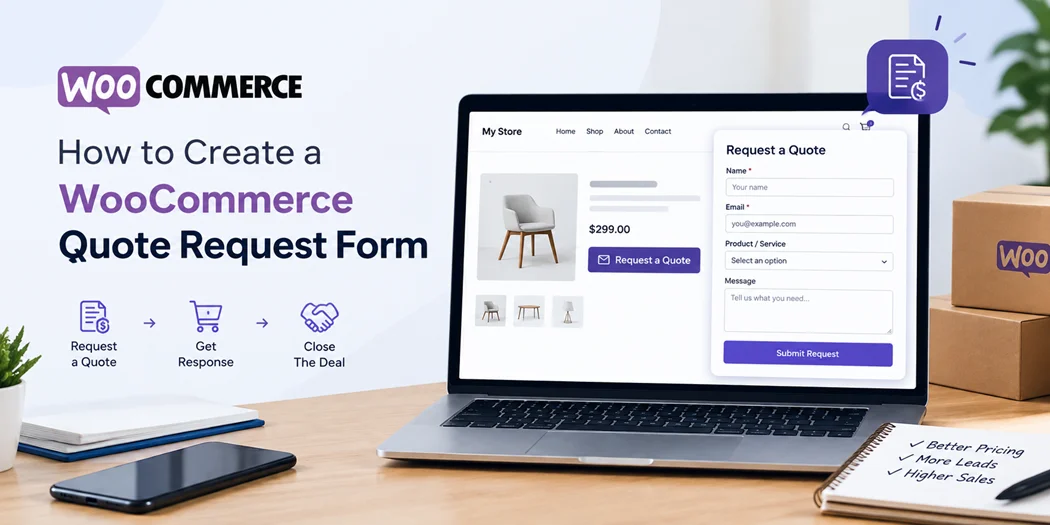
Not every WooCommerce store sells products at a fixed price. Businesses that offer custom products, bulk orders, wholesale pricing, services, or made-to-order items often need to discuss requirements before confirming a purchase.
In these cases, a WooCommerce quote request form gives customers an easy way to ask for pricing without going through a standard checkout process.
A quote form can collect important information such as the customer’s name, email address, selected products, quantity, company details, project requirements, and additional notes.
Store owners can then customize a WooCommerce page to make the quote request experience easier to navigate and respond to customer requirements with pricing or further questions.
For WordPress websites, you can create a quote workflow by combining WooCommerce with a suitable form solution.
This approach can be useful for B2B stores, wholesalers, manufacturers, service providers, custom-product businesses, and stores where prices depend on quantity or customer requirements.
What Is a WooCommerce Quote Request Form?
A WooCommerce quote request form is a form that allows customers to submit a request for product pricing or purchasing information instead of completing a normal WooCommerce checkout.
For example, a customer may want to purchase 100 customized products. The store may need to calculate a special price based on quantity, shipping requirements, customization, or other factors. Instead of asking the customer to place a regular order, the business can let them submit a quote request.
A typical quote form can include:
- Customer name
- Email address
- Phone number
- Company name
- Product selection
- Product quantity
- Budget or target price
- Customization requirements
- Additional comments
- File or document uploads
- Preferred contact method
The information collected can then be reviewed by the store team before sending a quotation.
Why Use a WooCommerce Quote Form?
A standard WooCommerce checkout works well when products have fixed prices and customers can purchase them immediately. However, some businesses need additional information before determining the final price.
A WooCommerce quote form can help when:
- Product prices depend on quantity
- Customers request wholesale pricing
- Products require customization
- You sell business-to-business products
- Orders require manual approval
- Shipping costs vary by project
- Customers need to discuss product specifications
- You provide services alongside products
- Products are made to order
- You want to collect leads before confirming an order
For example, a printing company may sell products through WooCommerce but need to know the customer’s print quantity, material, dimensions, and delivery requirements before providing a final price.
In this situation, a quote request workflow can be more appropriate than sending every customer directly to checkout.
WooCommerce Quote Request Form vs. Normal Checkout
A quote request and a normal WooCommerce checkout serve different purposes.
| Feature | Normal WooCommerce Checkout | Quote Request Form |
| Fixed product price | Yes | Not required |
| Immediate payment | Usually | No |
| Custom pricing | Limited | Suitable |
| Bulk orders | Possible | Well suited |
| Product customization | Depends on setup | Easy to collect |
| Manual price approval | Not normally required | Common |
| Customer requirements | Limited checkout fields | Can collect detailed information |
| B2B purchasing | Possible | Often useful |
The right approach depends on how your store sells products. If customers can purchase products without discussing price or requirements, standard checkout may be enough. If pricing needs to be calculated manually, a quote form can provide a more suitable workflow.
How to Create a WooCommerce Quote Request Form
There are several ways to create a quote request system in WooCommerce. The exact setup depends on whether you want a simple contact form, a product-specific request form, or a complete quotation workflow.
Step 1: Define What Information You Need
Before creating the form, determine what information your sales team needs to prepare a quote.
Start with essential fields such as:
- Name
- Phone
- Product
- Quantity
- Company
- Requirements
You can add additional fields based on your business model.
For example, a wholesale store might ask for company information and estimated order volume, while a custom-product business might ask for dimensions, materials, colors, and design requirements.
Avoid adding unnecessary fields. A shorter form can make it easier for customers to submit their requests.
Step 2: Add a Form to Your WordPress Website
The next step is to add contact form to WordPress so customers have a simple way to send their quote requirements.
If your website already uses Contact Form 7, you can create a dedicated quote form and customize its fields according to your WooCommerce products.
A basic form could include:
Name
Company Name
Product
Quantity
Requirements
Additional Message
Submit Quote Request
The form should clearly explain what happens after submission. For example, you can tell customers that your team will review their requirements and contact them with pricing.
Step 3: Connect Products With the Form
If customers need to select products when submitting a request, manually typing product names is not always ideal.
A product selection field can make the process easier and reduce incorrect product information.
For stores with multiple products, a WooCommerce product selector can allow customers to choose the relevant product directly from the form.
This is particularly useful when customers are requesting quotes for specific WooCommerce products.
Step 4: Add a WooCommerce Product Dropdown
A dropdown can be useful when customers need to select one product from a list.
For example:
Select a Product
– Product A
– Product B
– Product C
– Product D
If your store has a larger catalog, dynamically connecting WooCommerce products to a form can provide a better experience than manually maintaining product names.
A WooCommerce product dropdown in Contact Form 7 can help customers select products directly within their quote request form.
This can also reduce the chance of customers entering an incorrect product name or SKU.
Step 5: Collect Quantity and Requirements
Product selection alone may not provide enough information for a quote.
Add a quantity field so customers can explain how many units they need. You can also include a message field for additional requirements.
For example:
Product: Custom T-Shirt
Quantity: 250
Customization: Front and back printing
Delivery: Required by June 15
Additional Details: Corporate event order
This gives your sales team more information before responding.
For custom products, consider adding fields for size, color, material, dimensions, customization, delivery requirements, or other relevant specifications.
Step 6: Make the Form Easy to Complete
A quote form should be straightforward and easy to understand.
Use clear field labels and avoid asking for information that is not necessary to prepare the quotation.
You can improve usability by:
- Grouping related fields
- Using dropdowns for predefined choices
- Marking required fields clearly
- Keeping instructions short
- Using descriptive button text
- Making the form mobile-friendly
- Showing a clear confirmation message
Instead of a generic button such as “Submit,” consider using text such as “Request a Quote” so customers understand what will happen.
How to Handle WooCommerce Quote Requests
Creating the form is only one part of the process. You also need a reliable way to manage incoming requests.
Every submission should contain enough information for your team to identify the customer and understand what they are requesting.
If you use Contact Form 7, storing submissions can be especially useful because email notifications alone may not provide a convenient historical record.
A solution that can save Contact Form 7 submissions can help you maintain access to submitted information and review previous quote requests when necessary.
A structured submission record can be useful when:
- Customers follow up later
- Your team needs to review old requests
- A quotation requires multiple conversations
- You receive many quote requests
- You need to check previously submitted product information
For businesses handling a large number of requests, maintaining organized submission data can make the sales process easier to manage.
How to Add Product Selection to Contact Form 7
If Contact Form 7 is your preferred form solution, you can build a product-focused quote form around it.
A typical structure might look like this:
Customer Information
↓
Product Selection
↓
Quantity
↓
Customization Requirements
↓
Additional Information
↓
Quote Request Submission
A product dropdown in Contact Form 7 can be especially useful when customers need to choose products from your WooCommerce catalog.
For example, instead of asking:
Which product are you interested in?
you can provide a product selection field where customers choose from available products.
This makes the form more structured and gives your sales team cleaner information to work with.
Add a Quote Request Button to WooCommerce Products
Another useful approach is to place a quote request option directly on relevant product pages.
For example, instead of displaying only:
Add to Cart
you may also provide:
Request a Quote
This can be useful for products where the price depends on quantity, customization, or customer requirements.
You can direct customers from the product page to a dedicated quote form and preselect or identify the product they are asking about.
This creates a more connected journey:
Product Page → Request a Quote → Product Selection → Requirements → Submission → Sales Follow-Up
The exact implementation depends on your WooCommerce configuration and the form functionality you choose.
Best Practices for a WooCommerce Quote Form
A good quote request form should focus on both customer experience and business requirements.
1. Ask Only Relevant Questions
Long forms can discourage customers from submitting requests. Start with the information your team actually needs.
2. Make Product Selection Clear
If customers are requesting a product-specific quote, make it obvious which product they are selecting.
3. Include Quantity
Quantity can have a major impact on pricing, especially for wholesale and bulk orders.
4. Provide a Requirements Field
A message field gives customers room to explain information that does not fit into predefined fields.
5. Use Clear Confirmation Messages
After submission, tell customers that their request was received and explain what happens next.
6. Keep the Form Mobile-Friendly
Many visitors access ecommerce websites from smartphones. Test the form on smaller screens and make sure fields and buttons are easy to use.
7. Protect Customer Data
Only collect information that you genuinely need, use secure WordPress practices, and make your privacy practices clear to customers.
8. Organize Submissions
As quote volume increases, keeping requests organized becomes increasingly important. Store submissions securely and establish a consistent process for reviewing and responding to them.
When Should You Use a WooCommerce Quote Request Form?
A quote request form is particularly useful when your WooCommerce store does not follow a simple fixed-price purchasing model.
Consider using one if your business handles:
- Wholesale orders
- Bulk purchasing
- Custom products
- Made-to-order products
- Business contracts
- Large orders
- Product customization
- Variable shipping requirements
- Services with WooCommerce products
- Manual pricing
For a small store selling standard products at fixed prices, adding a quote workflow may not be necessary. A normal WooCommerce checkout can often provide a faster purchasing experience.
The key is to match the purchasing process to how your customers actually buy.
Improve Your WooCommerce Quote Workflow With the Right Plugin
The WooCommerce ecosystem provides many extensions for improving product selection, forms, checkout processes, customer communication, and store management.
When choosing a WooCommerce plugin, look at the features you actually need instead of installing multiple plugins that provide overlapping functionality.
For a quote workflow, consider whether your solution supports:
- WooCommerce product selection
- Form integration
- Custom fields
- Product quantity
- Submission storage
- Email notifications
- Mobile-friendly forms
- Easy administration
- Compatibility with your existing WordPress setup
A lightweight setup that solves your specific requirements can be easier to maintain than an unnecessarily complicated configuration.
Conclusion
A WooCommerce quote request form can provide a practical way to handle products and orders that do not fit a standard fixed-price checkout process. By collecting product information, quantity, customer details, and specific requirements, you can give your sales team the information needed to prepare an accurate response.
For WordPress stores using Contact Form 7, combining a structured form with WooCommerce product selection can create a smoother quote-request experience. Features such as a WooCommerce product selector, product dropdowns, and organized submission storage can make the process easier for both customers and store administrators.
The most effective setup depends on your products, customers, pricing model, and sales process. Start with the information you actually need, keep the form easy to complete, and expand the workflow as your quote volume and business requirements grow.