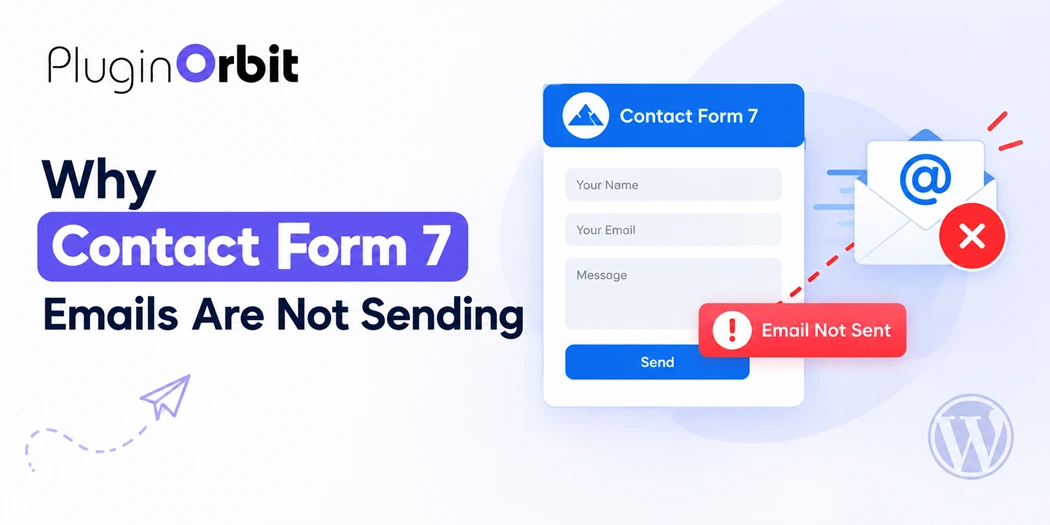
Contact Form 7 makes it easy to collect customer inquiries, support requests, and business leads through a WordPress website. However, form notifications may stop arriving even when the form appears to work correctly. This can lead to missed customer messages, delayed responses, and lost business opportunities.
If Contact Form 7 is not sending emails, the cause may be incorrect mail settings, an unreliable hosting mail server, missing email authentication, spam filtering, or a mismatch between form fields and email tags. Understanding how Contact Form 7 Submissions work can also help you manage form entries and investigate missing customer inquiries.
The good news is that most issues can be investigated with a few practical checks. This article explains how to identify the problem, correct your Contact Form 7 email configuration, improve delivery reliability, and keep a record of submissions so important inquiries are less likely to be missed.
Why Is Contact Form 7 Not Sending Emails?
Contact Form 7 relies on WordPress email functionality to process and send form notifications. The plugin can prepare a message correctly, but successful delivery also depends on the website’s hosting environment, mail server, and receiving email provider.
Here are the most common reasons for email problems:
- Incorrect recipient or sender email addresses.
- Missing or mismatched mail-tags in the email template.
- Hosting servers that cannot send email reliably.
- Incorrect SMTP configuration or authentication.
- Emails being filtered into spam or rejected by the recipient’s provider.
- Invalid mail headers or attachment settings.
- Spam protection blocking a legitimate submission.
Before changing several settings at once, submit a test entry and check what happens. Does the form display an error? Does it show a success message while no email arrives? Or do some recipients receive notifications while others do not? These details help narrow down the cause.
1. Check Your Contact Form 7 Mail Settings
Incorrect configuration is one of the first things to investigate when Contact Form 7 email is not working.
Log in to your WordPress dashboard and navigate to Contact → Contact Forms. Open the affected form and select the Mail tab. Review the recipient, sender, subject, additional headers, and message body.
Verify the recipient email address
The To field determines where the notification should go. Check that the address is spelled correctly and belongs to an inbox you can access.
For example:
admin@example.com
Replace this example with your actual business email address. If the recipient address is incorrect or no longer active, the notification may not reach the intended person.
Use a sender address from your website’s domain
The From field should generally use an email address associated with your website’s domain.
For example:
Website Contact <wordpress@example.com>
Avoid using a visitor’s Gmail, Yahoo, or other external address as the sender when your website is sending the message. This can create sender-authentication and spoofing problems.
You can still reply directly to the visitor by adding the following line in Additional headers:
Reply-To: [your-email]
Here, your-email must match the name of the email field in your form. Adjust it if your field uses a different name.
For further details, see the official Contact Form 7 mail configuration documentation.
2. Check Contact Form 7 Mail-Tags
Contact Form 7 uses mail-tags to insert visitor information into notification emails. These tags must correspond to the form fields configured in the Form tab.
For example, your form may contain:
[text* your-name]
[email* your-email]
[textarea your-message]
The corresponding mail-tags are:
- [your-name]
- [your-email]
- [your-message]
If you add a field to the form but forget to include its corresponding mail-tag in the email template, its value may not appear in the notification.
An incorrect tag may also remain visible as text in the received email instead of displaying the visitor’s information.
Open the Form and Mail tabs together and compare the field names carefully. Make sure required email fields use the correct names and that your message body includes the information your team needs.
Also review the Subject field. A subject that becomes empty when mail-tags are replaced can create configuration or sending problems. Use a meaningful fixed subject with any relevant dynamic information.
3. Configure SMTP for Reliable WordPress Email Delivery
If your Contact Form 7 mail settings look correct but notifications still fail, investigate how WordPress sends email.
Some hosting environments rely on default server mail functionality, which may be restricted, misconfigured, or unreliable. An SMTP plugin can connect WordPress to an authenticated email service, depending on the provider and configuration you choose.
To set up SMTP:
- Choose a suitable email provider or mail service for your website.
- Install a reputable WordPress SMTP plugin.
- Connect it to your chosen provider using the supported authentication method.
- Enter the required connection details or authorize the account.
- Configure the sender address to match your authenticated domain or provider requirements.
- Send a test email using the SMTP plugin’s testing tool.
- Submit your Contact Form 7 form and check whether the notification arrives.
Do not assume that installing an SMTP plugin alone will solve every problem. The mailer must be connected correctly, credentials must be valid, and the email provider must accept and deliver the message.
If the test email fails, review the displayed error or mailer logs. If it succeeds but form notifications do not arrive, check the Contact Form 7 configuration and investigate whether the form message is being passed to the configured mail service.
4. Check Spam, Junk, and Email Filtering
Sometimes Contact Form 7 sends a message, but the receiving email provider places it in the spam or junk folder.
Start by checking the recipient’s Spam, Junk, Promotions, or quarantine folders, depending on the email service. Search for the subject line, sender address, or a recent test message.
If the message is missing, check the following:
- Whether the sender address belongs to your website’s domain.
- Whether your email provider reports a rejected or bounced message.
- Whether your domain’s SPF and DKIM records are configured correctly.
- Whether a DMARC policy or other receiving-server rule affects the message.
- Whether the recipient’s mailbox has filters or blocking rules.
SPF, DKIM, and DMARC help email providers evaluate sender authorization and authenticity. The correct DNS records depend on your email service, so use the provider’s official instructions rather than copying generic records from another website.
If messages reach some providers but not others, compare the results and review your sending provider’s logs. A successful test to one inbox does not guarantee delivery to every email provider.
5. Review Contact Form 7 Configuration Errors
Contact Form 7 includes a configuration validator that can flag problems in form and mail settings.
Open the affected form and check for warnings in the Mail tab. Look for invalid mailbox syntax, a sender address that does not match the website’s domain, malformed additional headers, missing information, or attachment errors.
For example, a valid additional header looks like this:
Reply-To: [your-email]
Writing Reply To [your-email] without the colon is not valid header syntax.
If you use file uploads, verify that the attachment tag and file path are configured correctly. Large attachments may also exceed the limits imposed by your hosting environment or receiving email provider.
Read the official Contact Form 7 configuration error documentation to understand specific warnings.
Remember that configuration validation checks the form’s setup; it does not prove that a message can reach the recipient’s inbox. You still need to send a test message.
6. Check Whether Spam Protection Is Blocking Submissions
Contact Form 7 can reject submissions that its spam protection identifies as suspicious. Occasionally, a legitimate visitor may be affected by an overly restrictive or incorrectly configured protection mechanism.
If the form displays an error after submission, inspect the message and its response styling. Contact Form 7 uses different response indicators for different outcomes, and its generic sending-error message can also appear in spam-related situations.
Review the spam protection modules and integrations enabled on your website. Check whether CAPTCHA, reCAPTCHA, Akismet, or another security tool is configured correctly and whether any recent change coincides with the problem.
Do not disable all spam protection permanently just to make the form work. Instead, test the configuration carefully, investigate false positives, and maintain appropriate protection against automated abuse.
7. Check Your Hosting and Email Service
If your mail settings are correct and SMTP testing still fails, the issue may be outside Contact Form 7.
Your hosting provider may restrict outgoing email, encounter a temporary mail-server problem, or require a particular sending configuration. Your email provider may also reject messages because of authentication failures, sending limits, or account restrictions.
Try these checks:
- Review your SMTP plugin’s error logs.
- Confirm that the connected email account is authorized.
- Check whether your provider has reached a sending limit.
- Review bounce messages and delivery logs, if available.
- Contact your hosting provider if server mail is failing.
- Contact your email provider if its service rejects or filters messages.
Change one setting at a time and test again. This makes it easier to identify which adjustment resolves the problem without creating additional configuration errors.
8. Save Contact Form 7 Submissions to Avoid Losing Inquiries
Fixing email delivery is important, but relying exclusively on email notifications can leave your business vulnerable to missed inquiries. Contact Form 7 does not store submissions in the WordPress dashboard by default.
If your website receives quote requests, sales inquiries, or customer support messages, keeping a record of submissions gives your team another place to review them.
You can follow our guide to Save Contact Form 7 submissions to understand how submission storage works in WordPress.
For a more organized workflow, Submission Manager for Contact Form 7 can save submissions in your WordPress database and help you view, filter, and export entries. Its listed features also include email delivery status, which can help you identify submissions associated with failed notifications.
This is a complementary safeguard, not a replacement for correcting your mail configuration. Continue testing email delivery and ensure that stored visitor information is handled securely and in accordance with applicable privacy requirements.
9. Test Your Contact Form After Making Changes
Once you have corrected the settings, perform a complete test rather than assuming the problem is solved.
Use this checklist:
- Submit the form with valid test information.
- Confirm that the form displays the expected success message.
- Check the intended recipient’s inbox and spam folder.
- Verify that the visitor’s name, email, and message appear correctly.
- Test the Reply-To address by replying to the notification.
- Test any autoresponder or Mail (2) configuration separately.
- Check SMTP logs or delivery status if a message is missing.
- Repeat the test using another recipient email provider when possible.
- Confirm that submissions are saved if you use an entry-management plugin.
A successful form submission and a successfully delivered email are two different outcomes. The form may accept the visitor’s information even when the email is later filtered, rejected, or not delivered.
If the form continues to fail, record the exact error, your SMTP test result, and any available mail logs before contacting your hosting or email provider. This information can help support teams identify the issue more quickly.
How to Prevent Contact Form 7 Email Problems
Once email notifications are working, a few routine checks can reduce future disruptions.
Use a consistent sender address: Keep the From address aligned with your website’s domain and email provider requirements.
Maintain email authentication: Follow your provider’s guidance for SPF, DKIM, and DMARC records.
Test after updates: Submit a test form after changing your hosting, email provider, SMTP settings, or form configuration.
Monitor delivery errors: Review available SMTP logs, bounce reports, and submission status information when messages go missing.
Keep a record of submissions: Use a suitable storage solution when customer inquiries are important to your business operations.
Protect visitor information: Limit access to stored entries, collect only necessary information, and follow applicable data-protection requirements.
If you are setting up a new form, our tutorial on Add a contact form to WordPress can help you review the broader form setup process.
Conclusion
When Contact Form 7 is not sending emails, start by checking the recipient, sender, mail-tags, and configuration warnings. Next, test your WordPress email delivery, configure an authenticated SMTP service if appropriate, and investigate spam filtering or hosting restrictions.
For business websites, fixing delivery is only part of the solution. Keeping a record of form submissions can help your team recover important inquiries when notifications go missing. Explore Our Plugins for tools that support your WordPress workflow, and test your contact forms regularly to help keep customer communication reliable.