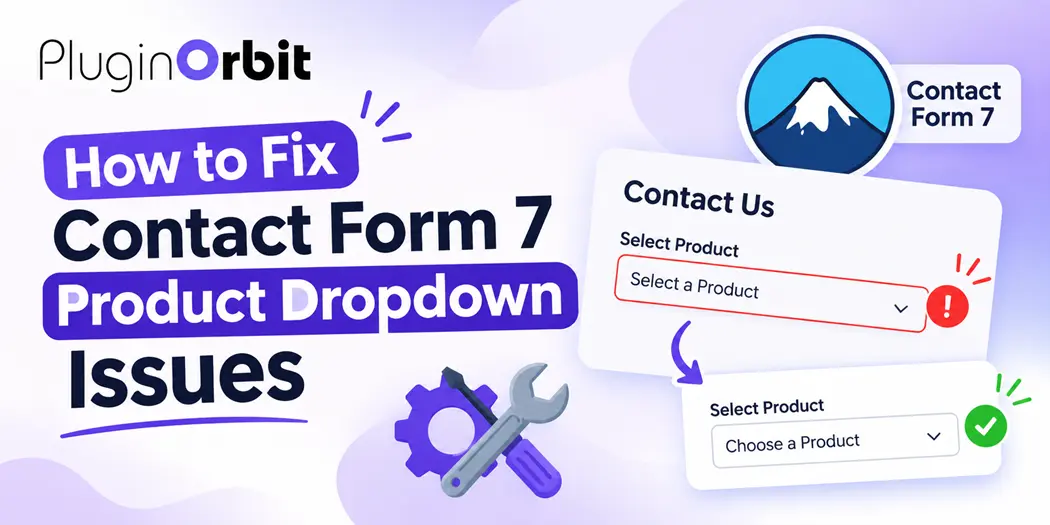
A product dropdown makes it easier for customers to select an item when submitting an enquiry, requesting a quote, or asking questions about a WooCommerce product.
However, when the dropdown stops working, displays incomplete options, or fails to submit the selected value, it can interrupt the entire form experience.
Contact Form 7 product dropdown issues can occur because of incorrect field configuration, missing product options, JavaScript conflicts, CSS problems, or validation errors. These problems can become more complicated when a form needs to display products directly from a WooCommerce store.
Most dropdown problems can be diagnosed by checking the form configuration, testing the front-end behavior, and identifying conflicts that affect the field.
In this guide, you’ll find practical ways to fix common Contact Form 7 dropdown problems, troubleshoot product selection errors, and make sure customers can submit their selected products correctly.
Why Do Contact Form 7 Product Dropdown Issues Occur?
A dropdown may look simple, but several website settings and components affect how it works.
For example, a dropdown might display correctly in the WordPress editor but show no options on the live website. In another situation, customers may select a product successfully, but the selected value does not appear in the notification email.
Some common reasons include:
- Incorrect select field syntax or configuration.
- Missing or incorrectly entered dropdown options.
- JavaScript conflicts with another plugin or theme.
- Custom CSS hiding or interfering with the field.
- Required field validation problems.
- Incorrect mail-tag configuration.
- WooCommerce product data not loading correctly.
- Compatibility issues after plugin or theme updates.
Before changing your form, identify what is actually failing. Is the dropdown missing, unresponsive, displaying incorrect products, or failing during submission? Understanding the problem makes troubleshooting easier.
If you are setting up a new enquiry form, start by learning how to add a contact form in WordPress before configuring its product selection fields.
1. Check the Contact Form 7 Dropdown Field Configuration
Incorrect field configuration is one of the first things to investigate when a dropdown does not work.
Contact Form 7 uses form tags to create fields. A standard dropdown uses the select form tag, while a required dropdown uses select*.
For example:
<label>Select a Product
[select your-product “Product A” “Product B” “Product C”]
</label>
[submit “Submit”]
This creates a dropdown with three product choices.
If customers must select a product before submitting the form, use:
[select* your-product first_as_label
“Select a Product”
“Product A”
“Product B”
“Product C”]
The asterisk makes the field required, while first_as_label treats the first option as a label rather than a valid selection.
Check the following settings:
- Make sure the field uses the correct select or select* tag.
- Check that every option is enclosed in quotation marks.
- Avoid unnecessary spaces or incorrect tag syntax.
- Make sure the field name is unique.
- Confirm that the form tag is saved before testing.
If the dropdown appears as plain text or the form displays an error instead of the field, review the form-tag syntax first.
2. Fix Contact Form 7 Dropdown Not Working
Sometimes the dropdown appears on the website, but customers cannot open it or select an option.
This can happen when JavaScript errors, theme scripts, or other plugins interfere with the form.
Start with these troubleshooting steps:
Step 1: Open the page containing your contact form.
Step 2: Right-click the page and select Inspect.
Step 3: Open the Console tab in your browser’s developer tools.
Step 4: Check whether JavaScript errors appear when interacting with the dropdown.
Step 5: Temporarily disable recently added scripts or optimization settings and test the form again.
If the issue disappears after disabling a plugin, investigate whether that plugin is creating a JavaScript conflict.
Also check whether your theme correctly loads the scripts required by WordPress and Contact Form 7.
Do not permanently disable unrelated plugins without identifying the cause. The goal is to isolate the conflicting component and apply a targeted fix.
3. Fix Missing or Incorrect Dropdown Options
A dropdown that displays only some product options can create confusion for customers.
For example, a store may offer ten products, but the contact form displays only four. Alternatively, the dropdown might contain outdated product names that no longer match the WooCommerce catalogue.
For a standard Contact Form 7 dropdown, review the options entered in the form editor.
Example:
[select* product-name first_as_label
“Select a Product”
“Portable Electric Juicer”
“Hair Styler”
“Foot Scrubber”]
Make sure the options match the products you actually want customers to select.
You can also separate the displayed label from the submitted value using a pipe:
[select product-name
“Juicer|portable-juicer”
“Hair Styler|hair-styler”]
This allows customers to see a readable product name while the form submits a different value.
What if you want the dropdown to display WooCommerce products automatically?
A manually configured dropdown requires you to maintain its options yourself. When your product catalogue changes frequently, updating every form manually can become time-consuming.
For this situation, a WooCommerce product dropdown can provide a more suitable approach for displaying product choices in your Contact Form 7 form.
4. Resolve Contact Form 7 Select Field Not Working on Mobile
A dropdown that works on a desktop may create usability problems on smartphones.
Customers may struggle to select an option, the dropdown may extend beyond the screen, or custom styling may make the field difficult to use.
Start by testing the form on different screen sizes.
Check these areas:
- Set the dropdown width to fit its parent container.
- Avoid fixed widths that exceed the mobile screen.
- Make sure the text is readable.
- Check whether another element overlaps the dropdown.
- Test the field using different mobile browsers.
- Remove unnecessary CSS that interferes with native select controls.
For example, you can use:
.wpcf7 select {
width: 100%;
max-width: 100%;
box-sizing: border-box;
}
This helps the select field fit within its available container.
If the dropdown uses a custom selection library, check that its styling and JavaScript are also responsive.
5. Troubleshoot Contact Form 7 Product Selector Issues
A standard Contact Form 7 dropdown and a WooCommerce product selector are not necessarily the same thing.
A standard select field displays options that you manually enter into the form editor. It does not automatically retrieve your store’s product catalogue.
For example, imagine a store with 100 products. If you use a standard dropdown, you may need to maintain the product list manually. Every time a product name changes or a new product is added, the form options may also need updating.
For a product enquiry or quote request form, this can create additional maintenance work.
A dedicated product selector can provide a more suitable approach by connecting product selection with WooCommerce.
A Contact Form 7 product selector can help store owners create product-selection forms that better match their WooCommerce requirements.
If you want to display WooCommerce products in your contact forms without manually maintaining every option, the Product Dropdown Selector for Contact Form 7 provides a dedicated product-selection solution.
This type of solution can be useful for:
- WooCommerce product enquiry forms.
- Product quotation requests.
- Custom order enquiry forms.
- Product support requests.
- Forms that need customers to select specific products.
Before choosing a solution, check whether it supports your required product-selection and filtering functionality.
6. Fix Contact Form 7 Custom Form Validation Errors
Validation prevents customers from submitting incomplete or incorrectly formatted information.
However, incorrect field settings can also prevent a valid form submission.
For example, if a product dropdown is marked as required, customers must select an actual option before submitting the form.
Use the required select tag:
[select* product-name first_as_label
“Select a Product”
“Product A”
“Product B”]
If customers cannot submit the form even after selecting a product, check the following:
Check the field name: The name used in the form tag should match the corresponding mail tag.
Check the default option: Make sure the placeholder is not being treated as a valid product selection.
Check required settings: Only mark fields as required when customers genuinely need to complete them.
Check custom validation code: Review any additional JavaScript or PHP validation that may be affecting the form.
Check error messages: Identify whether the error comes from Contact Form 7 or a custom validation script.
Avoid adding multiple validation scripts without understanding how they interact with Contact Form 7’s built-in validation.
7. Check Whether Selected Product Values Appear in Emails
A dropdown may work correctly on the front end but still fail to provide the selected product information in notification emails.
This often happens when the Mail tab does not include the correct field name.
For example, if your form contains:
[select* product-name “Product A” “Product B”]
Your Mail tab should include:
Selected Product: [product-name]
The mail-tag name must match the field name in your form.
After updating the email template, submit a test enquiry and check whether the selected product appears in the notification.
If the value is missing, review the form-tag name, Mail tab configuration, and any custom code that modifies the submitted data.
For stores that receive frequent enquiries, saving submitted form entries can also help when reviewing customer selections and investigating missing information.
To keep a record of customer enquiries and selected product information, consider using a solution that helps you save Contact Form 7 submissions in WordPress.
You can also review your Contact Form 7 submissions to investigate missing form entries and understand how submitted information is handled.
8. Test Plugin and Theme Compatibility
If your dropdown still does not work, another plugin or your active theme may be responsible.
This is particularly important after installing a new plugin, updating WordPress, changing themes, or enabling performance optimization features.
Follow a controlled troubleshooting process:
- Create a backup or test on a staging website.
- Temporarily switch to a default WordPress theme.
- Disable other plugins one at a time.
- Test the dropdown after each change.
- Identify whether the problem disappears.
- Restore the original setup and investigate the conflicting component.
Also check whether JavaScript minification, combination, or deferred loading is affecting Contact Form 7 scripts.
Avoid changing multiple settings simultaneously because it makes the original cause harder to identify.
9. Test the Complete Product Dropdown Before Publishing
Fixing the visible dropdown is only part of the process. You also need to confirm that the entire form works correctly.
Use this checklist before publishing your form:
- The dropdown appears on the front end.
- All expected product options are visible.
- Customers can open and select an option.
- Required fields display appropriate validation messages.
- The selected product value is submitted correctly.
- Notification emails contain the selected product.
- The form works on desktop and mobile.
- No JavaScript errors interfere with submission.
- The form continues working after relevant plugin and theme updates.
A successful test submission is more useful than simply checking whether the dropdown looks correct.
When Should You Use a Dedicated Contact Form 7 Product Dropdown Solution?
A standard dropdown works well when you have a short list of options that rarely changes.
However, stores with larger product catalogues may need a more flexible approach.
For example, if you regularly add products, manage multiple product categories, or receive product-specific enquiries, maintaining every dropdown option manually can become difficult.
A dedicated product dropdown solution can simplify this process by connecting product selection with WooCommerce.
It is worth considering when you need to:
- Display products from your WooCommerce catalogue.
- Reduce manual product-option updates.
- Make product selection easier for customers.
- Build product enquiry and quotation forms.
- Manage product-specific customer requests.
Choose a solution based on your store’s actual requirements, and test its compatibility with your existing Contact Form 7 setup.
Why Choose PluginOrbit for Contact Form 7 Product Selection?
Managing product selection in Contact Form 7 can become challenging when your WooCommerce store has multiple products or frequently changing product options. Manually updating dropdown choices can also create additional work and increase the chances of outdated product information appearing in your forms.
PluginOrbit provides WordPress and WooCommerce solutions designed to simplify website functionality and everyday store management.
Instead of relying entirely on manually maintained product options, you can use a purpose-built solution for WooCommerce product selection.
PluginOrbit is worth considering if you want to:
- Simplify product selection in Contact Form 7 forms.
- Connect product enquiries with your WooCommerce store.
- Reduce manual dropdown maintenance.
- Create more practical product enquiry forms.
- Improve the way customers select products before submitting an enquiry.
Whether you manage a small online store or a larger WooCommerce catalogue, choosing the right form functionality can make product enquiries easier to manage.
Conclusion
Contact Form 7 product dropdown issues can affect product selection, form validation, and customer enquiries. The right solution depends on what is causing the problem.
Start by checking your select field configuration, dropdown options, JavaScript, CSS, and mail-tag settings. If your WooCommerce store needs product options that update with your catalogue, consider using a dedicated product dropdown solution instead of maintaining every option manually.
A properly configured product dropdown makes it easier for customers to identify the products they are enquiring about and helps your business receive more organized form submissions.