1.1 – Introduction & Requirements
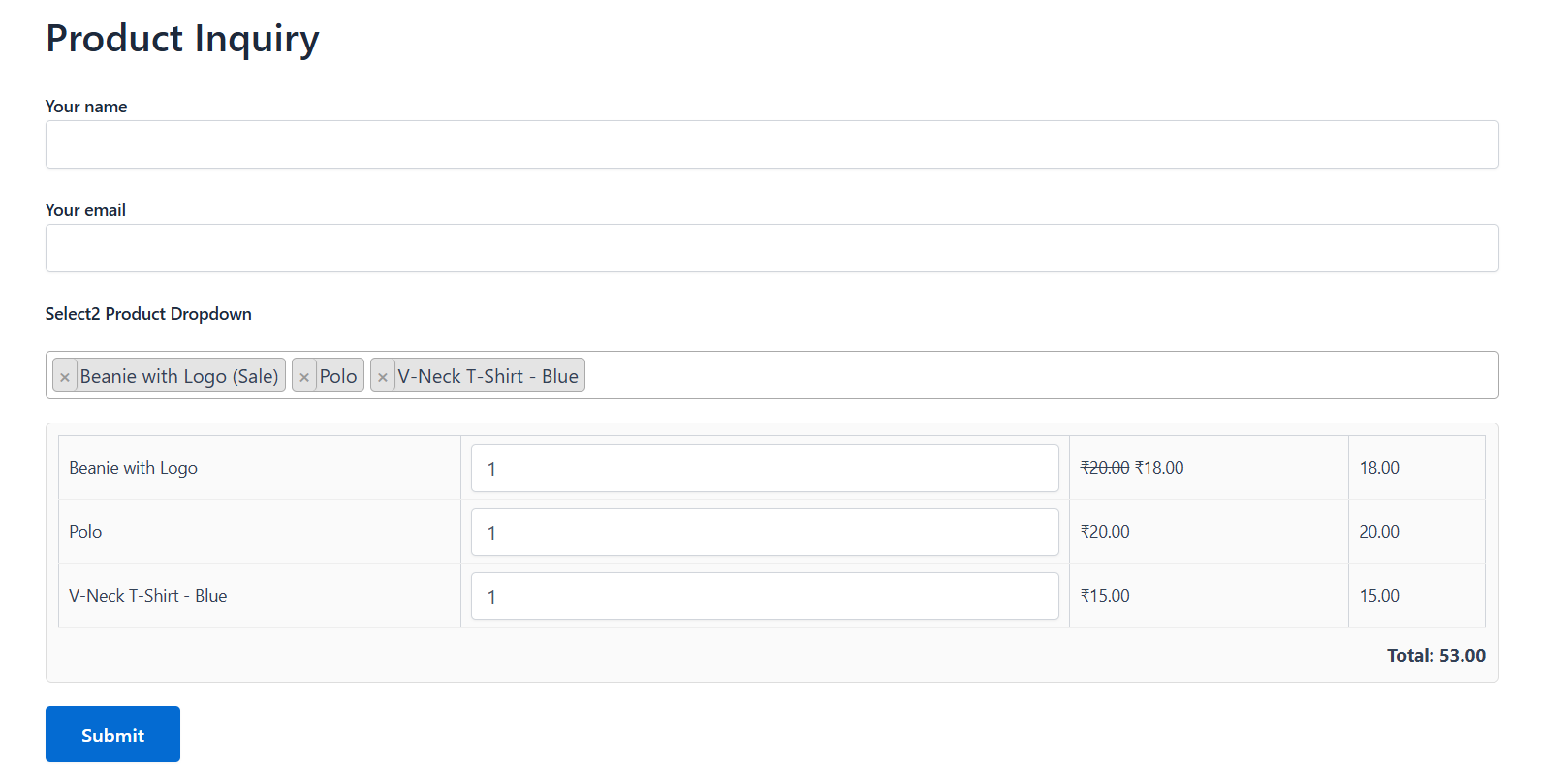
Product Dropdown Selector for Contact Form 7 lets you add a live, filterable WooCommerce product dropdown to any Contact Form 7 form turning it into a product order form, quote request form, or product enquiry form, with no code required.
Requirements before you start:
- WordPress 5.0 or higher
- Contact Form 7 plugin (installed and active)
- WooCommerce plugin (installed and active, with at least one published product)
- PHP 7.0 or higher
1.2 – Installation
- Download the plugin zip file.
- In your WordPress dashboard, go to Plugins → Add New → Upload Plugin.
- Choose the zip file and click Install Now.
- Click Activate Plugin.
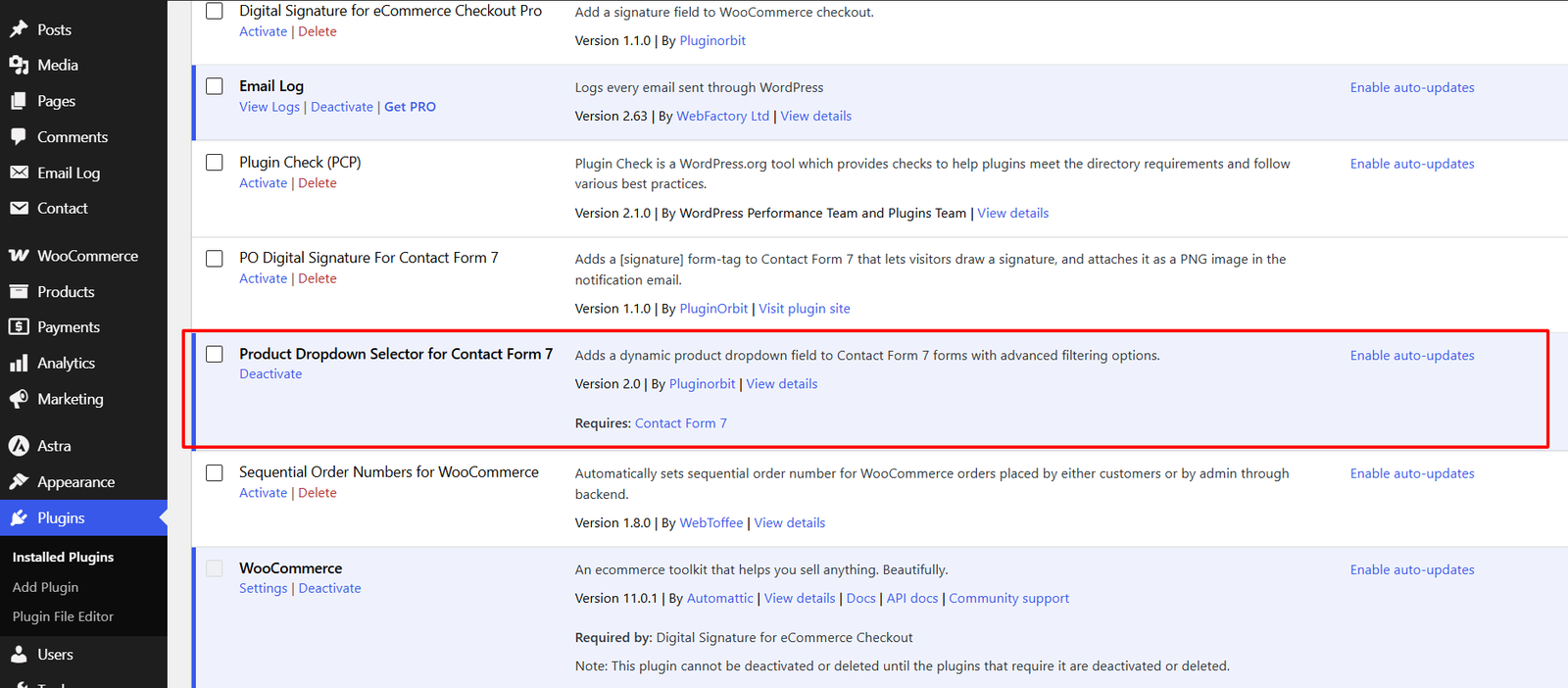
- Confirm both Contact Form 7 and WooCommerce are active the product dropdown field will not work without them.
1.3 – Quick Start: Adding Your First Product Dropdown
- Go to Contact → Contact Forms and open (or create) a form.
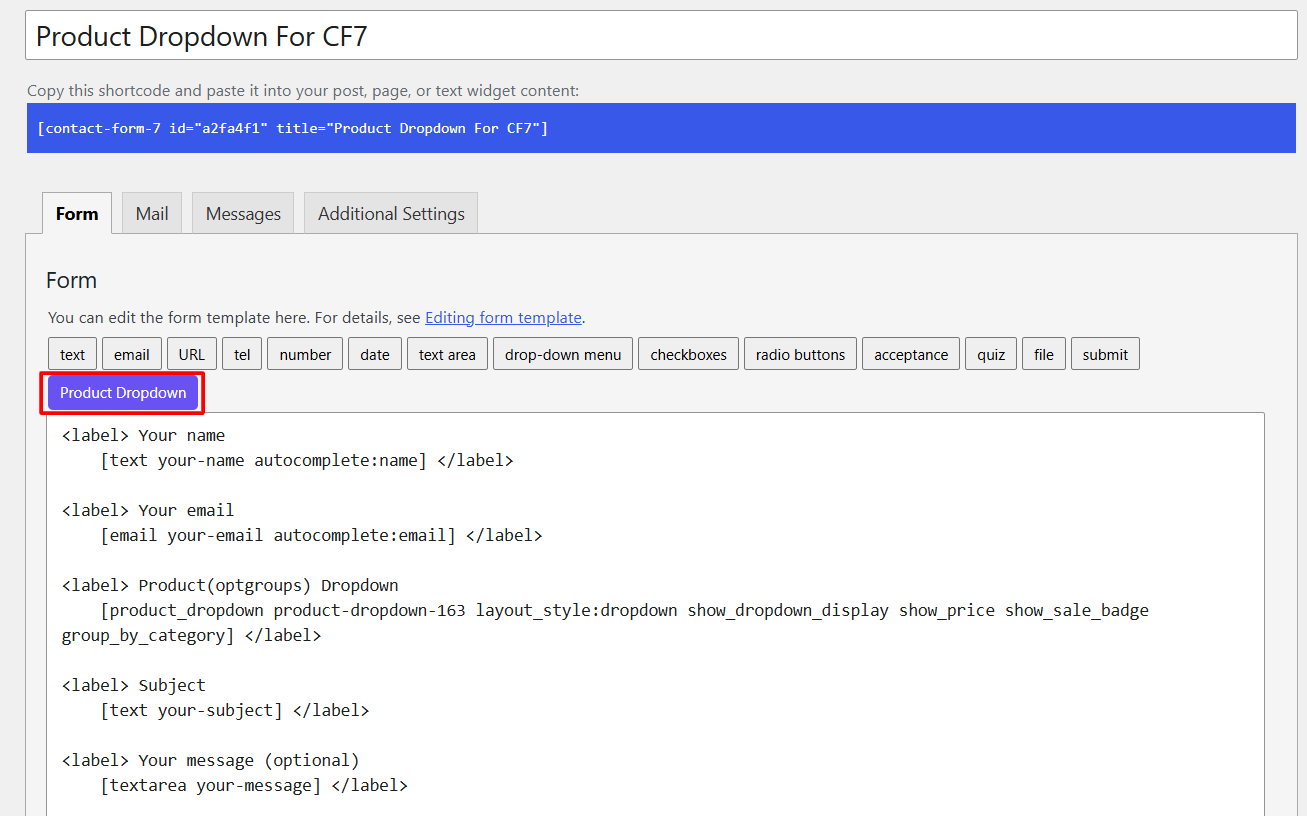
- In the form editor toolbar, click the Product Dropdown button.
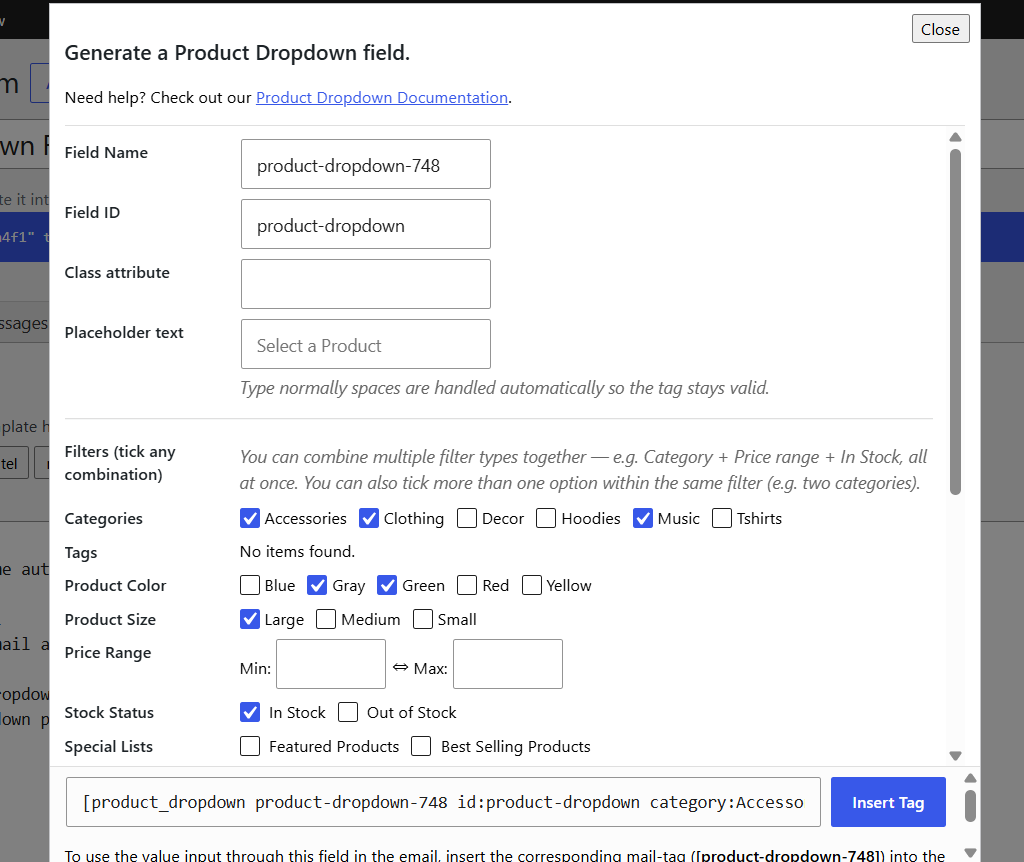
- In the popup, tick any filters you want (or leave all unticked to show every product), choose a Layout Style, and toggle any display options.
- Click Insert Tag.
- Click Save.
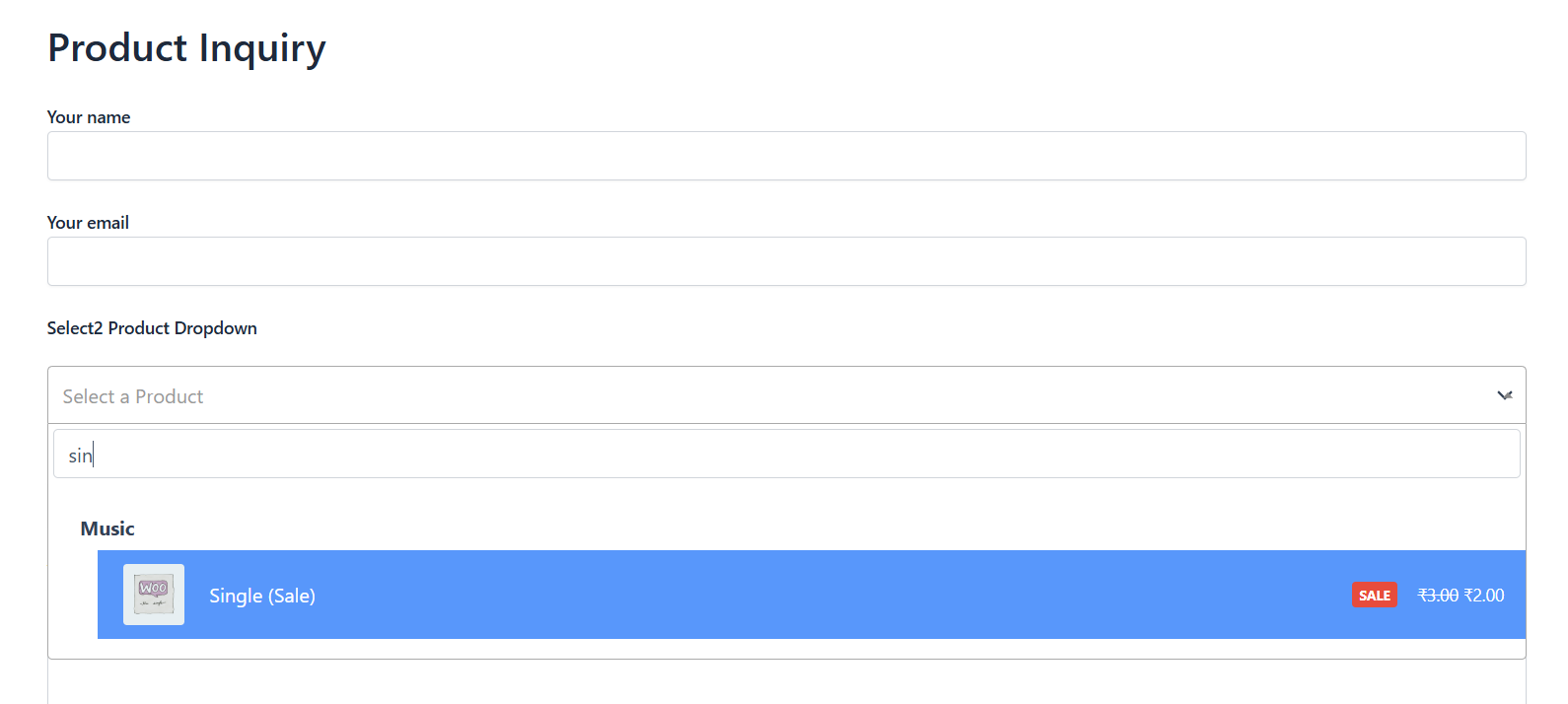
- Open the page where the form is embedded to see the live dropdown.