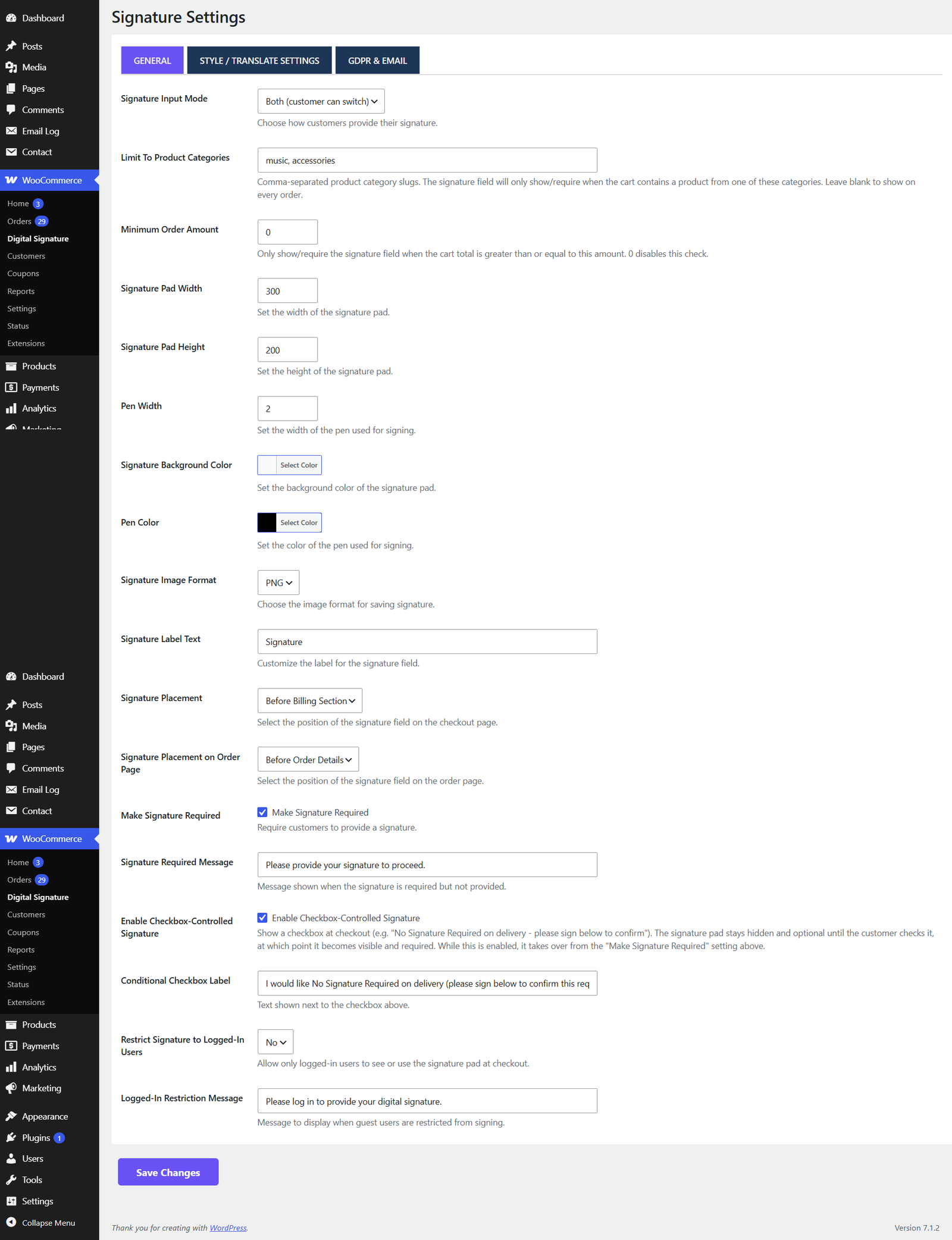
Go to WooCommerce → Digital Signature → General to find these options.
Pad appearance
Setting
What it does
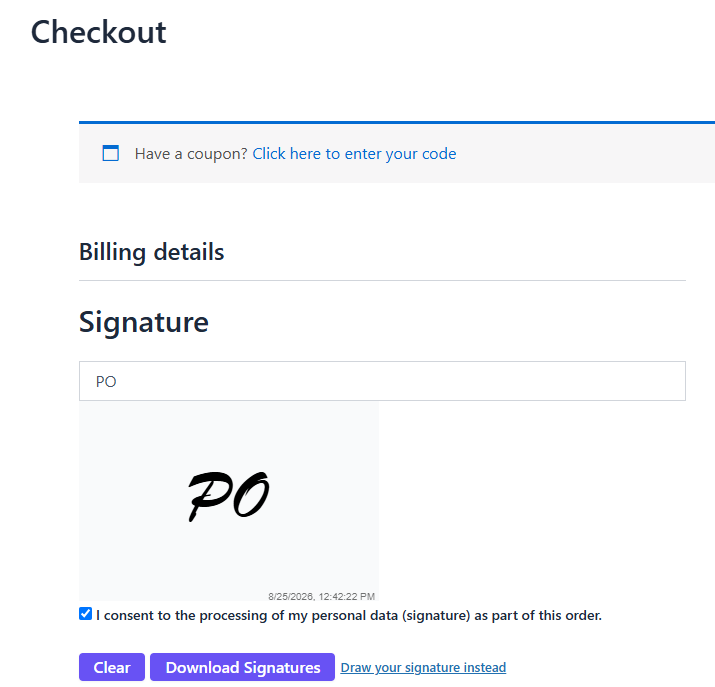
Signature Pad Width / Height
Size of the drawing canvas in pixels.
Pen Color
Colour of the drawn signature line.
Pen Width
Thickness of the pen stroke.
Signature Background Color
Background colour of the pad itself.
Signature Image Format
Save the signature as PNG or JPEG.
Placement
Setting
What it does
Signature Position on Checkout
Show the pad before or after the billing form.
Signature Position on Order Page
Show the saved signature before or after the order table on the order-details page.
Validation
Setting
What it does
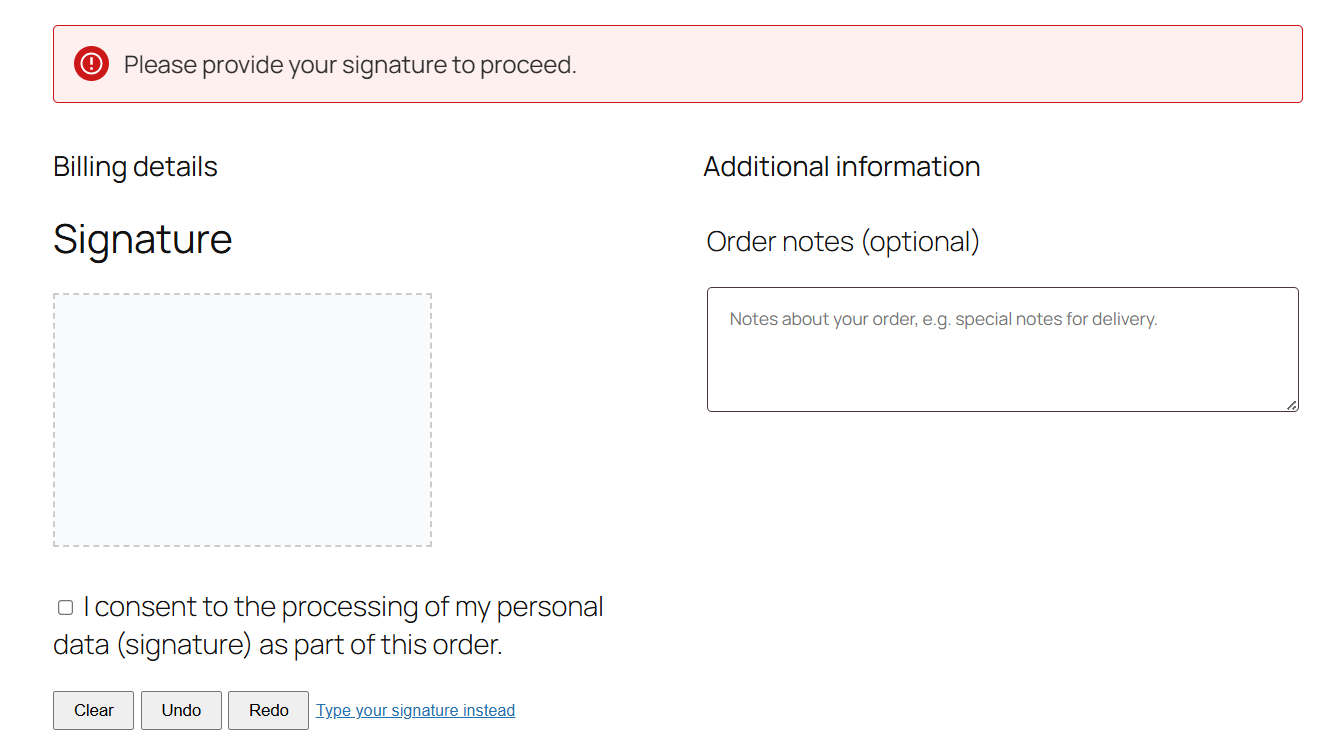
Make Signature Required
If enabled, the customer cannot place the order without signing.
Required Validation Message
The message shown when a required signature is missing.
Signature Label Text
The heading shown above the pad (e.g. “Signature”).
Checkbox-controlled signature requirement
For stores where a signature is only sometimes needed for example, a delivery courier normally collects a signature on delivery, but a customer can request “No Signature Required” instead you can make the requirement conditional on a checkbox at checkout, rather than always-on or always-off.
Setting
What it does
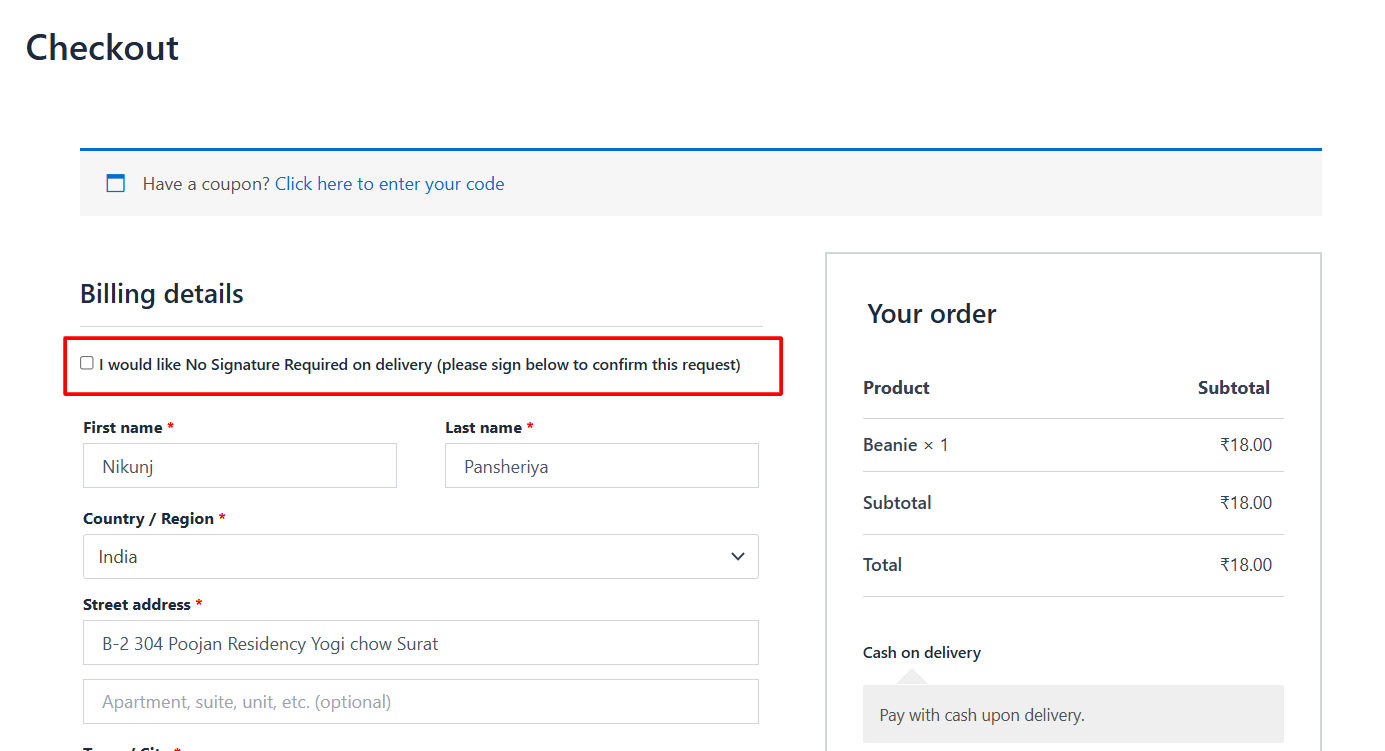
Enable Checkbox-Controlled Signature
Shows a checkbox at checkout. The signature pad stays hidden and optional until the customer checks it — at which point it becomes visible and required. While this is enabled, it takes over from the “Make Signature Required” setting above.
Conditional Checkbox Label
The text shown next to the checkbox (e.g. “I would like No Signature Required on delivery — please sign below to confirm this request”).
If the customer unchecks the box after drawing a signature, the pad hides again and any signature already drawn is cleared automatically, so it can’t be submitted with an order that no longer needs one.
Restricting when the pad appears
Setting
What it does
Limit To Product Categories
Comma-separated category slugs. The pad only appears when the cart contains a product from one of these categories. Leave blank to show for every order.
Minimum Order Amount
The pad only appears once the cart subtotal reaches this amount. Set to 0 to disable.
Use the category slug (as shown under Products → Categories), not the display name — e.g. rental-equipment, not “Rental Equipment”.